What Is a Chromebook? A Simple Explanation
Contents
You walk into a store for a new laptop. You see Windows machines, MacBooks, and then something called a Chromebook. You know the first two, but the Chromebook is a mystery. Is it a tablet with a keyboard? A dumbed-down laptop? The salesperson says it runs on Chrome OS, but you still aren’t sure what that means for your daily work.
Here is the plain truth: a Chromebook is a laptop that runs Google’s Chrome operating system. It is built around the Chrome web browser and Google services like Gmail, Drive, and Docs. You do most of your work in the browser, not with installed software. That is different from a Windows or Mac laptop where you install programs on the hard drive. This article will explain exactly what a Chromebook is, how it compares to other laptops, and whether it fits your needs.
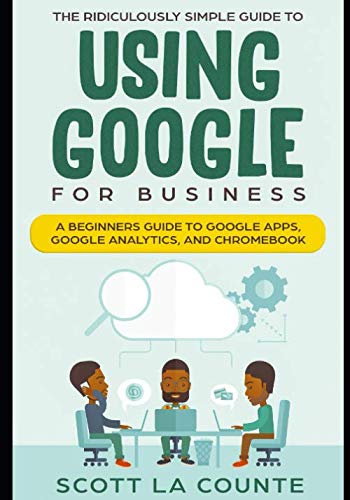
If you want a deeper walkthrough of Chrome OS basics, the book My Google Chromebook by Michael Miller (available on Amazon) covers everything from setup to advanced settings. It is a useful reference if you plan to switch to a Chromebook and want to get comfortable quickly.
What Exactly Is a Chromebook?
A Chromebook is a laptop, netbook, or convertible device that runs Chrome OS. Chrome OS is a Linux-based operating system designed by Google. It focuses on web applications and cloud storage instead of local software.
Unlike Windows or macOS, Chrome OS does not let you install traditional desktop apps. Instead, you use web apps like Google Docs, Netflix, and Spotify through the Chrome browser. You can also install Android apps from the Google Play Store on most modern Chromebooks. That opens up thousands of apps for productivity, entertainment, and creativity.
Chromebooks typically have limited local storage — 16GB to 64GB of eMMC or SSD storage. They rely heavily on cloud storage like Google Drive (usually 100GB free for a year, then paid). This design keeps costs low and simplifies security. Updates happen automatically in the background. You rarely see viruses or slowdowns because the system is sandboxed and verified each boot.
For a deeper look at how the operating system works, you can read our guide on OS basics. But in short, Chrome OS is a lightweight, fast system that depends on an internet connection for most tasks.
How Is a Chromebook Different from a Traditional Laptop?
The main difference is the operating system and the software model. A Windows or Mac laptop lets you install heavy applications like Adobe Premiere Pro, Microsoft Office (desktop version), or games. A Chromebook runs web versions of those tools, plus Android apps. Here are the key contrasts:
- Software: Chromebooks do not run Windows .exe or Mac .dmg files. You use web apps or Android apps. Microsoft Office is available as a web app or Android app, but the full desktop version does not run natively.
- Storage: Most Chromebooks have 32GB or 64GB of local storage. Windows laptops often start at 128GB or 256GB. Chromebooks expect you to keep files in the cloud.
- Offline capability: You can work offline with Google Docs, Sheets, and some Android apps, but the Chromebook is most useful when connected to WiFi.
- Security: Chrome OS is more secure out of the box. Each app runs in a sandbox. The system checks itself on every reboot. You don’t need antivirus software.
- Updates: Chromebooks update automatically in the background. You don’t wait for lengthy update installations. The entire update happens during a 10-second reboot.
One area where Chromebooks often excel is boot speed and battery life. Many models boot in under 10 seconds and last 8 to 12 hours on a charge. That is better than many budget Windows laptops at the same price point.
Who Should Buy a Chromebook?
Chromebooks are ideal for certain users and a poor fit for others. Here is a breakdown with real conditions.
Good fit:
- Students who need a device for typing papers, browsing research, and using Google Classroom. Chromebooks are cheap, durable, and easy to manage.
- Casual home users who check email, watch YouTube, shop online, and use social media. A $250 Chromebook handles all of that without frustration.
- Budget-conscious buyers who want a new laptop under $300. Most Windows laptops at that price are slow; Chromebooks feel snappier because Chrome OS is lightweight.
- People already invested in Google services — if you use Gmail, Google Drive, and Google Photos daily, a Chromebook reduces friction.
Poor fit:
- Professionals who need specific Windows or Mac software like Adobe Premiere Pro for video editing, AutoCAD, or full Microsoft Office with macros and advanced features. Chromebooks cannot run those.
- Gamers who want to play AAA titles. Chromebooks do not support Steam for Windows. Some support Android games and cloud gaming services like GeForce Now, but the library is limited.
- Users who need large local storage for media files, downloads, or offline access to many documents without a cloud subscription.
If you are choosing between a Chromebook and a traditional laptop, consider your software needs first. If everything you need runs in a browser or as an Android app, a Chromebook is worth it. If you need desktop apps, stick with Windows or Mac.
Performance on a Chromebook also depends on hardware choices. Laptop performance factors like processor, RAM, and storage type apply here too. Most Chromebooks use Intel Celeron, Pentium, or low-end Core i3 processors. 4GB of RAM is the minimum; 8GB is better for multitasking with multiple tabs and Android apps.
Storage type matters. Avoid models with eMMC storage if you can; they are slower. Look for Chromebooks with an SSD if possible. Read our comparison of SSD vs HDD differences to understand why SSDs are faster.
| Feature | Chromebook | Windows Laptop | MacBook |
|---|---|---|---|
| Operating System | Chrome OS | Windows 10/11 | macOS |
| App Ecosystem | Web apps + Android apps | Desktop apps + web apps | Mac apps + web apps |
| Local Storage (typical) | 16GB – 64GB | 128GB – 512GB | 128GB – 512GB |
| Price Range (new) | $150 – $700 | $200 – $2026+ | $999 – $3000+ |
| Offline Capability | Limited (work via offline enablement) | Full (most apps work offline) | Full |
| Gaming | Android games, cloud gaming | Full PC gaming | Limited gaming (Mac library) |
| Security Maintenance | Automatic updates, no antivirus needed | Antivirus recommended, manual updates | Automatic updates, low malware |
| Boot Time | Under 10 seconds | 15–45 seconds | 10–20 seconds |
| Battery Life (typical) | 8–12 hours | 6–10 hours (budget often less) | 8–12 hours |
5 Real Questions People Ask About Chromebooks
Can I use Microsoft Office on a Chromebook?
Yes, but not the full desktop version. You can use Office Online for free through the browser. You can also install the Android apps for Word, Excel, and PowerPoint from the Google Play Store. These mobile versions lack advanced features like mail merge, pivot tables, and macros. If you need those, a Chromebook will frustrate you.
Can a Chromebook replace a laptop?
It depends on your usage. For many students and casual users, yes — a Chromebook handles email, web browsing, documents, and video streaming without issues. For someone who needs Adobe Photoshop, video editing software, or PC games, no. Test your workflow for two weeks on a friend’s Chromebook before buying.
Do Chromebooks need antivirus software?
No. Chrome OS is designed with multiple layers of security. Each app runs in a sandbox. The operating system checks itself for integrity on every boot. Automatic updates patch vulnerabilities quickly. Google also provides a built-in security tool called the Chrome Cleanup Tool. You do not need to install third-party antivirus.
How long do Chromebooks last?
Chromebooks receive automatic updates from Google for a set period, typically 5 to 8 years from the model’s release date. After that, you stop getting new features and security patches. The hardware may last longer, but the software becomes outdated. Check the Auto Update Expiration (AUE) date for any model you consider.
Can I run Windows on a Chromebook?
Not easily. Most Chromebooks use processors and firmware that do not support Windows installation. Some older models with Intel processors could run Windows via a dual-boot setup like Crouton or using a virtual machine, but performance is poor and the process is complex. For most users, it is not a practical option. Buy a Windows laptop if you need Windows.
Takeaway: What to Remember About Chromebooks
- Chromebooks