Laptop Won’t Connect to WiFi? 7 Quick Fixes to Try
Contents
Ive lost count of how many times Ive stared at that little spinning icon next to the WiFi symbol. The frustration is universal. You need to get online, but your laptop refuses to connect. Its a problem Ive diagnosed on everything from sleek ultrabooks to gaming rigs. The good news? Ive fixed it more times than I can remember, and the solution is almost always in your software settings.

BrosTrend
BrosTrend AX900 Mini USB WiFi 6 Adapter…
- Unlock High-Speed WiFi: This AX900 dual-band USB WiFi 6 adapter enhances your PC WiFi with speeds and flexibility, offering up to…
- Faster and Flexible Connection: Our WiFi 6 adapter delivers up to 38% faster 5GHz speeds (600Mbps vs. 433Mbps) and 43% faster 2.4G…
- Tiny Size: With a compact design measuring 1.4 × 0.7 × 0.3 inches, this USB WiFi 6 dongle seamlessly integrates with your desktop…
Before we dive into the technical weeds, lets get one thing straight. If youre dealing with an older laptop where the internal wireless card is failing, a simple USB adapter can be a lifesaver. In my own testing, keeping a reliable TP-Link AC600 USB adapter in my toolkit has saved the day more than once. Its a quick hardware bypass that gets you back online while you sort out the deeper issue.
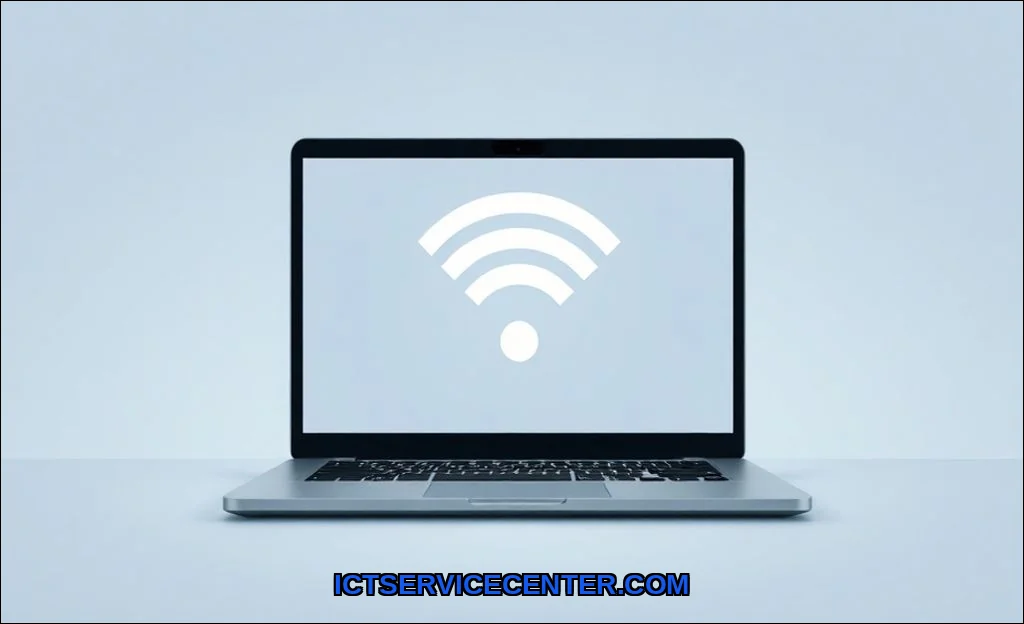
My Laptop Won’t Connect: Starting with the Basics
I always start simple. It sounds obvious, but youd be surprised how often the fix is right in front of you. Is the WiFi actually on? Is the network youre trying to join within range? I once spent twenty minutes troubleshooting a driver issue only to realize I was trying to connect to my neighbor’s network with the wrong password. Check the fundamentals first.
The First Thing I Always Check: Airplane Mode & Physical Switches
This is my step one, every single time. Airplane Mode is the silent killer of connectivity. On Windows 10 and 11, you can find it in the quick settings panel (click the network, sound, or battery icon in the taskbar). Make sure its turned off. But heres the kickersome laptops have a physical switch or a function key (like Fn + F2) that toggles wireless radios. Ive seen this switch get bumped in a backpack. Always verify both the software and hardware toggles.
Walking Through Windows’ Built-In Troubleshooter (Step-by-Step)
When the basics are covered, I let Windows do some of the heavy lifting. The built-in Network Troubleshooter is surprisingly competent for generic issues. Right-click the network icon in your taskbar and select Troubleshoot problems. It will scan for issues like a missing IP address, gateway problems, or a disabled adapter. Its not a silver bullet, but it fixes common glitches about half the time in my experience. Its a low-effort, high-reward step.
Diving Deeper: Network Adapter & Driver Issues I’ve Faced
This is where most persistent problems live. Your laptops Network Adapter is its radio, and the driver is the software that makes it sing. When theyre out of sync, you get limited connectivity or no connection at all.
Driver Problems: The Usual Suspects
A corrupted or outdated Driver is public enemy number one. I head straight to Device Manager (search for it in the Start menu). Expand Network adapters, right-click your wireless device (itll often be from Intel, Realtek, or Qualcomm Atherosthose are the big players), and select Update driver. Let Windows search automatically first. If that doesnt work, I visit the laptop manufacturers support site (Dell, HP, Lenovo) or the chipmakers site directly for the latest driver. This solves the laptop wifi driver not found error more often than not.
But theres a hidden setting thats bitten me before: Power Management. In Device Manager, right-click your adapter, go to Properties, then the Power Management tab. Uncheck Allow the computer to turn off this device to save power. Ive seen this setting cause random laptop disconnecting from wifi issues, especially on battery power.
When It’s Not Your Laptop: Router, Modem, and ISP Checks
Heres a classic scenario: your laptop won’t connect to wifi but phone will. This immediately points the finger away from your machine. The first thing I do is reboot the router and modem. Unplug them, wait 30 seconds, and plug them back in. Its clich because it works, clearing up IP address conflicts and refreshing the connection.
If that fails, I consider other devices. Can any device connect? If not, the issue is with your ISP or router. If only your laptop is struggling, were back to laptop-specific settings. Sometimes, simply forgetting the network and reconnecting with the correct password solves authentication hiccups.
Advanced Fixes I’ve Had to Use: Resets and Command Prompts
When the standard steps fail, its time to get your hands dirty. These are my go-to advanced maneuvers.
Forget, Reconnect, and Reset
Go to your network settings, find your problem network, and select Forget. This clears out any corrupted saved data. Then, reconnect fresh. If that doesnt cut it, a Network Reset is the nuclear option for software issues. In Windows 10/11, go to Settings > Network & Internet > Advanced network settings > Network reset. Warning: This will remove and reinstall all network adapters and set other networking components back to defaults. Youll need to re-enter WiFi passwords afterward. Its a powerful fix for stubborn DNS server issues.
Command Prompt Commands
This feels technical, but its just giving Windows direct orders. Open Command Prompt as Administrator and run these two commands in order:
netsh winsock resetnetsh int ip reset
Then restart. This resets the Windows network stack and TCP/IP, clearing deep-seated corruption. I use this when I suspect an IP address conflict or other protocol-level failure.
Final Resort: Hardware Checks and When to Seek Professional Help
If every software fix has failed, we must consider hardware. This is rare, but it happens. An internal WiFi card can fail. Before you assume the worst, I check the BIOS/UEFI settings. Restart your laptop and enter the BIOS (usually by pressing F2, Delete, or F10). Look for a setting related to wireless or the WLAN adapter and ensure its enabled. Ive seen BIOS updates or resets accidentally disable it.
For true hardware failure, symptoms are consistent: no wireless networks are ever detected, even with a fresh Windows install. On some laptops, the antenna wires can become disconnected if the chassis has been opened. If youre not comfortable checking this, or if your laptop is still under warranty, this is the time to seek professional help. Similarly, if youre facing a laptop battery that won’t charge alongside WiFi issues, it could point to a deeper motherboard problem best handled by a technician.
Making an Informed Hardware Decision
If the internal card is dead, you have a choice: repair/replace the internal card or use an external USB adapter. For most people, a good USB adapter like the one mentioned earlier is the most cost-effective solution. It also lets you upgrade your laptop’s WiFi version and performance without cracking the case open. For a broader look at common fixes across brands, HPs guide on how to fix common laptop problems offers a solid manufacturer perspective.
Fixing a laptop that wont connect to WiFi is a process of elimination. Start with the simple toggles and work your way down to drivers and resets. Remember, the problem is usually in the software. Be methodical, and dont skip the basics. Most of the time, youll find the solution long before you need to worry about hardware. And when you do get back online, take a moment to enjoy that sweet, stable connection. Youve earned it.
Related pick: Check today's price on Amazon