
 By
You just plugged in a hard drive or monitor, and your laptop gives no response. No sound, no new drive, no display. This page walks you through the exact fixes, in order, so you can stop guessing and start working.
In short: Most cases are caused by a faulty cable, a dead port, or a driver glitch. Start with a reboot and a port swap. If that fails, clear the device driver in Device Manager and disable USB power saving. These steps resolve the majority of recognition issues without opening the case.
Quick picks
Our shortlist for this job · tap one to see today's price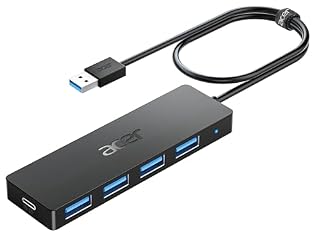
Adds 4 USB 3.0 ports to test devices and rule out a single bad port on your laptop.
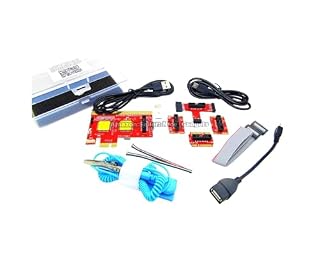
Tests motherboard USB controller health without disassembling the laptop, saving time on complex faults.
Why your laptop stops recognizing external devices
Recognition failures usually fall into three buckets: hardware faults, driver errors, or power settings. Hardware faults include broken ports or damaged cables. Driver errors happen when Windows or macOS fails to assign a proper software layer to the device. Power settings are common in laptops, where the OS cuts power to ports to save battery. If that sounds like your bench, read up on laptop not recognizing usb drives next.
The most likely cause depends on the device type. For USB peripherals, check the cable first. For monitors, check the display mode. For Bluetooth, check the pairing status.
- USB drive or stick: cable, port, or driver.
- External monitor: cable, HDMI/USB-C port, or display settings.
- Bluetooth device: power, range, or OS Bluetooth service.

Not needed here.
- This 7-port USB 3.0 data hub can instantly expand 1 USB 3.0 port to 7 external USB 3.0
- Besides 7 SuperSpeed USB 3.0 ports, this USB 3.0 splitter offers a charging dedicated
Run the 60-second isolation test
Before opening any settings, rule out the device and the port. This test takes under a minute and prevents wasted time on software fixes that aren’t the issue.
Unplug the external device. Restart your laptop. Wait for it to fully boot. Plug the device back in. Listen for the connection sound or check the notification. If it works, the issue was a temporary software hang.
If it still doesn’t work, try a different port on the laptop. If it’s a USB-C or HDMI device, use a different port of the same type. If you have a USB hub, plug the device into that instead of a direct laptop port.
Pro tip: If the device has a physical power switch, make sure it’s set to ON before testing.
Lets you test multiple ports at once and isolates whether one specific laptop port is dead.
- Acer USB Hub extends your device with 4 additional USB 3.0 ports, ideal for connecting
- The USB splitter is designed with 4 USB 3.0 data ports, you can transfer movies
Fix driver glitches in Device Manager
If the port and cable are fine, the next step is the driver. A corrupted or outdated driver can prevent Windows from seeing the device at all. For the detail, see our notes on external ssd disconnects.
Press Windows key + X and select Device Manager. Look for the device under ‘Universal Serial Bus controllers’, ‘Disk drives’, or ‘Monitors’. You may see a yellow exclamation mark or ‘Unknown device’.
Memory cards follow the same path: if a laptop SD card is not detected, check the card reader under Disk drives in Device Manager, then work through the drive-letter and hardware checks.
Right-click the problematic entry. Select Uninstall device. If a box appears asking to delete the driver software, check it. Restart the laptop. Windows will reinstall the basic driver automatically on next boot.
For macOS users, open Apple Menu > About This Mac > System Report. Look for the device under ‘Hardware’. If it lists the device but shows ‘No’, the driver is missing. Reboot with the device connected to force a re-detect.
Disable USB power saving settings
Laptops aggressively manage power. Windows may turn off a USB port it thinks is idle, causing devices to disconnect or stop being recognized.
Go to Device Manager again. Expand ‘Universal Serial Bus controllers’. Right-click USB Root Hub and select Properties. Go to the Power Management tab. Uncheck Allow the computer to turn off this device to save power. There is more on ssd detection failure laptop in a separate guide.
Repeat this for every USB Root Hub in the list. This single change fixes random disconnects on many Windows 10 and 11 laptops.
For a deeper check, go to Settings > System > Power & Sleep > Additional Power Settings. Click Change plan settings, then Change advanced power settings. Find ‘USB settings’ and set ‘USB selective suspend setting’ to Disabled.
Update chipset and USB controller drivers
If driver reinstallation didn’t work, the issue may be deeper in the motherboard chipset. The chipset manages all communication between the CPU and peripherals.
Visit your laptop manufacturer’s support site (Dell, HP, Lenovo, etc.). Enter your specific model number. Download and install the latest chipset driver and Intel/AMD USB 3.0 eXtensible Host Controller driver.
After installing, restart the laptop. This often resolves cases where Windows reports the hardware is present but cannot communicate with it.
Check for physical port damage
Look closely at the port on your laptop. Bent pins, dust, or debris can break the electrical contact. This is common on bottom-docked laptops where ports collect lint. For the detail, see our notes on monitor glitches with lines when turned on until replug.
Power off the laptop and unplug it. Use a soft, non-conductive tool like a plastic spudger or compressed air (not a metal paperclip) to gently clean the port. Do not insert anything that can scratch the gold contacts.
If a port feels loose or has visible bent pins, stop. The port is likely broken on the motherboard. Further forced insertion can damage the circuit board and other pins.
Safety first: Never use metal tools like paperclips inside a laptop port. You can short-circuit the board and cause permanent damage.
How to stop it happening again
Prevention is about cable quality and port hygiene. Cheap, long USB cables often fail on data pins while still charging. This causes the ‘charging but not recognized’ error.
Buy a short, high-quality cable (under 6 feet) with known data transfer capability. Avoid USB-C cables that are labeled ‘Charge Only’ for data devices.
For monitors, use a cable that supports the resolution and refresh rate you need. HDMI 2.0 is required for 4K at 60Hz. USB-C displays often require DisplayPort Alt Mode support on your laptop, which not all models have.
Keep a powered USB hub at your desk. It isolates your laptop’s ports from power spikes and provides consistent voltage for hard drives and docks.
The bottom line
Start with the reboot and port swap. If that fails, clear the driver in Device Manager and disable USB power saving. These three steps solve most recognition issues. If the problem persists and you have no open ports, get a powered hub to isolate the fault.
- Acer USB Hub extends your device with 4 additional USB 3.0 ports, ideal for connecting
- The USB splitter is designed with 4 USB 3.0 data ports, you can transfer movies
Frequently asked questions
Why does my USB drive charge but not show up?
This usually means the data pins in the cable or port are broken, but the power pins are fine. Try a different USB cable that is rated for data transfer. If it still fails, the drive’s internal controller may have failed.
My HDMI monitor says 'No Signal'. What do I check?
Check the cable on both ends. Press Windows + P on your laptop to ensure ‘Extend’ or ‘Duplicate’ is selected. If using a USB-C adapter, make sure your laptop supports DisplayPort Alt Mode, which not all USB-C ports do.
Should I install drivers from the device manufacturer or my laptop brand?
For generic USB sticks or hubs, let Windows handle the drivers. For specific external hardware like a Thunderbolt dock, use the manufacturer’s software. For underlying controller issues, use your laptop brand’s chipset drivers.
Can BIOS settings cause a USB device to be ignored?
Yes. In rare cases, a port may be disabled in the BIOS. Restart your laptop, enter the BIOS (usually F2 or Del key), and ensure ‘USB Legacy Support’ or ‘USB Port’ settings are enabled. Do not change other settings if you are unsure.