
 By
Your laptop cursor is stuck, jumping around, or dead entirely, and you want to know if that tiny mouse pad under your palm rest is actually swappable. This page tells you exactly which touchpads can be replaced, which are glued in place, and what to try before you spend money on a new one.
In short: Yes, in most cases the touchpad on a laptop can be replaced, but it is not a universal plug-and-play part. Many modern laptops have the touchpad glued into the bottom case, making replacement a major teardown that usually requires professional tools and skill. Older laptops use a ribbon cable to the motherboard, which makes DIY replacement feasible with the right driver.
Quick picks
Our shortlist for this job · tap one to see today's price
Prevents stripping screws when you are ready to open the laptop for a repair.

Keeps you productive if the touchpad fails during your driver fixes.
What determines if your touchpad can be replaced
Before you buy anything, you need to know how your laptop is built. The method of replacement depends entirely on the design of your specific model. Adhesive vs. ribbon cable is the main difference. The other half of this decision is restoring touchpad functionality.
If your laptop is older or a thicker model, the touchpad is likely held down by screws and a ribbon cable. This is the classic separate part that can be unplugged and swapped with a new one. It is the most repair-friendly design.
Newer, thinner laptops often use a glued-in touchpad or even a glass panel that is part of the top case. In these models, there is no single touchpad unit to buy. You are replacing the entire top cover, which is a much bigger job.
- Ribbon cable design: Easier to replace, cheaper parts, better for DIY.
- Glued panel design: Harder to replace, often voids warranty, likely needs a pro.
- Top case assembly: Most expensive repair, usually sold as a whole unit.
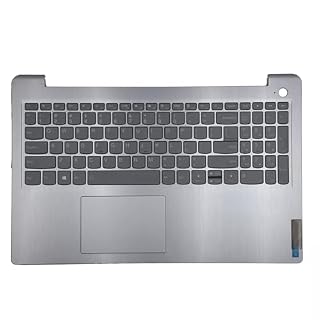
- 100% Original Brand New Notebook Palmrest Upper Case with US Layout Backlit keyboard
- 5CB1B65660 AP21P000600.
Why your touchpad might be moving by itself
Ghost cursor or a moving arrow with no input is a common symptom. This does not always mean the hardware is broken. In many cases, it is a software glitch or a driver conflict.
Start with the basics. Press the Fn key plus the key that has a touchpad icon on it. This usually toggles the pad on and off. If the cursor stops moving, your issue was just that the pad was accidentally disabled.
If it keeps moving, you likely need to update your touchpad driver. Open Device Manager, find Mice and other pointing devices, right-click your touchpad, and choose Update driver. You can also try uninstalling it and restarting the laptop to let Windows reinstall it fresh.
Tip: A dirty surface can also cause false touches. Wipe the pad with a microfiber cloth to rule out dirt. The other half of this decision is cursor not moving touchpad.
A wireless mouse lets you keep working while you wait for the driver to reinstall.
- Compact Mouse: With a comfortable and contoured shape, this Logitech ambidextrous
- Durable and Reliable: This USB wireless mouse features a line-by-line scroll wheel, up
How to teardown the laptop touchpad area
If you are confident the hardware is the problem, you might try to open the laptop. Always power off, unplug, and remove the battery if you can. This protects your components from static electricity and accidental shorts.
You will need the right screws. Most laptops use tiny Phillips or Torx screws. A precision screwdriver set is essential to avoid stripping the heads. Lay your screws out in order so you can put them back in the right holes.
Opening the back panel is the goal. The touchpad ribbon cable is usually held by a small clip. Gently release the clip and unplug the cable. The pad itself might be held by screws or adhesive. If it is glued, you may need heat or a pry tool, which is risky.
Safety: Do not puncture any battery you see inside. If the case is glued shut, use a plastic spudger, not metal, to avoid cracking it.
When to stop and get a professional repair
Not every laptop is meant to be opened by its owner. If your laptop is sealed with adhesives or the glass panel is cracked, you should stop. These designs require special opening kits and carry a high risk of making the damage worse.
Also, if you are not comfortable with the ribbon cable, do not force it. A broken connector is a more expensive fix than the touchpad itself. You might need to replace the motherboard port. We go through repairing failed pointer devices step by step in its own article.
Consider professional help if the warranty is still active, or if the cost of the repair tools is more than the value of the laptop. A repair shop can often replace a glued touchpad assembly faster and with better tools than you have at home.
- Do it yourself: Ribbon cable design, no warranty, you have the tools.
- Get help: Glued panel, warranty active, no experience with laptop repair.
Choosing the right replacement touchpad
Replacement touchpads are not universal. You must buy the one that matches your exact laptop model. A part that fits a Lenovo will not fit a Dell, even if they look the same size.
Check the model number on the sticker under your laptop. Search for your model number plus touchpad assembly or top case. You might find a palmrest that includes the touchpad and keyboard, which is a common replacement part.
If you find a generic part, read the reviews carefully to ensure it has the right connectors. Mismatched cables are the most common reason a new touchpad fails to work.
For some models, like certain Lenovo laptops, a replacement upper case with the touchpad included is the standard fix. It is a direct drop-in replacement for the top half of the laptop.
How to test your new touchpad
Once your new touchpad is installed, the first test is the click test. Make sure the left and right buttons snap into place. If the click is mushy, you likely missed a clip.
Next, test the multi-touch gestures. Two-finger scroll and pinch-to-zoom should feel smooth. If they do not, your new part might not support the older tap-to-click setting, or your driver is outdated.
Go to Settings > Bluetooth & devices > Touchpad and make sure the new part is enabled. Windows should recognize it immediately. If not, restart the laptop one more time to force a driver refresh.
- Power on the laptop and check for an active cursor.
- Scroll with two fingers to test the sensor range.
- Click in the corners to check the button mechanism.
Frequently asked questions
Can I replace just the touchpad sensor?
Yes, but only if it is a separate component. In most modern laptops, the sensor is glued into a glass panel that you must replace as a whole assembly. It is very difficult to separate the sensor from the glass without breaking it.
How long does a touchpad replacement take?
A professional shop usually takes two to four hours. A DIY repair with a ribbon cable design can take an hour if you have the right tools. Glued panels can take several hours due to the opening process.
Will a new touchpad work without a new driver?
Most likely, yes. Windows usually has a generic driver that handles basic movement. However, you might lose advanced gestures until you install the specific driver for your laptop brand.
Is a replacement touchpad worth it?
It is worth it if your laptop is still a good computer. If the machine is old or slow, the cost of the part plus a professional repair might not be better than buying a new laptop.
Why is my laptop touchpad not working but mouse works?
This is usually a software setting. Windows has a toggle to disable the touchpad when a mouse is connected. Check Settings > Bluetooth & devices > Touchpad and make sure it is off so your pad works alongside your mouse.
The bottom line
Your touchpad can be replaced, but the difficulty depends on your laptop's design. Start with the software fixes in this guide before buying a new part, as a driver update often solves the problem for free. If you must open the laptop, a precision screwdriver set is your first purchase.
- - 40Pcs screwdriver set has 30 CRV screwdriver bits which are phillips PH000(+1.2)
- - All our screwdriver bits are made of high quality CR-V chrome vanadium steel. CR-V
Frequently asked questions
Is it cheaper to replace the touchpad or the whole laptop?
For most repairs, replacing the touchpad is cheaper. However, if the part is expensive and the labor cost is high, it can be close to the price of a new machine. Do the math on your laptop’s age.
Can I use my laptop if the touchpad is broken?
Yes, you can connect a Bluetooth or USB mouse. Your laptop’s functions will not be affected, only your input method. A wireless mouse is a good temporary fix while you troubleshoot the hardware.
What if my touchpad is moving by itself?
This is usually a software glitch or a dirty pad. Clean the surface and update your driver. If the issue persists, it could be a short in the ribbon cable, which requires a professional inspection.