Laptop Keyboard Not Working? Try These 7 Fixes
Contents
I was in the middle of a deadline when it happened. My fingers flew across the keys, and then nothing. The cursor sat there, blinking mockingly. A laptop keyboard suddenly stopping is a special kind of tech panic. It feels personal, like your machine has decided to go on strike. Ive been there, and Ive fixed it more times than I can counton my own gear and for countless others.
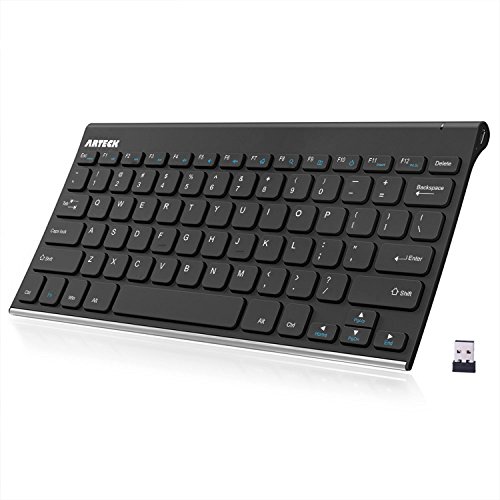
Before we dive into the diagnostic trenches, lets get you back to work. The first thing I do in this situation is grab an external keyboard. Its the ultimate diagnostic tool and a lifeline. Plugging in a simple, reliable wired keyboard like the Logitech K120 Wired immediately tells you if the problem is with Windows itself or isolated to your laptops built-in hardware. If the external keyboard works, you can breathe a sigh of relief and start troubleshooting the internal one systematically.

My Laptop Keyboard Just Died: First Steps I Always Take
Dont jump to worst-case scenarios. Start simple. I always begin with a full shutdownnot a restart, but a complete power down. Hold the power button for 10 seconds, wait 30 seconds, then boot back up. This clears temporary glitches in the keyboard controller. Next, I check for obvious physical issues. Is there a crumb wedged under a keycap? A recent spill, even a minor one? A quick visual inspection can save you hours. For a deeper clean, I follow a guide on how to clean a laptop keyboard safely to avoid causing more damage.
The Software Culprits: Ruling Out Windows & Driver Issues
If a reboot didnt help, software is the next suspect. In my experience, a recent Windows Update is a frequent offender. The update can introduce incompatibilities or, in rare cases, corrupt the keyboard driver.
Navigating Device Manager Like a Pro
This is where we get hands-on. I open Device Manager and find the “Keyboards” section. I right-click on the standard PS/2 or HID keyboard device and select “Uninstall device.” Heres the step most guides miss: I check the box that says “Delete the driver software for this device” before confirming. This forces Windows to fetch a fresh driver on reboot, rather than reinstall a potentially corrupted one. After the restart, Windows will re-detect and install the driver. This specific uninstall/reinstall process has solved more driver corruption issues for me than a simple update.
Digging Deeper: System Settings & Sticky Keys
Sometimes, the fix is hiding in plain sight within Windows settings. Accessibility features, while helpful, can sometimes activate unintentionally and lock up input.
- Filter Keys: This feature ignores brief or repeated keystrokes. If its turned on with high sensitivity, it can make your keyboard seem completely dead. You can turn it off in Ease of Access settings.
- Sticky Keys: Another accessibility setting that modifies how key combinations work. Its worth toggling off during diagnostics.
I also boot into Safe Mode. If the keyboard works there, youve confirmed a software conflict with a recently installed program or driver. Its a clean, effective test.
When It’s Physical: Checking for Spills & Hardware Damage
If all software checks fail, we must consider the hardware. This is the moment of truth. I start by gently inspecting the keyboard ribbon cablethe flat, wide connector that links the keyboard to the motherboard. On many laptops from Dell, HP, and Lenovo, this cable can become slightly dislodged over time from flexing or impact. Reseating it is a common fix.
Look for signs of liquid damage: sticky keys, discoloration, or corrosion. Even a small spill can migrate and short the circuits. A physical obstruction under the keycaps is another classic culprit. Regular keyboard maintenance for long-term performance can prevent these issues from creeping up on you.
The Last Resort: External Keyboard Test & BIOS Check
This two-part test is my final diagnostic. First, as mentioned, I use an external USB keyboard. If it works perfectly, the problem is almost certainly with the laptops internal keyboard or its connection.
Second, I reboot and enter the BIOS or UEFI setup menu (usually by pressing F2, Delete, or F10 during startup). This is a critical step most people overlook. If the keyboard works in the BIOS menuyou can navigate with the arrow keysthen the hardware is fundamentally functional. The problem is a Windows or driver issue. If the keyboard is also dead in the BIOS, youre facing a true hardware failure. This comparison of built-in vs. external keyboard results is the definitive diagnosis.
For a broader look at general laptop fixes, including some related hardware topics, HPs support resource on fixing common laptop problems offers a solid manufacturers perspective.
What I Learned From My Own Keyboard Failures
Ive had a keyboard die after a Windows update. Ive had one succumb to soda. Each failure taught me something. The update issue was a corrupted driver I had to forcibly delete. The spill required a full keyboard replacement, which was less expensive than I feared. The key is a methodical process: rule out software completely before assuming hardware. Start with the free, easy fixesthe reboot, the driver reinstall, the settings check. Move to the physical inspection. Let the external keyboard and BIOS test guide your final verdict.
A non-responsive keyboard feels catastrophic, but its rarely the end of the laptop. More often than not, its a software gremlin you can banish with a few focused steps. And if it is hardware, knowing for sure gives you the power to decide on a repair or a reliable external substitute. Keep calm, test systematically, and youll almost always find the cause.