
 By
You press the backlight key and nothing happens. The keys stay dark, even in a dim room, and you are left guessing whether the key, a setting, or the hardware is at fault.
In short: Press the key with the backlight icon (with Fn if needed), cycle the brightness levels, and check the timeout. If that fails, check the maker app, the BIOS setting, and the driver. A light that works in BIOS but not in Windows points to software; one that never comes on points to the BIOS setting, a loose cable, or dead LEDs.
Key takeaways
- First confirm the laptop actually has a backlight. No key with a backlight icon usually means no backlight hardware.
- Each maker uses a different key: Dell Fn + F5, F6, F7, or F10; HP F5 or F4; Lenovo Fn + Spacebar; ASUS Fn + F7.
- A backlight that works in BIOS but not in Windows points to software or a driver.
Check first: does your laptop have a backlight?

Start here. A backlight is a layer of LEDs under the keys: if the laptop was sold without it, no key, setting, or driver can switch it on. Plenty of budget laptops ship without one.
Look along the top row for a small icon like a keyboard with rays of light above it. On Lenovo laptops it is often on the Spacebar, and on some Dell XPS models it sits on the Right Arrow key.
If no key shows that icon, check the keyboard line in the specifications on the maker support page for your exact model. The model number is on a sticker on the bottom, or under Settings > System > About.
Do not mix up the two lights: turning the screen brighter will not light the keys. If the screen stays dim at full brightness, that is a different fault.
The 2-minute checks: the right key, brightness, and timeout
Work through these in order: most dead backlights come back to life here.
- Press the backlight key. Find the key with the backlight icon and press it once. On many HP laptops the key works on its own. If nothing happens, hold Fn and press it again: the top row may act as F1 to F12.
- Press it again, twice more. The key cycles through brightness levels, usually off, dim, and bright, then back to off. Keep pressing until you have been through the full cycle.
- Toggle Fn lock. On Dell and Lenovo laptops, Fn + Esc switches the top row between function-key mode and hotkey mode. Press it once, then try the key again, first alone and then with Fn.
- Try it in a dark room. In bright daylight a dim backlight is hard to see. Cup a hand over the keys before you decide it is dead.
- Plug in the charger. Some laptops switch the backlight off when the battery runs low or Battery Saver is on. Plug in and press the backlight key again.
Backlight keys by brand: Dell, HP, Lenovo, and ASUS

The key changes by maker and model line. The icon on the key always wins: if your keyboard shows the icon on a different key, use that key.
Dell: Fn + F5, F6, F7, or F10; some XPS models use Fn + Right Arrow.
HP: F5 or F4, with Fn if needed. Some models use F9 or F11.
Lenovo: Fn + Spacebar. Some models put the icon on Esc instead.
ASUS: Fn + F7; some models use Fn + F4 for brighter and Fn + F3 for dimmer, and gaming models often use Fn + Up and Down arrows.
If your maker is not listed, Acer included, check the Hotkeys chapter of your manual or the maker support page for your exact model. Do not guess from another brand: the same key number does different jobs on different makers.
What the symptom tells you

Match what you see to the table below: the symptom narrows the cause fast.
| Symptom | Likely cause | Fix |
|---|---|---|
| Light never comes on | Wrong key, Fn lock, BIOS setting off, or no backlight hardware | Check the icon, try Fn + the key, toggle Fn + Esc, then check BIOS |
| Light comes on, then goes off after a few seconds | Timeout setting | Lengthen the timeout in the maker app or BIOS |
| Light works in BIOS but not in Windows | Driver or maker app problem | Reinstall the keyboard and hotkey drivers |
| Light is dead and some keys do not work either | Loose ribbon cable or failed keyboard | Reseat the cable, or replace the keyboard |
Software causes: maker app, Dynamic Lighting, and drivers
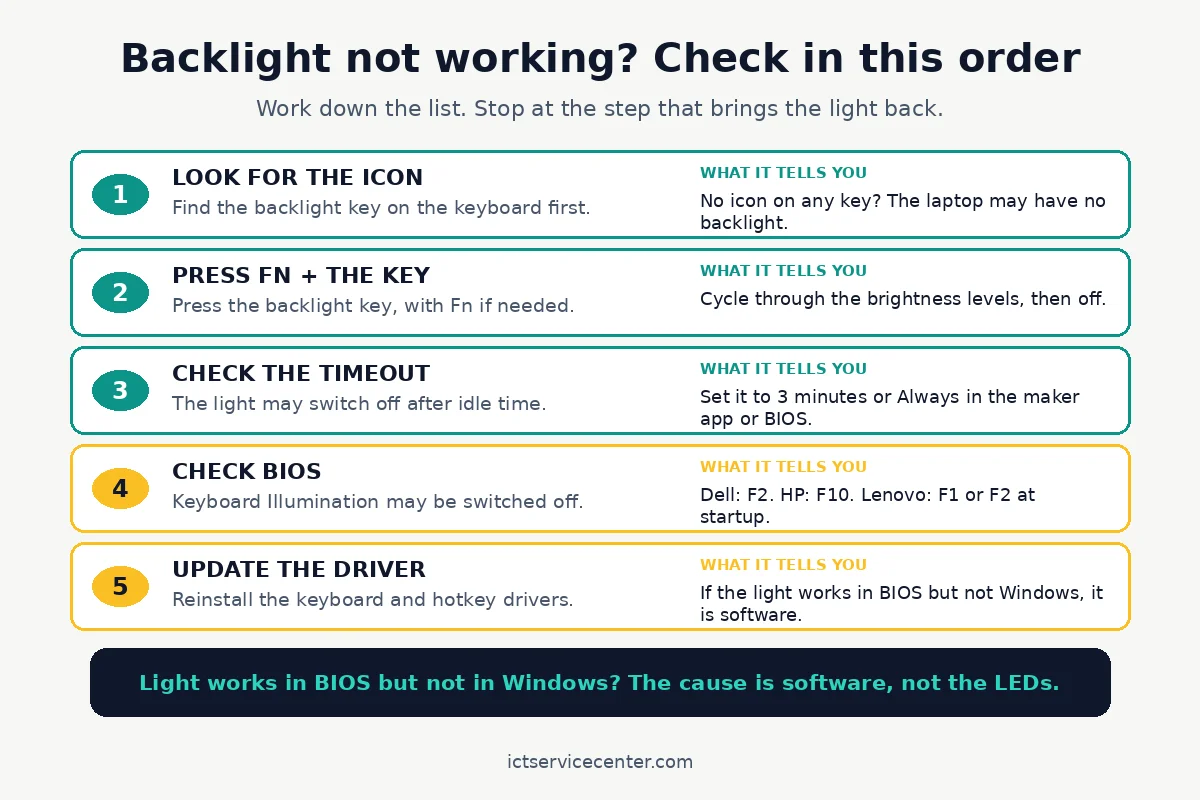
If the keys type normally and the light never comes on, look at software next.
Check the maker app and the timeout
Most makers ship an app that controls the backlight: Lenovo Vantage, MyASUS, Armoury Crate on ASUS gaming laptops, and OMEN Gaming Hub on HP OMEN laptops. In Vantage the setting sits under Device > Input & Accessories > Keyboard Backlight.
The timeout is the most common surprise: HP laptops often switch the backlight off after 30 seconds without typing. On some HP models, turn the light on, then hold the backlight key until a small window appears and let go on 30 seconds, 3 minutes, or Always. Other HP models keep the setting in the BIOS.
Check Windows Dynamic Lighting
Windows 11 has a lighting page at Settings > Personalization > Dynamic Lighting, but it only controls RGB keyboards that support the HID LampArray standard. Most built-in backlights do not appear there: a plain white backlight is controlled by the Fn key and the firmware, not by Windows. If your keyboard shows up as a card, turn on Use Dynamic Lighting on my devices and raise the brightness.
Reinstall the keyboard and hotkey drivers
A driver fault usually shows in one of two ways: the light stopped after a Windows update, or it works in the BIOS setup screen but not in Windows.
- Press Win + X, open Device Manager, then open Keyboards, right-click the keyboard device, and choose Uninstall device.
- Restart the laptop so Windows installs a fresh driver, then test the key. If it still fails, right-click the keyboard device, choose Update driver, then Search automatically for drivers. If that fails too, get the driver from the maker support page for your exact model.
If the light stopped right after a Windows update, roll the driver back: in Device Manager, right-click the keyboard device, open Properties, go to the Driver tab, and choose Roll Back Driver if the button is active. If keys stick after a single press, see our guide to fix sticky keys on a laptop.
Hardware causes: BIOS setting, loose cable, and dead LEDs
If every software step fails, the fault is in the firmware setting or the hardware. The BIOS check is quick and safe; the cable check means opening the laptop.
Check the BIOS setting
Dell and HP laptops can switch the backlight off in the BIOS. Restart and press the setup key as the logo appears: F2 on Dell, F10 on HP, F2 on most Lenovo laptops (on a ThinkPad, press Enter at the logo screen, then F1).
On Dell, look for Keyboard Illumination under Keyboard, or System Configuration on older models, and set it to Dim or Bright. On HP, open Advanced, then Built-in Device Options, and look for Backlit keyboard timeout or Keyboard Illumination. Change only that setting, save, and exit.
ASUS laptops do not usually offer this setting in the BIOS, so on an ASUS go back to MyASUS.
Tip: Watch the keyboard in the BIOS setup screen: if the keys light up there, the LEDs and the cable are fine, and the fault sits in Windows or a driver. Go back to the driver steps instead of opening the laptop.
Check the ribbon cable
The keyboard and its backlight usually share one ribbon cable to the main board. If it works loose, the keys may still type while the light stays dead, or some keys may fail too.
Warning: Power the laptop off, unplug the charger, and disconnect the battery before you open the bottom panel. Never open a laptop with a swollen battery: if the battery looks puffed up or the case bulges, take it to a shop.
Remove the bottom panel screws and keep them in order. Find the flat ribbon cable from the keyboard to the main board, lift the locking tab, slide the cable fully home, and close the tab again.
Do not force it: a cable that will not seat may be damaged. Put the panel back, reconnect the battery, plug in, and test the key. While the panel is off, clean your laptop keyboard safely: dust under the keys can block the light.
Dead LEDs
LEDs rarely fail on their own, but a spill or a power surge can kill them. If the BIOS setting is on, the cable is seated, and the driver is fresh, the LED strip is the likely fault. LEDs are part of the keyboard assembly, so the fix is a keyboard replacement, which also fixes a keyboard that stops working entirely.
When to repair or replace it
Take it to a shop when the BIOS setting is on, the drivers are fresh, and the light still never comes on: that points to the cable or the LED strip, and both need the laptop opened.
Go sooner if the laptop is still under warranty, since a dead backlight is a hardware fault most makers cover while the warranty runs. Check the warranty status on the maker support site with the serial number first.
Out of warranty, ask the shop for a quote first. A keyboard replacement is usually a modest job on a business laptop and a bigger one on a thin ultrabook, where the keyboard may be fixed to the top case. On an old laptop, a dead backlight alone rarely justifies a new machine.
Mistakes to avoid
Pressing every Fn combination you can find. Random Fn presses can switch off Wi-Fi or put the laptop to sleep. Use only the key with the backlight icon.
Ordering a replacement keyboard before checking the model. The same laptop line ships with backlit and non-backlit keyboards, which do not always share a part number. Check the specifications for your exact model first.
Opening the laptop while it is plugged in. The charger and the battery must both be disconnected before you touch the board or the cable. Working live risks a short that can damage the board.
Installing drivers from updater sites. Driver updater tools and download sites are a common source of wrong drivers and unwanted software. Get the driver and hotkey utility from the maker support page for your exact model, and nowhere else.
Frequently asked questions
Why does my keyboard backlight turn off after a few seconds?
That is the timeout setting, not a fault. Many laptops switch the light off after a short idle period, and HP models often use 30 seconds by default. Lengthen it in the maker app, or hold the backlight key until the timeout options appear. The BIOS on Dell and HP laptops may also offer the setting.
Can I add a backlight to a laptop that never had one?
No, not with software. A backlight is a layer of LEDs built into the keyboard, and a laptop sold without it has no LEDs to switch on. Fitting a backlit keyboard from the same model line can work, but only if the main board has the connector for it.
Why does the backlight work in BIOS but not in Windows?
That split means the hardware is fine and the fault is software. The BIOS talks to the keyboard directly, while Windows needs the keyboard driver and the maker hotkey utility. Reinstall the keyboard driver in Device Manager, restart, and install the hotkey utility from the maker support page.
Is a dead keyboard backlight covered by warranty?
Usually yes, while the warranty runs. A backlight that never lights up, with the BIOS setting on and the driver fresh, is a hardware fault, and makers normally repair it under warranty. Check the warranty status on the maker support site with your serial number. Spill or drop damage is not covered.
Bottom line: Press the backlight key with Fn if needed, cycle the brightness, and check the timeout. If the light works in BIOS but not in Windows, reinstall the driver. If it never lights up anywhere, check the BIOS setting, then the cable. If the laptop is under warranty, let the maker fix it. For more fixes, see the Troubleshooting hub.
Sources: Dell Support, HP, ASUS Support. Photos: freestocks.org, Abdulvahap Demir, Sora Shimazaki, Vanessa Garcia, George Milton, Artem Podrez via Pexels.