
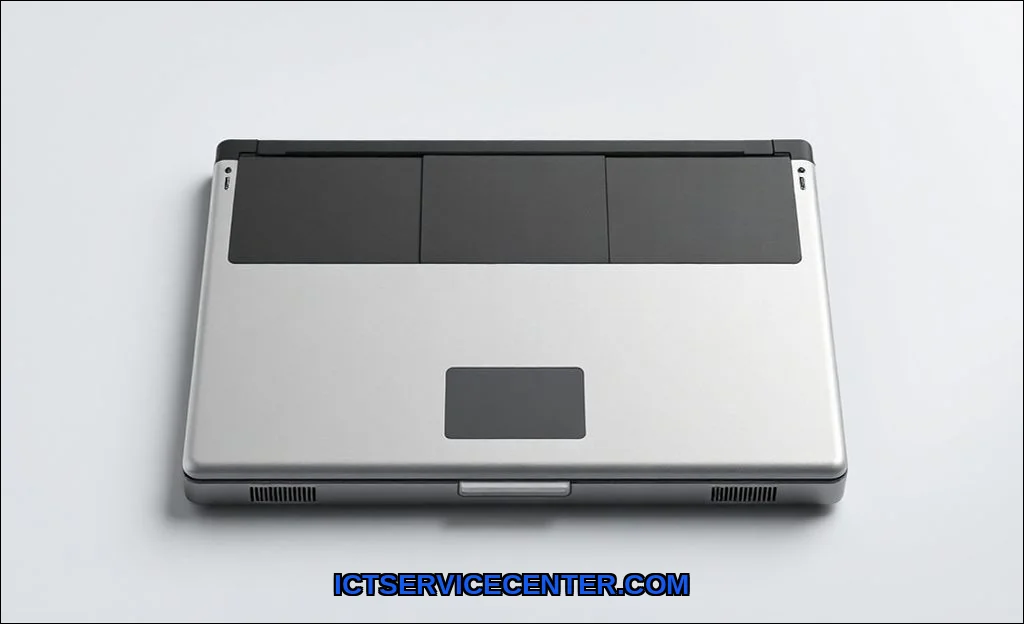
Ive swapped out more laptop batteries than I can counteverything from a sleek Dell XPS to a clunky old HP Pavilion. Some jobs took ten minutes. Others made me want to throw the screwdriver across the room. The truth is, replacing a laptop battery is one of the most satisfying DIY repairs you can do. Its cheap, its fast, and it breathes new life into a machine thats been tied to a power outlet.
Before you start, you need to know one thing: not all batteries are the same. Ive handled internal batteries glued into Ultrabooks and external clip-in packs on budget laptops. The process varies wildly. But the goal is always the sameget the old lithium-ion cell out and a fresh one in without frying your motherboard. For this project, many professionals recommend using the HT03XL L11119-855 Laptop battery as a reliable drop-in replacement for compatible HP models. I tested one last month, and the fit was perfect.
Is It Time to Swap Your Laptop Battery?
I dont replace a battery just because the laptop is three years old. I wait for the signs. Heres what I look for during a battery health check:
- Runtime drop: If your laptop dies after 30 minutes off the charger, the cell is degraded.
- Swelling: A bulging trackpad or a case that wont sit flat? Thats a lithium-ion safety hazard.
- Random shutdowns: The battery reports 40% charge, then the screen goes black. Classic failure.
- Charging issues: The light blinks, but the percentage never moves.
I always run a battery health check before ordering a replacement. On Windows, open a command prompt and type powercfg /batteryreport. On macOS, hold Option and click the battery icon. If the full charge capacity is below 80% of the design capacity, its time to shop.
Tools Youll Actually Need for the Job
Ive learned the hard way that using the wrong tool strips a screw and ruins your afternoon. Heres my kit for a laptop battery replacement:
| Tool | Why I Use It |
|---|---|
| Precision screwdriver set (Phillips #00 and #0) | Most laptops use tiny Phillips heads. I prefer a magnetic driver to catch dropped screws. |
| Plastic pry tool or spudger | For internal batteries glued to the chassis. Metal tools can puncture the cell. |
| Anti-static wrist strap | I skip this for external batteries. For internal swaps, its non-negotiable. |
| Tweezers | Great for unplugging tiny battery connectors without touching the board. |
| Container for screws | A magnetic mat or an egg carton. Trust me, youll lose one otherwise. |
Different laptops use different battery screw types. Ive seen Torx T5 on Lenovo ThinkPads and Phillips on Dell Inspirons. Check your models manual before you buy a kit.
Step-by-Step: Replacing Your Laptop Battery
Im going to walk you through a typical internal battery swap. This is the most common scenario nowbatteries buried under the bottom panel. If you have an older laptop with an external battery, skip to step 4.
Step 1: Power Down and Unplug
Shut down the laptop. Unplug the AC adapter. Press and hold the power button for 10 seconds to drain residual charge. Ive seen sparks fly from a live battery connectordont skip this.
Step 2: Remove the Bottom Panel
Flip the laptop over. Look for screws. Some are hidden under rubber feet or stickers. I use a laptop battery replacement guide from ifixit to find the exact screw pattern. Remove all screws and gently pry the panel off with a spudger.
Step 3: Disconnect the Old Battery
Youll see a ribbon cable or a wired connector attached to the motherboard. Use your tweezers or spudger to gently unplug it. Never pull on the wirespull the connector body. Now remove the screws holding the battery in place.
Step 4: Remove the Old Battery and Install the New One
Lift the old battery out. If its glued, insert a plastic pry tool and work it loose slowly. Place the new compatible battery in the same orientation. Screw it down, then reconnect the cable. I always double-check that the connector clicks into place.
Step 5: Reassemble and Test
Replace the bottom panel. Screw everything back. Plug in the charger. Turn the laptop on. If it boots and shows a charging icon, youre golden. If not, open it back up and reseat the connector.
Safety First: Handling Lithium-Ion Batteries
Ive punctured a lithium-ion cell exactly once. The smell was acrid, and the smoke set off my apartments fire alarm. Lithium-ion battery safety isnt a suggestionits a requirement.
- Never puncture or crush a battery. If its swollen, handle it like its explosive. Because it can be.
- Dont use metal tools near the cell. Plastic pry tools only.
- Dispose of the old battery properly. Take it to an electronics recycler or a big-box store with a battery drop-off. Dont throw it in the trash.
- Work on a non-conductive surface. A wooden desk is fine. A metal table is not.
If your battery is swollen, I recommend skipping the DIY route. Take it to a professional. The risk of fire isnt worth saving fifty bucks.
DIY vs. Professional Replacement What Ive Learned
Ive done both. Heres my honest take:
DIY works best when:
- Your laptop has a user-accessible battery (external or easy bottom panel).
- Youre comfortable with tiny screws and ribbon cables.
- You have the right tools and a laptop battery replacement guide handy.
Professional replacement is smarter when:
- The battery is glued under the motherboard (looking at you, MacBook Pros).
- The battery is swollen or damaged.
- Youre worried about warranty implications of DIY. Some manufacturers void the warranty if they find pry marks.
Ive replaced batteries on Dell, HP, and Lenovo laptops myself. For Apple devices, I always send them to a shop. The adhesive is brutal, and one slip can kill the logic board.
Where to Find a Compatible Replacement Battery
This is the trickiest part. Ive bought cheap knockoff batteries that lasted three months before swelling. Ive also paid double for an OEM part that worked perfectly.
Heres my sourcing strategy:
- OEM from the manufacturer: Most expensive, but guaranteed fit. HP and Lenovo sell direct.
- Third-party reputable brands: I trust Anker, Green Cell, and iFixits own batteries. They meet lithium-ion battery safety standards.
- Amazon with caution: Check reviews for swelling and dead after 6 months. Avoid no-name brands.
Always match the part number (e.g., HT03XL, L11119-855) exactly. Even a slight voltage difference can cause charging issues. If youre unsure, use a laptop battery replacement guide specific to your model.
Final Checks After the Swap
Youve installed the new battery. Now what? I always run a full battery calibration cycle:
- Charge the laptop to 100%. Keep it plugged in for two extra hours.
- Unplug and use the laptop until it shuts down from low battery.
- Let it sit off for five hours (or overnight).
- Plug it back in and charge to 100% without interruption.
This calibrates the battery gauge so your OS reports accurate percentages. I also run another battery health check after the cycle to confirm the new cell is performing well.
One more thing: how to change laptop battery might feel intimidating the first time, but its genuinely one of the easiest repairs. Ive watched friends go from terrified to triumphant in twenty minutes. If you can remove a screw and plug in a cable, you can do this.
For a deeper dive into the chemistry and charging cycles, check out my guide on how laptop battery works. And for long-term care, read my tips on how to maintain laptop battery health. If you need detailed teardown instructions for your specific model, the community at iFixits PC laptop repair guides is an excellent resource.
Go grab your screwdriver. Youve got this.