Laptop Overheating Damage? Heres How to Repair It
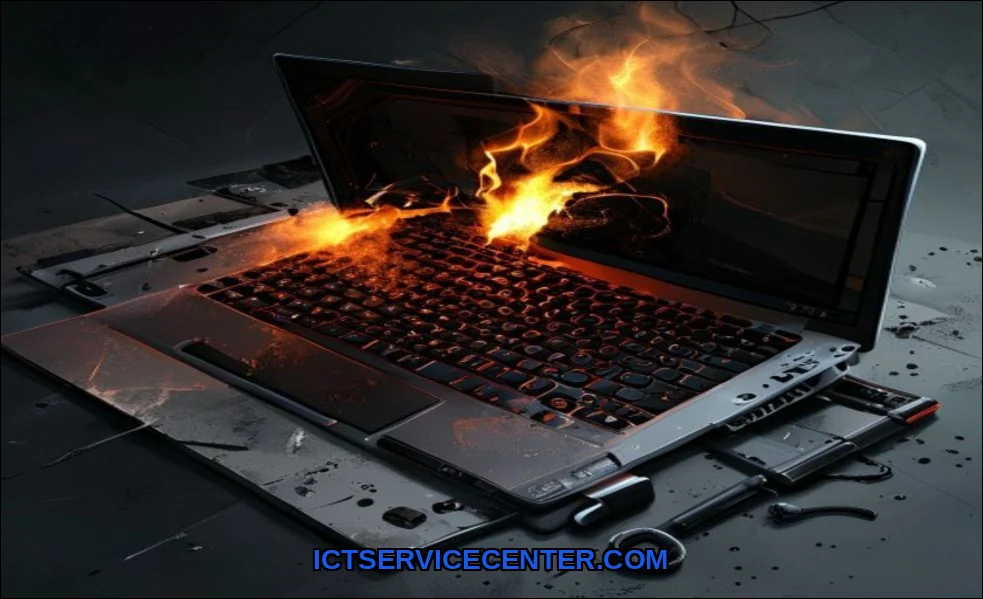
When your laptop suddenly shuts down and refuses to turn back on after a hot session, the feeling is unsettling. You might be staring at a black screen, wondering if your data is gone or if the entire machine is a paperweight. This is a common scenario after a severe overheating event, and the good news is that not all damage is permanent. Many issues can be resolved with careful diagnosis and the right approach.
This guide walks you through the practical steps to assess, repair, and prevent damage after your laptop has overheated. We will focus on calm, methodical troubleshooting so you can determine the real extent of the problem and make an informed decision about repair or replacement. Your goal is to recover your system and data without causing further harm.
Recognizing the Signs of Overheating Damage
Before you can fix anything, you need to know what you are dealing with. Overheating damage can manifest in several ways, and the symptoms often vary depending on which internal component took the most heat. The most obvious sign is a laptop thermal shutdownthe system abruptly powers off to protect itself. But the damage can be more subtle.
Look for these indicators after an overheating event:
- Laptop won’t turn on after overheating This is the most alarming symptom. The system may be completely dead, or it might try to power on but fail to POST (Power-On Self-Test).
- Overheated laptop screen flicker If the display flickers, shows artifacts, or remains black even though the laptop appears to be running, the heat may have damaged the display panel or the cable connecting it to the motherboard.
- Laptop performance drop after overheating Even if the system turns on, you might notice severe lag, stuttering, or applications crashing. This often points to the CPU or GPU throttling itself to avoid further heator to permanent damage.
- Battery swelling from heat A swollen battery is a serious safety hazard. If the trackpad feels raised, the case is bulging, or you see a gap between the keyboard and the chassis, stop using the device immediately.
- Unusual noises A failing cooling fan that makes grinding or clicking sounds indicates the cooling system has failed, which likely caused the overheating in the first place.
- Keyboard or trackpad damage Heat can warp plastic keys or cause the trackpad to become unresponsive. You might see keys that are stuck or feel different to the touch.
Understanding these signs helps you narrow down which component is most likely affected. This is the first step toward a targeted repair.
Immediate Steps to Take After Overheating
Your first action after an overheating event is critical. Do not attempt to power the laptop back on immediately. Give it time to cool down completelyat least 30 minutes to an hour. Place it on a flat, hard surface in a cool, dry area. Do not put it in a refrigerator or freezer; rapid temperature changes can cause condensation and further damage.
Once the laptop has cooled, follow these steps:
- Remove the battery if possible. If your laptop has a removable battery, take it out. If the battery is internal, do not attempt to remove it unless you are experienced. A swollen battery should only be handled by a professional.
- Disconnect all peripherals. Unplug the charger, USB devices, external monitors, and anything else connected to the ports.
- Inspect the exterior. Look for visible signs of damage: bulging case, melted plastic near the vents, or a distorted keyboard. If you see any of these, stop and seek professional help.
- Attempt a minimal power-on. Connect the charger (without the battery if removable) and try to turn the laptop on. Listen for the fan. Does it spin? Do you hear any beeps? Note any response.
If the laptop does power on, immediately check the system temperatures using a free tool like HWMonitor. If temperatures are still high (above 80C at idle), do not continue using it. You need to address the cooling system before any further use. This is where a proper laptop overheating repair plan begins.
Diagnosing the Extent of the Damage
Now you need to determine which components are actually damaged. This requires methodical testing. The most common failures after overheating involve the motherboard, hard drive, and battery. Let’s break down how to diagnose each.
Motherboard and CPU/GPU Failure
The motherboard is the heart of your laptop. Excessive heat can cause micro-solder joints to crack, capacitors to bulge, or the chipset to fail. Dead motherboard symptoms include the laptop showing no signs of life (no lights, no fan spin) or powering on for a few seconds and then shutting down. If the system powers on but the screen stays black, the GPU or display circuitry on the motherboard might be fried.
To test this, try connecting an external monitor. If the external display works but the built-in screen does not, the issue is likely the display panel or its cable. If neither works, the motherboard is the prime suspect. A heat damaged logic board often requires replacement, which can be costly.
Hard Drive or SSD Failure
Hard drive failure after heat is a common outcome. The mechanical parts inside a traditional HDD can seize up or develop bad sectors when exposed to high temperatures. Symptoms include clicking noises, the system failing to boot to the operating system, or constant file errors. An SSD is more resilient but can still fail if the controller chip overheats.
To test, remove the drive and connect it to another computer using a USB adapter. If the drive is recognized, immediately back up your data. If it is not recognized, professional hard drive recovery may be your only option, and it is not cheap. This is why regular backups are so important.
Battery and Power System Damage
Battery swelling from heat is a clear sign of internal chemical breakdown. A swollen battery is a fire risk and must be replaced. Even if the battery looks fine, it may have lost capacity or be unable to hold a charge. If the laptop only works when plugged in, the battery is likely dead. In some cases, the charging circuit on the motherboard is also damaged, requiring a board-level repair.
Repairing Common Overheating Issues
Once you have identified the problem, you can begin repairs. Some fixes are straightforward, while others require advanced skills. Let’s focus on the most common and manageable repairs.
Reapplying Thermal Paste
If your laptop still works but runs hot, the thermal interface material between the CPU/GPU and the heatsink has likely dried out or degraded. This is a primary cause of laptop cooling system failure. Reapplying thermal paste is a standard maintenance task that can dramatically lower temperatures.
For this project, many professionals recommend using the ARCTIC MX-4 4, which provides excellent thermal conductivity and is non-conductive, making it safe for beginners. The process involves disassembling the laptop, cleaning the old paste from the CPU and GPU dies, applying a small pea-sized amount of new paste, and reassembling the cooling system. This is one of the most effective steps in any laptop overheating repair plan.
Replacing the Cooling Fan
A noisy or non-spinning cooling fan is a direct cause of overheating. Replacement fans are usually inexpensive and available for most models. The process involves removing the bottom panel, disconnecting the old fan, and installing the new one. Make sure to clean any dust from the heatsink fins while you are inside the machine.
Hard Drive or SSD Replacement
If your drive has failed, replacement is straightforward. You will need to reinstall the operating system and restore your data from a backup. If the drive is accessible but failing, use cloning software to copy it to a new drive before it dies completely. This is a critical step for hard drive recovery when the drive is still partially functional.
When to Seek Professional Laptop Repair
Not all repairs are DIY-friendly. If you encounter any of the following situations, it is time to call a professional:
- Motherboard failure. Diagnosing and repairing a heat damaged logic board requires specialized tools like a soldering station and a hot air rework station. Attempting this without experience can make the damage worse.
- Swollen battery. Piercing or puncturing a swollen battery can cause a fire or chemical burn. A professional will have the proper tools and disposal methods.
- Display panel failure. Replacing a laptop screen requires careful handling of delicate ribbon cables and adhesive. It is doable but risky for the inexperienced.
- Data recovery from a dead drive. If the drive makes clicking noises or is not recognized, professional hard drive recovery services have clean rooms and specialized equipment to extract data.
When considering professional help, weigh the cost. A motherboard replacement can cost $300 to $600 or more, depending on the laptop model. If your laptop is more than a few years old, it may be more economical to replace it. This is a common consideration when asking how much does it cost to repair an overheated laptop. The answer varies, but a general rule is: if the repair cost exceeds 50% of the laptop’s value, replacement is usually the better choice.
For a broader perspective on when a laptop is beyond simple fixes, the guide on 10 ways to know you need laptop repair offers useful benchmarks for deciding between repair and replacement.
Preventing Future Overheating and Damage
Once you have repaired your laptop, you need to keep it from happening again. Prevention is far easier than repair. Here are the most effective strategies:
- Keep vents clean. Dust is the number one enemy of laptop cooling. Use compressed air every few months to blow out dust from the exhaust vents and intake grills.
- Use a hard, flat surface. Never use your laptop on a bed, pillow, or soft surface that blocks airflow. A laptop cooling pad with an additional fan can help, but a clean, hard desk is usually sufficient.
- Monitor temperatures. Use software like HWMonitor or Core Temp to keep an eye on CPU and GPU temperatures. If you consistently see temperatures above 90C under load, it is time to clean the cooling system or reapply thermal paste.
- Limit intensive tasks. Gaming, video rendering, and other heavy workloads generate significant heat. Take breaks every hour to let the laptop cool down.
- Check for software issues. Sometimes, a background process or a driver update can cause the CPU to run at 100% constantly. If you notice a sudden laptop performance drop after overheating, check your Task Manager for rogue processes. For more details on this, you can review the guide on laptop overheating after a software update.
Finally, adopt a proactive maintenance schedule. Every six months, open the bottom panel of your laptop (if you are comfortable doing so) and clean the fan and heatsink. This simple step, combined with regular thermal paste application every 1-2 years, will keep your laptop running cool and extend its life significantly. For a full rundown of best practices, the article on how to prevent laptop overheating covers all the key strategies in detail.
Overheating damage is stressful, but it does not have to be the end of your laptop. By staying calm, diagnosing methodically, and taking the right repair steps, you can often bring your system back to life. And with consistent prevention, you can keep it running reliably for years to come.