
You press the power button and nothing happens: no lights, no fan, no screen. This page walks you through the exact causes, from the battery to the card slots, so you can find the fault fast.
In short: Most 'no power' failures come from a dead battery, a failed adapter, or a short caused by a loose card. You check these three before touching the motherboard. If those pass, the problem is likely a logic board fault that needs repair.
Quick picks
Our shortlist for this job · tap one to see today's price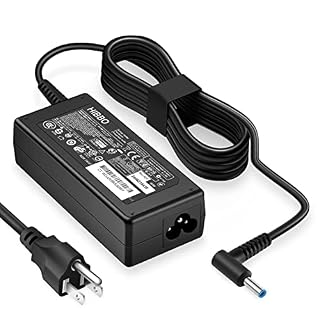
Replaces a failed 65W charger so you can test if the laptop powers on from AC.

Replaces a faulty HDD that might be causing boot hangs, not total power loss.
Why your laptop shows no power at all
A true no-power state means zero electrical response. No LED glows, the fan does not spin, and the screen stays black. This is different from a black screen where the system is on but the display fails. Loaders in this spot often ask about restoring boot control as well.
The cause is almost always a break in the power chain between the wall outlet and the motherboard. Small components like RAM sticks or hard drives rarely stop a laptop from powering on; they usually just prevent it from booting.
- Dead or failing battery: A swollen or deeply discharged cell blocks all power flow.
- Broken adapter: The cable is cut or the brick stopped sending voltage.
- Loose DC jack: The port where the charger plugs in has cracked internally.
- Short circuit on board: Liquid damage or a failed capacitor prevents startup.
The ‘rh-45’ code you may have seen online is likely a typo or a specific board revision, not a standard part name. Do not worry about that string. Instead, focus on the physical components listed above, as they are the verified causes of total power loss.

A cheap multimeter lets you check if your adapter is actually sending the correct voltage.
- Additional Tips - The following incorrect operations may cause the multimeter not to
- Versatile Digital Multimeter - Accurately measures AC/DC Voltage, DC Current
Check the battery first: the quickest fix
Start here because a faulty battery is the most common reason a laptop will not power on. It blocks the adapter’s ability to charge the system.
If your laptop has a removable battery, pop it out. Plug in the adapter and press the power button. If the screen turns on, the battery is bad.
For sealed laptops, you cannot remove the battery easily. Instead, perform a hard reset. Unplug the power, hold the power button for 30 seconds to drain static, then plug in and try again.
Check the charging port on the laptop side. If the pin inside the barrel is bent or missing, the adapter cannot make contact. This looks like a power failure but is just a mechanical break. Use a toothpick to gently probe for debris if you see dust packing in the port. It helps to understand fix desktop no power before going further.
Safety: If the bottom panel is bulging, stop. A swollen lithium battery is a fire risk. Do not puncture it. Take it to a professional immediately.
Safety first: A bulging battery panel means the cell is swollen. This is a fire hazard. Stop using the laptop and do not open the case. Get it replaced by a technician.
Test the power adapter and outlet
Verify the wall outlet works by plugging in a phone charger or lamp. If that fails, the outlet is dead, not your laptop.
Inspect your adapter cable for fraying or cuts. Check the brick for burn marks. If your adapter has an LED light that stays off, the brick likely failed.
You can test the output with a multimeter. For USB-C laptops, use a power meter to see if the laptop is negotiating the correct voltage. If the reading is too low, replace the adapter.
Many laptops use a ‘center pin’ design. The voltage is sent through the metal tip of the connector. If that pin is loose, the adapter might only send power when you wiggle the cable.
Wiggling the plug to see if a fan spins is a quick test, but do not rely on it for long-term use. If that sounds like your bench, read up on fix laptop startup failure next.
Pro tip: Always match the wattage to your laptop. Using a lower wattage adapter can cause the laptop to not turn on under load.
This HIBBO adapter replaces a dead HP charger so you can test if the laptop powers on from AC.
- Output Max: 19.5V 3.33A 65W (also compatible with 19.5V 2.30A 45W) Input Volt Range
- Compatible with HP Smart Blue Tip Models 65W/45W: Elitebook 830 / 840 G3 G4 G8 / 850 G3
Inspect the card slots: RAM and hard drives
You mentioned PC cards, memory, and HDDs. These components do not usually stop a laptop from powering on, but they can cause it to hang at the logo. However, a shorted RAM stick or a failed drive can cause a system-wide lockout.
Power down and unplug. Open the bottom panel. Reseat the RAM modules by pressing the clips down until they click. Check the hard drive connector for a loose cable.
If you have an older laptop with a PC Card slot, check that slot. A stuck or corroded card can bridge pins on the motherboard. Remove any expansion card and try to boot. This is rare on modern machines, but common on older ThinkPads or Compaq models.
Boot the laptop. If it still shows no power, the card slots are likely not the cause. If it boots but freezes, you found the issue. A failing hard drive usually makes a clicking sound; if you hear that, back up your data immediately before it fails completely.
Pro tip: Before opening the case, discharge the laptop. Plug it in and press the power button for 5 seconds, then unplug. This drains capacitors. We cover fix laptop power issues in a guide of its own.
When the motherboard is the cause
If the battery, adapter, and cards all check out, the fault is on the logic board. This is called a ‘shorted board’.
Look for black scorch marks or bulging capacitors near the power button or USB ports. Smell for burnt plastic. Do not try to repair this yourself.
Some boards have a reset jumper. If your manual shows one, try shorting it with a screwdriver while unplugged. This resets the power management chip. If that fails, the board needs soldering repair.
Check the CMOS battery. A dead coin-cell battery can sometimes prevent the system from initializing power. It is a small button battery near the RAM. If it is old (five years or more), it may need replacement to allow the motherboard to wake up.
How to stop it happening again
Prevent future power issues by avoiding extreme heat. Do not leave the laptop on a bed or blanket, which blocks the vents and cooks the motherboard.
Clean the fan port every six months. Use a can of compressed air to blow out dust. Overheating degrades solder joints over time.
Update your BIOS. Manufacturers often fix power delivery bugs in BIOS updates. Check your maker’s support site for the latest version.
Handle the charger with care. Do not sit on the cable or twist the connector. Use a short cable near the laptop to reduce strain on the DC jack. This prevents the most common failure point: the solder joint where the charger plugs in.
The bottom line
Start with the battery and adapter. These two items cause most no-power failures. If those pass, the motherboard is likely shorted and needs a pro repair. Do not force it if you smell burning.
- Output Max: 19.5V 3.33A 65W (also compatible with 19.5V 2.30A 45W) Input Volt Range
- Compatible with HP Smart Blue Tip Models 65W/45W: Elitebook 830 / 840 G3 G4 G8 / 850 G3
Frequently asked questions
Does a bad hard drive cause no power?
No. A failed hard drive usually causes boot errors or slow starts. It rarely stops the laptop from powering on at all. If you have no lights and no fan, the drive is not the main cause.
Can a loose RAM stick stop a laptop from turning on?
In rare cases, yes, if the RAM shorts the circuit. But usually, bad RAM causes a black screen after the power lights come on. Reseat the RAM to be sure, but do not expect it to fix a total power loss.
What is the 'rh-45' in my search?
That looks like a typo or a specific model code from a forum post. It is not a standard laptop part. Focus on the battery, adapter, and card slots instead, as those are the standard no-power culprits.
Is it safe to open the case if the battery is swollen?
No. A swollen battery is a fire hazard. Do not open the case. Do not press on the panel. Disconnect the charger and take the laptop to a repair center immediately.