
 By
Cloning copies your whole hard drive, Windows, apps, settings, and files included, onto a new SSD, so the new drive boots exactly like the old one, with nothing to reinstall.
In short: Back up your files, connect the new SSD, and run the free cloning tool from your SSD maker. Pick the old HDD as the source and the new SSD as the target, start the clone, then swap the drives and set the SSD as the first boot drive. Cloning erases everything on the target SSD, so check the drive letters twice before you start.
Key takeaways
- Cloning moves Windows, apps, and files as one copy, so nothing needs reinstalling.
- Turn off BitLocker and back up first, because cloning overwrites the whole target drive.
- Use the free cloning tool from your SSD maker first. Macrium Reflect Free is retired and no longer offered for download.
- Keep the old drive untouched until the SSD has booted twice and your files check out.
Before you start
Most failed clones trace back to a skipped prep step, so work through this section first.
Back up first. A clone is a copy, not a backup: if the source drive fails, or you pick the wrong target, the backup is your only way back.
Open Windows Backup from the Start menu, expand Folders, and switch on Desktop, Documents, Pictures, Videos, and Music. A free Microsoft account includes 5 GB of OneDrive storage, so large folders may need a second copy on an external drive.
Microsoft explains both options in its Back up and restore with Windows Backup guide, See also our guide on how to back up your laptop data safely.
Check how much space the old drive actually uses: open Settings > System > Storage and note the used space on C:. The new SSD must hold all of it, with a little spare room.
If the used space is bigger than the new SSD, delete files you no longer need or move large folders to an external drive first. Some tools also need the target to be at least as large as the source drive.
Check the health of the old drive. A drive with read errors can fail mid-clone and leave a half-copied SSD. Open Command Prompt as an administrator, type chkdsk C: /f, press Enter, and restart if it asks. If chkdsk reports bad sectors, or the drive clicks, stop here: a clone cannot fix a failing drive.
Turn off BitLocker before you clone: maker cloning tools cannot copy an encrypted drive. Open Settings > Privacy and security > Device encryption, or search for BitLocker, and turn it off. Wait until decryption finishes; on a full drive that takes a while, so start early and leave the PC plugged in.
Find out what kind of drive your PC takes. A 2.5-inch SATA HDD is replaced by a 2.5-inch SATA SSD, while most newer laptops take an M.2 drive, either NVMe or SATA, in a 2280 or 2242 length. The laptop manual lists the exact slot.

Warning: Cloning overwrites the target SSD completely. Every file on the new SSD is erased when the clone starts, and it cannot be recovered, so move anything you need somewhere safe first. Confirm the target drive letter and model in Disk Management before you press Start.
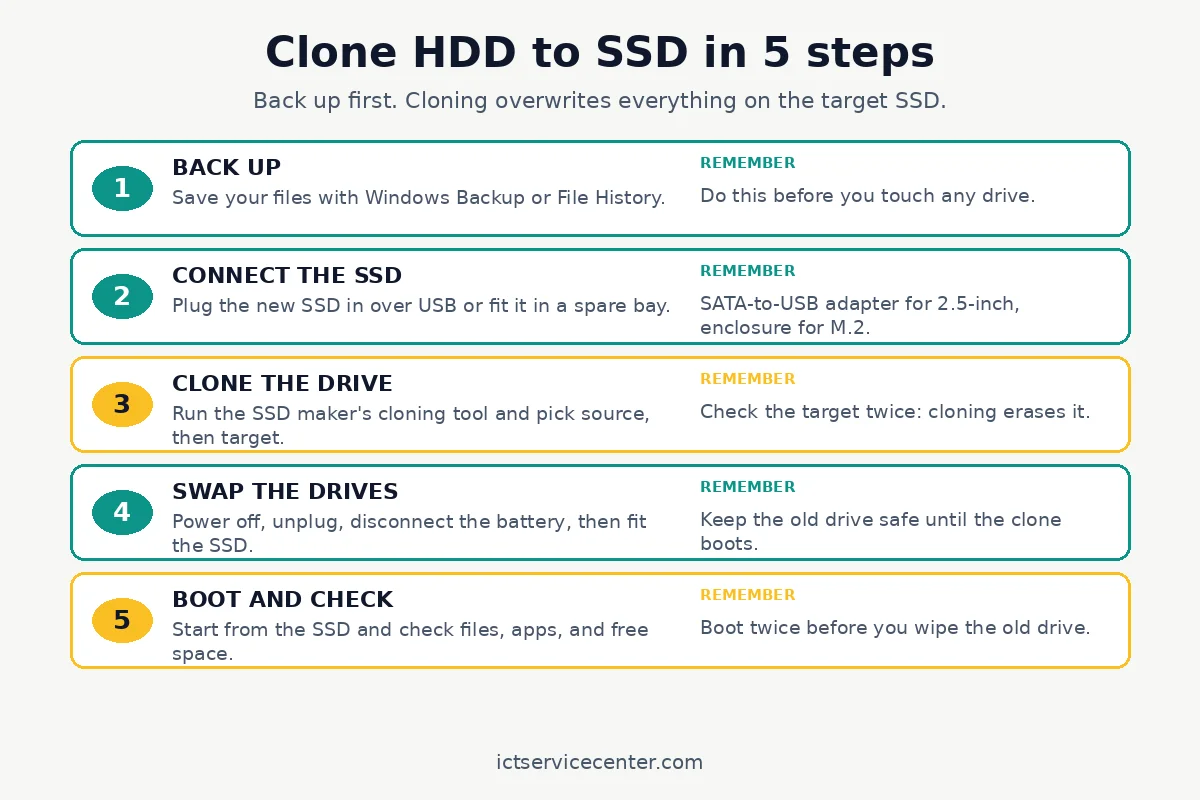
The diagram below shows the five steps in order.
Tools and parts
Gather everything before you start.
- New SSD: 2.5-inch SATA or M.2, matching your PC’s slot, with room for the used space on the old drive.
- SATA-to-USB adapter: for a 2.5-inch SSD in a one-bay PC.
- M.2 USB enclosure: for an M.2 SSD in a one-slot laptop.
- Small Phillips screwdriver: usually #0 or #1 for panel and drive screws.
- Plastic pry tool: for opening panel clips without scratching the case.
- External drive or OneDrive space: for the backup.
- Cloning software: the free tool from your SSD maker.
| Item | What to know |
|---|---|
| Difficulty | Moderate. The software does the hard part; the hands-on work is opening the case and swapping one drive. |
| Time | Set aside an afternoon; most of it is waiting for the backup, the decryption, and the copy. |
Pick the right cloning software
Start with the free tool from your SSD maker. It is built for that maker’s drives and costs nothing. Samsung owners use Data Migration, now part of Samsung Magician, which copies the system drive to a Samsung SSD.
Crucial owners use Acronis True Image for Crucial, downloaded from Crucial’s cloning page, which needs a Crucial SSD connected to run. Download the tool only from the SSD maker site, never from a download portal.
Do not go looking for Macrium Reflect Free. Macrium retired the free edition, security patches ended on 1 January 2024, and Macrium no longer offers it for download. An old copy you already have still runs, but do not download it from third-party sites.
If your SSD maker has no cloning tool, use a current cloning product from a reputable vendor and read its guide first. The Samsung Data Migration user manual lists the same checks: supported drives, BitLocker, and partition style.
The diagram near the top of this guide shows the five clone steps in order.
| Clone the drive | Clean install | |
|---|---|---|
| What moves | Everything: Windows, apps, settings, and files | Nothing. You reinstall Windows and each app. |
| Best when | The old drive is healthy and you want the same setup | The old drive has errors, or you want a fresh start |
Clone your HDD to SSD step by step
Follow the steps in order. If your laptop has never been opened, read our guide to install an SSD in a laptop first.
- Back up your files with Windows Backup or File History, then confirm your main folders are in the backup.
- Turn off BitLocker and wait for decryption to finish before you start the clone.
- Connect the new SSD: a SATA-to-USB adapter for a 2.5-inch SSD, or an M.2 enclosure for an M.2 SSD. If the PC has a spare bay or slot, fit the SSD inside instead.
- Open Disk Management with Win + X. Confirm both drives appear and note the model and size of each. The old HDD is the source, the new SSD the target.
- Install the SSD maker cloning tool, then right-click its icon and select Run as administrator.
- Select the clone option: Data Migration in Samsung Magician, or Clone Disk under Tools in Acronis True Image for Crucial, where Crucial recommends Automatic mode for a first clone.
- Pick the source drive first, then the target drive, and check the model name, size, and drive letter of each one twice. The target will be erased.
- Check the partition plan. If the new SSD is larger, the tool may resize the partitions for you; if not, extend C: in Disk Management after the clone.
- Start the clone. Keep the PC plugged in, close other programs, and do not use the PC while it copies. Do not unplug the SSD mid-copy.
- When the clone is done, shut the PC down. Power off, unplug the charger, and disconnect the battery before you touch the board. Swap the drives, following the steps to replace a laptop hard drive, then close the case.
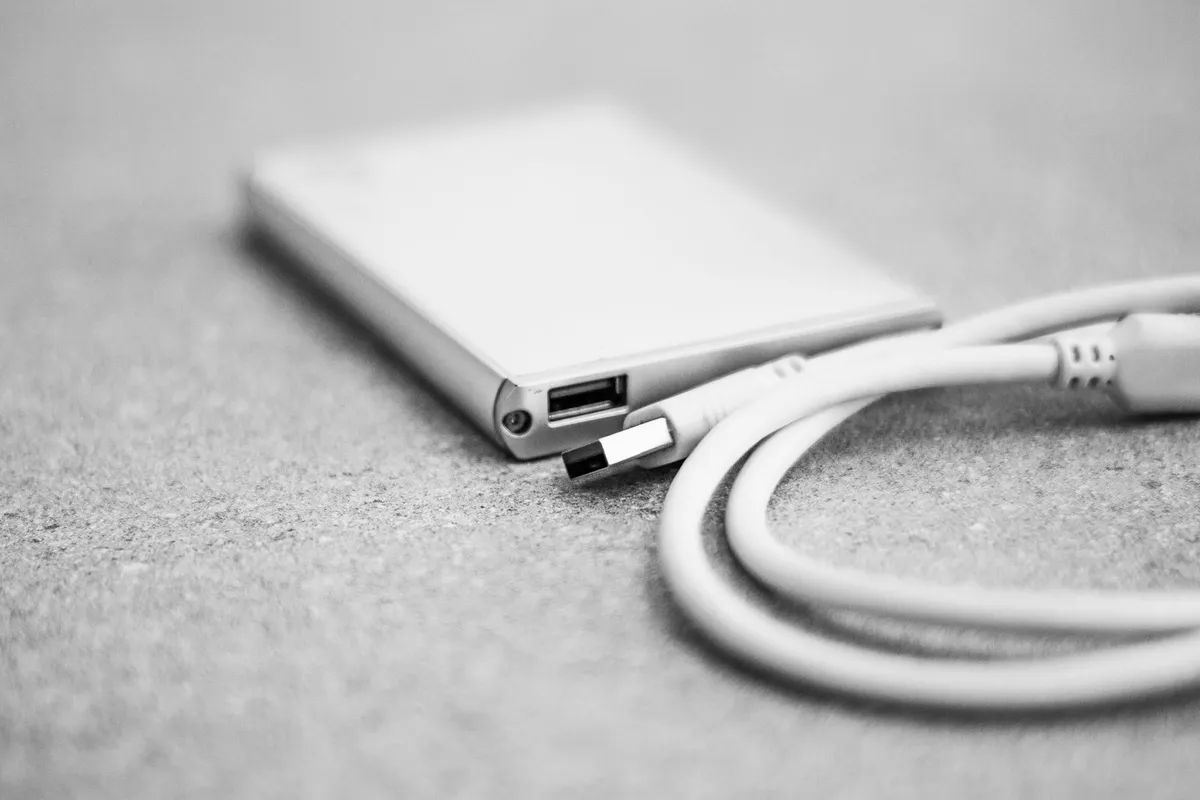
A SATA-to-USB adapter lets you plug a 2.5-inch SSD into a USB port so the cloning software can see it before you open the case.
See options on AmazonAn M.2 NVMe enclosure connects the new drive over USB when your laptop has only one M.2 slot, so you can clone before you swap the drives.
See options on AmazonTest the clone before you trust it
Do not wipe the old drive yet. Turn the PC on: it should start from the new SSD and reach your normal desktop. If it boots from the old drive instead, restart, open the BIOS or UEFI setup with F2, F10, Delete, or Esc, and set the SSD first in the boot order. The key varies by maker and shows on the first boot screen.
Check the copy. Open File Explorer and confirm your files are there, then open a few apps you use daily and confirm they launch with your settings intact. Open Settings > System > Storage and check the C: drive size. If the SSD shows the old drive size, open Disk Management, right-click C:, and select Extend Volume.
Check the new SSD and let Windows Update finish; our guide on how to check the SSD health shows the built-in checks. Also open Settings > System > Activation and confirm Windows shows as activated. Activation usually carries over, because the license is tied to the PC hardware, not the old drive.
Boot the PC a second time and use it normally for a day. Only when the second boot is clean and your files and apps all work should you wipe the old drive. Keep it in a drawer for a week: it is the fastest recovery if a problem shows up late.
When to get it repaired instead
Cloning is a home job when the drive is healthy and the PC opens with normal screws, but some cases belong at a shop.
Take it in if the old drive clicks, disappears from Disk Management, or has bad sectors, because a clone may not finish on a failing drive.
Take it in if the laptop is still under warranty and the maker says opening the case voids it, or if the battery is glued in. A shop is also the right call if you lost your BitLocker recovery key, if the drive is part of a RAID set or a dynamic disk, or if the data needs recovery rather than a copy.
Browse the Repair and Upgrades hub for the rest of the repair guides.
Mistakes to avoid
- Cloning to the wrong drive. Picking the old HDD as the target erases the drive you meant to copy. Fix: read the model name and size of each drive in Disk Management first, and unplug other USB drives.
- Skipping the backup. A failed clone with no backup means lost files and a clean install. Fix: run Windows Backup or File History first and confirm your folders are in the backup.
- Cloning with BitLocker still on. Maker tools cannot copy an encrypted drive, so the clone fails or stops partway. Fix: turn BitLocker off and wait for decryption to finish first.
- Buying the wrong SSD form factor. A 2.5-inch SATA SSD does not fit an M.2 slot, and an M.2 SATA drive does not work in an NVMe-only slot. Fix: check the manual for the slot type and length, 2280 or 2242, before you order.
- Wiping the old drive too soon. A clone can boot once and fail later, or a file can turn out to be missing. Fix: keep the old drive untouched for a week and boot from the SSD twice before you wipe it.
- Running the clone on battery power. A laptop that dies mid-copy leaves a half-cloned SSD. Fix: plug the charger in, set the PC to stay awake, and leave it alone until the clone is done.
Frequently asked questions
Can I clone a bigger HDD to a smaller SSD?
Yes, if the used space on the old drive fits on the new SSD. Delete files you no longer need or move large folders off the drive first. Some tools also need the target to be at least as large as the source drive, so check your tool’s guide.
Will cloning keep Windows activated?
Usually, yes. Activation is tied to the PC hardware and your Microsoft account, not to the old hard drive. After the clone boots, open Settings, then System, then Activation, and confirm it shows as activated. If it does not, sign in with the same Microsoft account you used before.
How long does cloning take?
It depends on how much data is on the old drive and how the SSD is connected. A USB 2.0 port copies far slower than USB 3, and a full drive takes longer than a nearly empty one. Keep the PC plugged in and do not interrupt the copy.
Do I need to reinstall Windows after cloning?
No. That is the point of cloning: Windows, your apps, and your settings move as one copy, and the SSD boots like the old drive did. If the clone will not boot, a clean install is the fallback; our guide to reinstall Windows 11 after an SSD upgrade covers that path.
Can I clone my HDD to SSD without a USB adapter?
Yes, if your PC has a spare drive bay or a second M.2 slot, fit the new SSD there and clone inside the PC. Most laptops have only one slot, so an adapter or enclosure is the normal route. Clone first, then swap the drives.
Bottom line: Back up, turn off BitLocker, and clone with your SSD maker’s free tool. Check the target twice, keep the PC plugged in, and test the SSD with two boots before you wipe the old drive.
Sources: Microsoft Support: Windows Backup guide, Samsung Data Migration user manual, Crucial cloning software, Macrium Reflect Free notice. Photos: Jakub Zerdzicki, Luis Quintero, Nothing Ahead, Annie Hatuanh via Pexels. Diagram: ICT Service Center.