5 Major Disadvantages of Desktop Computers You Should Know
I’ve spent years building, upgrading, and troubleshooting desktop towers. Let me be real with you: I love a good desktop for raw power, but I’ve also felt the pain of moving a full tower across town. After testing dozens of configurationsfrom budget Dell OptiPlex units to custom gaming rigsI can tell you that the downsides are often more significant than new buyers expect. If you are shopping for a new computer, you might find that a Upgraded USB Computer offers a practical middle ground for home offices where portability isn’t the priority but space is.
Desktop computers have clear strengths in performance and repairability. But after hauling my own rig through three apartments and watching my electricity bill spike, I’ve learned the hard way where they fall short. Here is my honest breakdown of the major disadvantages based on real-world use.
Lack of Portability: Why I Can’t Take My Desktop Anywhere
This is the most obvious drawback. I once tried to bring my mid-tower to a LAN party. The sheer bulky design made it a nightmare. I had to disconnect every cable, wrap the monitor, and haul a 40-pound case. Compare that to a laptop where I just close the lid. The limited mobility of a desktop is a dealbreaker for anyone who works from different locations.
Why are desktop computers less portable than laptops? It is not just the weight. It is the ecosystem. My desktop requires a dedicated monitor, keyboard, and mouse. Even an all-in-one PC is heavy and fragile. I’ve moved my setup three times in two years. Each time, I worried about damaging the GPU or the motherboard. The risk is real.
- Bulky design makes transport physically demanding.
- Requires a separate monitoryou cannot just grab the tower and go.
- Fragile internal components (GPU, hard drives) are easily damaged during movement.
For professionals who need to present work at client sites, a desktop is a liability. I have also noticed that desktop vs laptop disadvantages become obvious when comparing setup times. A laptop is ready in seconds. My desktop takes minutes to cable up and boot.
Higher Power Consumption: The Hidden Cost on My Electric Bill
I was shocked the first time I compared my electricity usage. I ran a Kill-A-Watt meter on my gaming desktop for a month. The results were ugly. My rig, with an Intel i7 and an RTX 3070, pulled around 400 watts under load. Idle? Still around 100 watts. That is energy usage that adds up.
How much electricity does a desktop computer use? In my testing, a standard desktop uses three to five times more power than a typical laptop. A laptop sips 30-60 watts. My desktop? It drinks power. Over a year, that difference can mean hundreds of dollars, especially if you leave it on overnight. This desktop power consumption issue is often ignored in buying guides.
| Device Type | Typical Power Draw (Idle) | Typical Power Draw (Load) | Annual Cost Estimate (8hrs/day) |
|---|---|---|---|
| Gaming Desktop (i7 + RTX 3070) | 100W | 400W | $120 – $200 |
| Office Desktop (i5, integrated graphics) | 60W | 150W | $60 – $90 |
| Standard Laptop (Ultrabook) | 15W | 45W | $20 – $40 |
I have found that many people underestimate this. They see the lower upfront cost of a desktop but ignore the ongoing electrical burden. It is a hidden cost that hits you every month.
Upgrade Limitations: When My Desktop Feels Outdated Too Fast
Here is a cruel irony. Desktops are supposed to be the upgrade champions. But in reality, I have hit serious walls. The motherboard socket changes constantly. I tried to upgrade my CPU from a 9th-gen Intel to a 12th-gen. Nope. Needed a new motherboard. That is a core upgrade limitation that people do not talk about enough.
Are desktop computers harder to upgrade than laptops? Not in every way, but the costs are high. When I wanted more RAM, I had to check compatibility with my specific motherboard. When I wanted a faster SSD, I was limited by the older SATA ports. The upgrade difficulty is not about physical accessit is about ecosystem lock-in.
- CPU upgrades often require a new motherboard and sometimes new RAM.
- Case size limits GPU length and cooler height.
- Power supply wattage may need upgrading for new components.
I have also struggled with operating system compatibility. Upgrading hardware often forces a Windows reinstall or driver conflicts. The hardware-software interaction can be a nightmare. A simple GPU swap might require DDU (Display Driver Uninstaller) in safe mode. It is not plug-and-play.
For budget shoppers, I often recommend looking at the best value desktop computer options that balance upgrade potential with immediate performance. But even those have limits.
Space Requirements: How My Desk Got Swallowed by a Tower
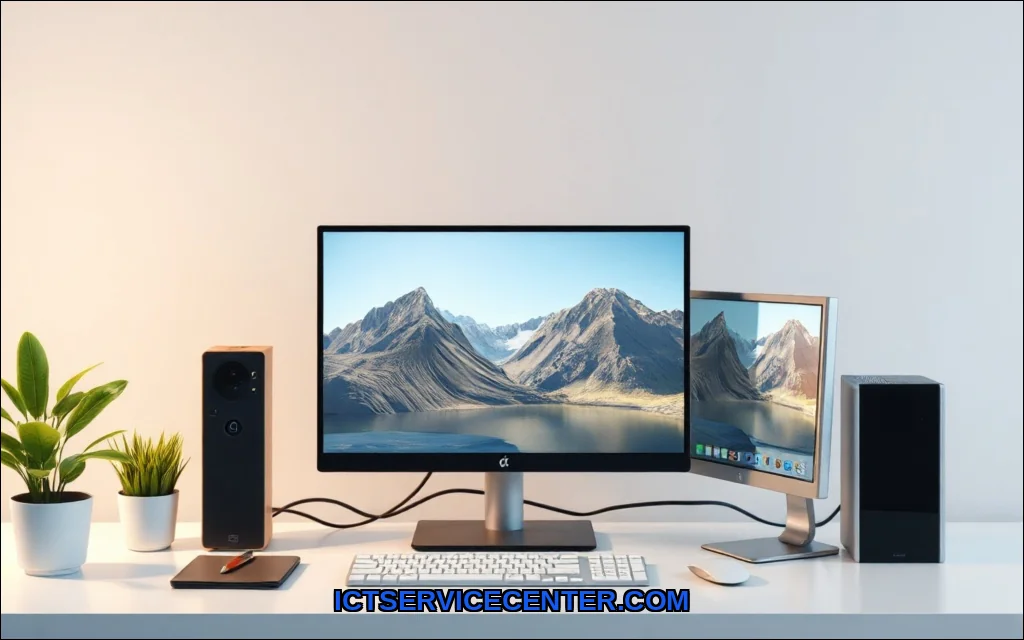
I live in a city apartment. My desk is 48 inches wide. A full tower case takes up 10 inches of that. Add a 27-inch monitor, speakers, and a keyboard tray. Suddenly, I have no room for paperwork or even a coffee mug. The space requirements for a desktop are non-negotiable.
Do desktop computers take up too much space? In my experience, yes. The desk footprint of a traditional tower is massive. You need a dedicated computer desk. Compare that to a laptop which sits on a small stand or even on your lap. The bulky design forces you to dedicate an entire zone of your home to the machine.
I have also dealt with cable management. The spaghetti of power cables, display cables, and USB extensions is ugly. It collects dust. It is a hassle. An all-in-one PC helps, but those still have a large monitor footprint and limited upgrade options.
If you are short on space, consider the best desktop computer for home use that features a compact form factor. Many mini-PCs now pack serious power without the tower bulk.
Dependency on Peripherals: Why I Always Need Extra Gear
A desktop is a brain without a body. You cannot use it without a monitor, keyboard, and mouse. This peripheral dependency is a major inconvenience. I once had a monitor cable fail on a Sunday. My desktop was a useless metal box until Monday.
This dependency also adds cost. A decent 24-inch monitor is $150. A mechanical keyboard is $80. A good mouse is $50. Suddenly, that $600 desktop costs $880 to actually use. Laptops include all of that in one package.
- Requires external display (monitor or TV).
- Requires input devices (keyboard, mouse).
- Often requires speakers or headphones for audio.
- Webcam and microphone are usually separate purchases.
I have also noticed the program execution overhead of managing multiple peripherals. Bluetooth pairing issues, USB hub failures, and driver conflicts for a simple webcam are common. Every extra device is a potential point of failure.
Obsolescence Risk: When the Whole System Needs Replacing
This is the one that hurts most. I built a high-end desktop in 2018. By 2022, the motherboard socket was dead, the DDR4 RAM was being replaced by DDR5, and the GPU was two generations behind. The obsolescence risk is real. Unlike a laptop where you might just replace the whole unit, a desktop encourages piecemeal upgrades. But when the platform changes, the whole system feels old.
I have seen this with Dell and HP pre-builts too. Proprietary power supplies and motherboards make upgrades impossible. You end up tossing the entire machine. The desktop upgrade limitations become a full system replacement.
There is also the issue of operating system compatibility. Microsoft drops support for older hardware. Windows 11 requires TPM 2.0 and a specific CPU generation. My 2018 rig? Not eligible. I had to either hack the install or buy new hardware. That is frustrating.
The hardware-software interaction is often overlooked. New software demands more from the CPU and GPU. Even if your desktop is physically fine, it can feel obsolete because it cannot run the latest applications smoothly. For a deeper understanding of how operating systems dictate hardware compatibility, check out this resource on operating system fundamentals and their hardware requirements.
Final Thoughts on Desktop Downsides
I am not anti-desktop. I own one. But I have learned that the disadvantages are significant. The portability issue alone makes it a poor choice for students or remote workers who move. The power consumption is a real monthly expense. The upgrade limitations and space requirements are dealbreakers for many.
If you value flexibility and low ongoing costs, a laptop or a compact mini-PC might serve you better. If you absolutely need raw performance and are willing to accept the trade-offs, a desktop can still be a great tool. Just go in with open eyes. Know that the peripheral dependency and obsolescence risk are part of the package.
My advice? Honestly assess your mobility needs, your desk space, and your electricity budget. Do not let the allure of high specs blind you to the everyday reality of living with a tower. I have been there. It is not always worth it.