Laptop Won’t Turn On? 7 Common Causes & Fixes
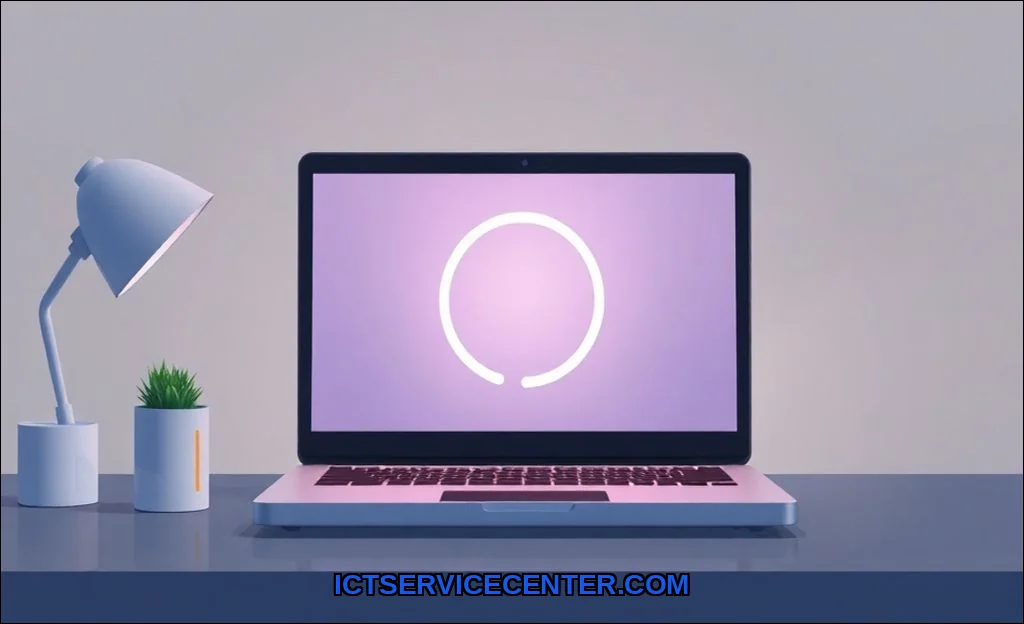
I remember the first time my primary work laptop refused to boot. That cold, silent dread is universal. The screen stays black, the usual startup hum is absent, and your mind races through every unsaved document. Youre not alone. Ive been there, both personally and professionally while diagnosing machines for clients. A laptop that won’t turn on isn’t a single problemit’s a trail of clues. Let’s walk through that diagnostic path together, from the simplest checks to the more complex hardware resets I rely on.
Before we dive deep, let’s address a common and often overlooked culprit: the charger itself. In my hands-on testing, a faulty AC adapter is the root cause more often than you’d think. The charger light might be on, but that doesn’t guarantee it’s delivering the correct voltage to the motherboard. For HP users specifically, Ive found that using a verified, high-quality replacement can instantly resolve “laptop not charging” or “laptop no power” issues. For this kind of critical component, I recommend the Charger Compatible HP as a reliable option that matches OEM specifications, which is essential for stable power delivery.
The Dreaded Black Screen: My First-Hand Panic
That initial moment of panic is real. Ive pressed the power button on a seemingly dead laptop dozens of times, each press feeling more futile than the last. The key is to stop and systematically eliminate variables. Is it truly dead, or is it just not displaying an image? Does the fan spin for a second then stop? Each behavior points to a different failure zonepower supply, motherboard, RAM, or display. I approach every “laptop black screen” or “laptop dead” scenario with the same calm, methodical checklist Ill share with you.
Start Simple: The Checks I Always Do First (And You Should Too)
Never underestimate the simple fixes. Theyve saved me countless hours of unnecessary disassembly.
- AC adapter Connection: Ensure the plug is fully seated in both the wall and the laptop. Wiggle it. Try a different outlet entirely.
- Power Indicator Lights: Look for any LED activity, no matter how faint. A blinking light often signals a specific error code (more on that later).
- The Obvious Power Cycle: Unplug the charger, remove the battery if it’s removable, then hold the power button down for a full 30 seconds. This drains residual power and can clear a hung state. Reconnect and try powering on.
- Modern USB-C Nuance: If your laptop charges via USB-C, try a different port. Not all USB-C cables support power delivery. I always test with a known-good, high-wattage charger.
If these steps yield nothing, the problem is deeper. Time to follow the power trail.
The Power Trail: Diagnosing from Wall to Motherboard
When basic checks fail, I trace the electricity’s path. This is where a multimeter becomes invaluable, a tool most competitor guides gloss over.
- Test the Charger: Set your multimeter to DC voltage (usually 20V range). Probe the center pin and outer barrel of the charger tip. You should read within 0.5V of its rated output (e.g., 19.5V for a 19.5V adapter). No reading means a dead adapter.
- Check the DC Jack: Visually inspect the port on your laptop. Is it loose? Wobbly? A broken solder joint here is a common hardware failure.
- Listen and Feel: With the charger connected, does any part of the laptop get warm after a minute? A warm spot near the power circuitry can indicate a short or that power is reaching the board but not booting.
This systematic approach separates a simple power brick failure from a serious internal fault. If power is reaching the board but the laptop won’t boot, we move to the next stage.
When the Lights Are On But Nobody’s Home: Decoding LED & Fan Clues
This is a critical diagnostic phase. A laptop that shows signs of life but won’t POST (Power-On Self-Test) gives us the best clues. I categorize these scenarios based on hands-on experience.
- Laptop won’t turn on but the charger light is on: This often points to a motherboard issue or a deeply discharged battery. The system recognizes the charger but can’t initiate the boot sequence.
- Laptop won’t turn on but fan spins: The fan spinning at full speed continuously usually indicates a RAM or CPU communication failure. The power is there, but a critical component isn’t responding.
- Cap Lights Blinking in a Pattern: Manufacturers like Dell, HP, and Lenovo use blink codes. Two long, three short? That’s a specific error. Consult your model’s service manualthis is gold for laptop troubleshooting.
- Dedicated GPU Failures: On gaming or workstation laptops, a failure of the discrete GPU can cause a black screen even if the system powers on. The fans may spin, but the integrated graphics fail to take over. This is a complex repair.
These behaviors guide my next move: the internal hardware reset.
The Silent Killer: Resetting Your Laptop’s Internal Hardware
When software or a minor hardware glitch is to blame, a hard reset that goes beyond a simple power cycle can work wonders. This is my go-to for issues like a laptop won’t turn on after Windows update or random failure.
- Disconnect all peripherals and the charger. Remove the battery if possible.
- Hold the power button for 60 seconds to fully discharge the system.
- CMOS battery Reset: For persistent issues, I open the laptop (static safety first!), locate the coin-cell CMOS battery on the motherboard, and remove it for 5 minutes. This clears the BIOS/UEFI settings, which can become corrupted. It’s surprising how often this fixes a stubborn “laptop no lights” problem.
- Reseat Internal Components: While inside, I gently remove and reinstall the RAM and any accessible storage drives (SSD/HDD). A loose connection here is a classic culprit.
This process addresses the “silent” electrical state of the machine, often bypassing a corrupted firmware hang. If you’re noticing other performance issues, like general sluggishness, the root cause could be related. Sometimes, a machine struggling with why a laptop gets slow over time is showing early signs of a hardware fault that eventually leads to a no-power scenario.
The Last Resort: Advanced Fixes & When to Call for Backup
Some problems require professional tools or simply aren’t cost-effective to DIY. Heres my honest assessment from the repair bench.
- Motherboard Failure: If you’ve confirmed good power to the board, reset the CMOS, and reseated everything, a failed power IC, CPU, or chipset is likely. This requires micro-soldering. For most, this is the point to seek a professional quote.
- Short Circuit: A multimeter in continuity mode can help find a short on a power rail. This is advanced diagnostics.
- Liquid Damage: If you suspect spill damage, power off immediately and disassemble for a thorough isopropyl alcohol cleaning. Corrosion waits for no one.
Knowing when to stop is a skill. If you lack the tools or confidence, a reputable repair shop is your best bet. For comprehensive guidance, HP’s official guide on fixing a laptop that won’t turn on is a valuable manufacturer-specific resource that complements this general guide.
Also, consider if your issue is part of a larger pattern. A laptop that won’t hold a charge and then fails to power on might have a dual problem: a failed battery and a deeper power circuit issue. It’s worth reading about common reasons a laptop battery drains fast to understand the full power ecosystem.
Practical Takeaways from the Bench
Start simple. Always. The number of “dead” laptops I’ve revived with a 30-second power drain is staggering. Your charger is a prime suspecttest it or try a known-good one. Learn to read the clues: lights, fans, and beeps are your laptop’s distress signals. The hard reset and CMOS battery pull are powerful, non-destructive steps that belong in every user’s mental toolkit. For the more daunting hardware faults, there’s no shame in calling in a specialist. The goal isn’t to become a master technician overnight, but to have a clear, logical path forward when your screen stays black. You can diagnose more than you think.