Keep Your Laptop Touchpad Working Smoothly: Simple Tips
I remember the exact moment my laptop touchpad became my enemy. It was a Tuesday, and I was trying to finish a report. The cursor jumped erratically, clicks registered as drags, and two-finger scrolling felt like wading through mud. That frustration, that feeling of fighting your own machine, is what sent me down a rabbit hole of testing and tweaking. I wanted to understand why touchpad performance degrades and, more importantly, how to restore that buttery-smooth interaction we all take for granted.
Through months of trial and error across different laptopsfrom budget plastic trackpads to premium glass onesIve built a maintenance routine. Its not just about cleaning; its a holistic approach combining physical care, software mastery, and a few hidden settings most people never touch. Let me walk you through what actually works, based on my hands-on experience, not just generic advice.
My Touchpad Journey: From Frustration to Fluidity
My journey started with a mid-range Windows laptop. The touchpad was fine for a year, then slowly became unreliable. I blamed everything from a recent Windows update to aging hardware. After calibrating three different models and digging into driver logs, I realized most problems stem from a simple trifecta: grime buildup, outdated or corrupted software layers, and suboptimal configuration. Addressing these transformed a jumpy, laggy mess into a precise pointing device. The difference wasn’t subtle; it was the difference between tolerating a tool and enjoying it.
The Essential Touchpad Cleaning Ritual (What I Actually Do)
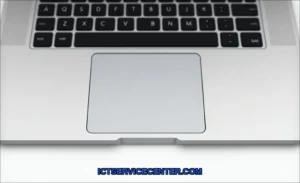
This is where most guides start and stop. But they often get the details wrong. You can’t just wipe a touchpad with any cloth and call it a day. The surface material matters immensely. Most laptops use a textured plastic or mylar surface, while higher-end models from Dell XPS or Apple MacBooks use smooth glass. Each collects oils and debris differently.
For my plastic touchpads, I use a slightly damp microfiber cloth (water only) and wipe in one direction. For glass surfaces, a 70% isopropyl alcohol solution on a microfiber cloth works wonders for cutting through grease without leaving residue. The key is powering the laptop off first to prevent ghost inputs. I also make it a point to clean the tiny seam around the touchpada hotspot for skin cells and dust that can physically impede movement.
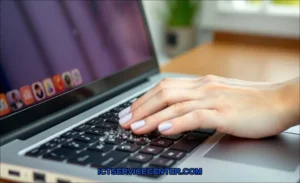
For a deep clean, especially around keys and the touchpad edges, I keep a can of compressed air and a dedicated tool. Keyboard Cleaner Laptop kits with soft brushes and gel putty are fantastic for this detailed work, lifting grime without scratching sensitive surfaces.
Why Cleaning Directly Impacts Responsiveness
It’s not just about hygiene. Oils from your skin create a sticky, inconsistent surface that interferes with the capacitive sensors underneath. This directly causes touchpad lag and reduces touchpad accuracy. After a proper clean, I immediately notice smoother tracking and more reliable palm rejectionthe feature that ignores your palm while you type. If you’re wondering why is my laptop touchpad not smooth, start here. It’s the most common physical fix.
Drivers & Settings: The Software Side of Smoothness
Cleaning is step one. Step two is where the real magic happens. Your operating system doesn’t talk directly to the touchpad hardware; it uses a driver as a translator. An old or buggy translator causes chaos.
The Driver Landscape: Synaptics vs. Precision
In the Windows world, you’ll typically encounter two driver types. The older standard is the Synaptics driver, which comes with its own control panel full of (often confusing) options. The modern standard is Precision drivers, a Microsoft standard that delivers smoother scrolling, better gesture support, and finer control.
I always check which driver my laptop uses. You can find this in Device Manager under “Mice and other pointing devices.” If you see “Synaptics” or “ELAN,” you have a vendor driver. If you see “HID-compliant touchpad” or “Precision Touchpad,” you’re on the Microsoft driver. Precision is superior, and if your hardware supports it, I force a switch by uninstalling the vendor driver and letting Windows Update install the Precision one. The improvement in touchpad responsiveness is usually immediate.
Don’t forget about touchpad firmware updates. These are different from drivers and are sometimes included in BIOS/UEFI updates from your laptop manufacturer (Dell, HP, Lenovo). I check for these every few months.
Dialing In Your Personal Settings
Once the right driver is in place, I dive into settings. The quest to how to adjust touchpad sensitivity Windows 11 is a common one. I go to Settings > Bluetooth & devices > Touchpad. Here’s my personal calibration routine:
- Sensitivity: I set this to “Medium” initially. “High” can make the cursor jittery, while “Low” requires too much finger travel.
- Taps: I enable tap-to-click but often increase the delay for a double-tap to avoid accidental opens.
- Gestures: This is the goldmine. I customize my three-finger and four-finger swipes for app switching and virtual desktops. Mastering touchpad gestures is a productivity multiplier.
- Scrolling Direction: I stick with “Down motion scrolls down” (the standard), but this is personal preference.
For non-Precision touchpads, you might need a third-party app like “Touchpad Blocker” to disable the pad while typing, a poor man’s version of palm rejection.
Protecting Your Touchpad from Physical Wear
Maintenance is also about prevention. A touchpad is a wear item. Constant finger contact, pressure from heavy-handed clicks, and environmental factors take a toll.
I avoid using lotions or hand creams right before using my laptop. The residue is a nightmare. If I’m doing extensive data entry, I’ll often plug in an external mouse to give the touchpad a restthis also helps preserve the mechanical click mechanism underneath. For laptops I travel with, I use a hard-shell case or a sleeve to protect the entire chassis, including the touchpad surface, from scratches in my bag.
Think of it like the screen or keyboard. It’s a primary interface. Protecting it extends its lifespan and keeps performance consistent. This physical care complements other hardware-aware habits, like understanding how RAM configuration can influence overall system responsiveness, which indirectly affects input latency.
Quick Fixes for Common Touchpad Problems
When things go wrong suddenly, heres my diagnostic checklist, born from fixing my own and friends’ laptops.
- The Touchpad is Dead: First, check for a physical disable button (often Fn + a function key). It’s embarrassingly common. If that’s not it, reboot. Seriously.
- Cursor Jumping/Jittery: This screams interference or dirt. Clean the surface thoroughly. Also, try using the laptop on a non-metallic surface. Some desks can cause capacitive noise.
- Touchpad Lag or Unresponsiveness: This is usually software. Open Device Manager, find the touchpad, right-click and select “Uninstall device.” Check “Delete the driver software for this device” and restart. Windows will reinstall a fresh driver.
- Gestures Not Working: Verify they are enabled in settings. If you just updated Windows, the update may have reset your preferences or changed your driver type.
- Poor touchpad scrolling: Go into the touchpad settings and adjust the scroll speed. Sometimes, a driver reinstall is needed here too.
Many of these issues feel like hardware failures but are actually software glitches. A clean driver reinstall fixes about 70% of the weird behavior I encounter. For broader system performance issues that might manifest as input lag, it’s worth reading up on how your storage drive type impacts everything from boot times to application snappiness.
When It’s Time to Seek Professional Help
Despite your best efforts, some problems are physical. If the touchpad is physically cracked, feels loose, or clicks inconsistently (a mushy or sticky feel), the mechanism underneath is likely damaged. If you’ve reinstalled drivers, cleaned meticulously, and the cursor still drifts or registers phantom taps without any finger contact, the capacitive sensor itself may be failing.
In these cases, it’s repair time. For modern, slim laptops, the touchpad is often part of the entire top case assembly (integrated with the keyboard and palm rest), making replacement a more involved procedure. I don’t recommend DIY here unless you’re very confident. A professional technician can diagnose whether it’s a simple ribbon cable reseat or a full assembly replacement. For a great overview of general care that can prevent such issues, HP has a useful resource on essential computer maintenance routines that align with a lot of this proactive philosophy.
Maintaining your laptop touchpad isn’t a one-time task. It’s a small series of habitskeeping it clean, managing your software, and listening to what the hardware is telling you. I went from wanting to throw my laptop out a window to having a touchpad that feels like an extension of my intention. That fluidity is worth the minor, periodic effort. Start with a deep clean and a driver check. You might be surprised how much life and precision you can bring back to a neglected touchpad.