
 By
You open a plain grey page and the faint outline of your taskbar is still there. That ghost image is what most people mean by OLED laptop burn-in.
In short: OLED laptop burn-in is permanent uneven wear of the pixels. Pixels that stay bright in the same spot, such as a taskbar or a logo, age faster than the pixels around them, so the worn area looks dimmer on plain screens.
It cannot be reversed. You can slow it down a lot by hiding the taskbar, using dark mode, setting a short screen timeout, rotating your wallpaper, and keeping pixel refresh and pixel shift turned on.
Key takeaways
- Burn-in is permanent uneven pixel wear, not a stain on the glass.
- Image retention looks similar but fades after the screen rests. Burn-in stays.
- Static bright parts of the screen cause it: the taskbar, logos, and app bars.
- Hiding the taskbar, dark mode, a short screen timeout, and pixel refresh all slow it down.
- Check for it with full-screen solid colors, and read the warranty terms before you buy.
What OLED laptop burn-in actually is
An OLED screen makes its own light. Each pixel is a tiny light of its own, and it glows only when it is told to. That is why black parts of an OLED screen look truly black: those pixels are off. Samsung Display describes OLED as a self-light-emitting display, with each pixel producing its own light and color.
Burn-in happens when some pixels work harder than others for a long time. The pixels in a bright taskbar or a toolbar glow hour after hour, day after day, while the pixels in the dark parts of the screen rest. Over time the hard-working pixels lose brightness faster than the rest, so a faint ghost of the static image stays visible on plain backgrounds.
Think of it as wear, not damage from one event: it builds up slowly from the same image sitting in the same place for weeks and months.
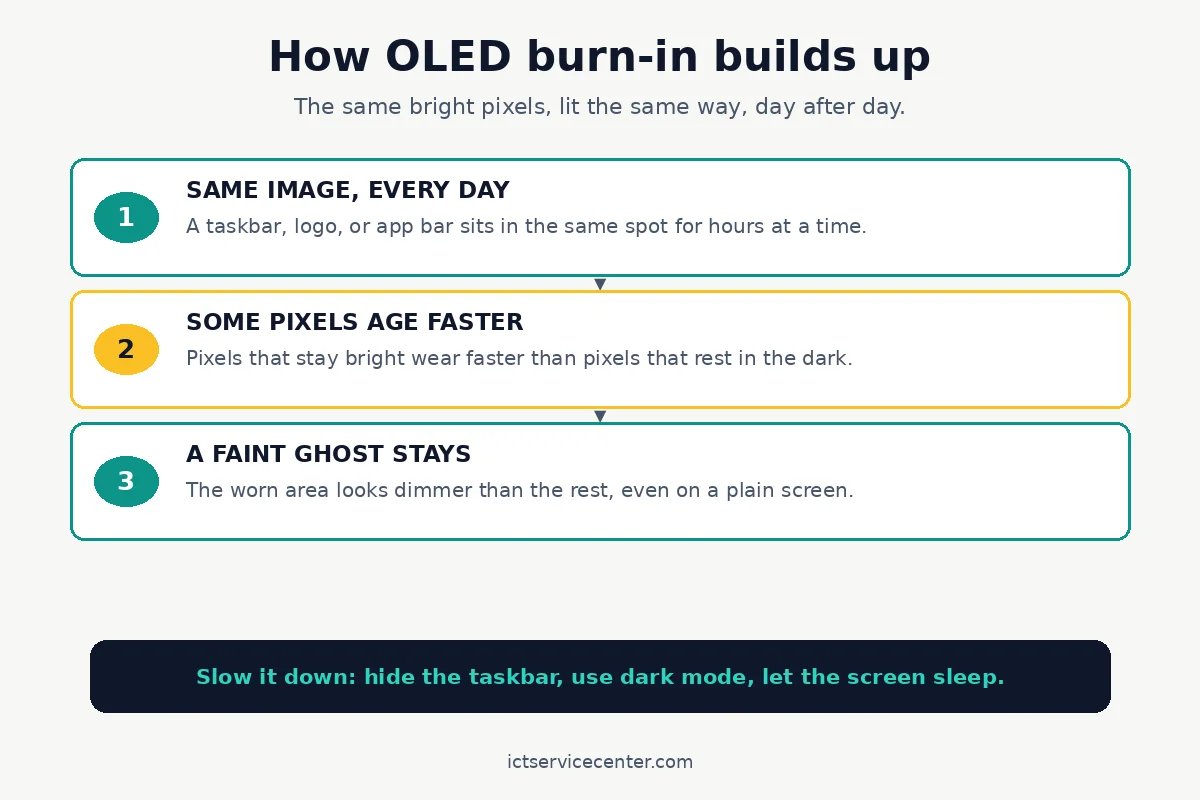
Burn-in is permanent. No app, video, or cleaning cycle can bring worn pixels back to full brightness. A pixel refresh cycle can even out small differences across the panel, but it does not restore pixels that have aged.
Most people who vary their screen content, use dark mode, and let the screen sleep will never see it.
Burn-in vs image retention: how to tell them apart
Not every ghost on an OLED screen is burn-in. The other common cause is image retention, which is temporary. A bright image leaves a faint after-image that fades with varied content or rest.
Show a full-screen video or a plain color for a while, then check the same spot. If the ghost fades or disappears, it was image retention. If it is still there in the same shape after the screen has rested and shown varied content, it is burn-in.
| Sign | Image retention | Burn-in |
|---|---|---|
| How long it lasts | Fades within hours | Stays for days |
| What causes it | A bright image held briefly | Uneven wear over weeks |
| Can it be fixed | Yes, it clears on its own | No |
| What to do | Vary content, let it rest | Slow further wear |
Retention that clears within a day is normal and not a sign of damage. Do not run a pixel refresh cycle every time you see a faint ghost. Use the cycle as the maker intends, usually when the laptop prompts you. If the ghost never fades and matches a static part of your screen, such as the taskbar, treat it as burn-in and check your warranty terms.
Why OLED panels are vulnerable
Each pixel makes its own light, so a bright white taskbar means those pixels are lit at full power while the dark pixels next to them are off. On an LCD, a backlight lights the whole panel instead. To see the trade-off in plain terms, read how OLED compares with IPS and TN panels.
Three things speed up the wear. The first is brightness: a pixel driven hard at full brightness ages faster than the same pixel at half brightness. The second is time in one place: a static image that never moves gives the same pixels no rest.
The third is color: blue OLED pixels have long been the fastest to wear. LG Display explains that OLED pixels emit light on their own, which is why the panel needs care features built in.

OLED laptops ship with protection features. Pixel shift moves the whole image by a pixel or two at set times, so no single pixel sits in exactly the same spot all day. Pixel refresh runs a cycle that evens out brightness across the panel. Asus explains these OLED protection features on its support pages. These features slow the wear; they do not stop it.
How to check your laptop for burn-in
Check on a plain screen, not on a busy photo. Photos hide the ghost because their detail breaks up the outline. A solid color fills the whole panel with one tone, so any dimmer patch stands out.
Clean the screen first with a dry microfiber cloth, since smudges can look like faint marks. Then open a full-screen solid color: open a blank image or a solid-color page in your browser and press F11 for full screen. Grey at about half brightness shows burn-in best, but also check white, red, green, and blue, since some wear shows up more on one color than on another.
Look at the spots where static items sit: the taskbar at the bottom, the top browser bar, and any logo that stays on screen in your usual app. If you see a faint outline, use the laptop normally for a day and check again on the same color. A mark that fades was retention. A mark that stays put is burn-in.
Test with solid colors and a day of varied use before you run a pixel refresh. Run it only as the maker directs.
A faint ghost that only shows on a grey test screen may not bother you in daily use. A strong ghost that shows in photos and videos is a bigger problem, so check the warranty and the repair cost. If the screen also flickers or shows lines, that is a different fault: see our guide on how to fix a flickering laptop screen instead.
Prevention settings that make a real difference
Prevention breaks up the static load: move the image, dim the bright parts, and give the pixels rest.
Hide the taskbar. The taskbar is the worst static item on most Windows laptops because it sits in the same place, bright, all day. Go to Settings > Personalization > Taskbar > Taskbar behaviors and turn on Automatically hide the taskbar.
Turn on dark mode. Dark mode turns large white areas into dark grey or black, so those pixels rest instead of glowing. Go to Settings > Personalization > Colors > Choose your mode and pick Dark. Turn it on in your browser too. Microsoft notes that dark mode cuts screen power use most on OLED displays, in its Windows 11 power settings guide.
Set a short screen timeout. A screen that turns off after a few idle minutes cannot burn in while you are away from the desk. Go to Settings > System > Power & battery > Screen, sleep, & hibernate timeouts and set Turn my screen off after to a short time, such as 5 minutes on battery and 10 minutes when plugged in.
Keep pixel refresh and pixel shift turned on. These maker features shift the image slightly and even out the panel. On Asus laptops they sit in the MyASUS app under OLED care, and other makers put them in their own support app or display settings.
Rotate your wallpaper and vary your content. A single bright photo as a desktop background is a static image too. Go to Settings > Personalization > Background, pick Slideshow, choose a folder of pictures, and set it to change often.
Lower the brightness. You do not need full brightness indoors. Bring it down to a level that is easy to read and no more. Lower brightness slows wear on every pixel. To keep the rest of the panel in good shape too, follow our guide to keep your laptop screen in good shape.
What it means for you when buying an OLED laptop
Burn-in should shape how you buy, not scare you away from OLED. The picture quality is real: deep blacks, strong contrast, and colors that look alive on photos and video. For a laptop that will show the same office app all day at full brightness, an IPS screen may be the calmer choice. Our IPS vs OLED laptop display comparison walks through that trade-off in full.
Before you buy, read the warranty terms for burn-in. Some makers list burn-in as normal wear and do not cover it, while others cover it for a set period or offer an extended plan that does. Check the warranty document on the maker site and keep a copy.
Check that the model has the protection features. Look for pixel shift, pixel refresh, and logo dimming in the spec sheet or the maker support pages. Then think about how you will use the laptop: varied use is the easy case for OLED, while the same toolbars open all day is the hard case.
When you compare models, look at the whole display, not just the panel type. Brightness, color accuracy, and refresh rate all matter too. Browse laptops with OLED displays to see which models buyers pick, then check each one against the points above. For more explainers like this one, see the Specs Explained hub.
Mistakes to avoid
Leaving the screen at full brightness with the same image all day. Turn the brightness down, hide the taskbar, and use dark mode in your most-used apps.
Turning off pixel shift and pixel refresh. Leave them on. The shift is small, and it is the main tool the maker gives you to spread the wear evenly.
Setting the screen timeout to Never. Set a short timeout so idle time is rest time for the panel.
Ignoring the first faint ghost. When you first spot a ghost on a grey screen, change your habits right away. The wear will not reverse, but you can slow it a lot.
Paying for apps or videos that claim to cure burn-in. No app can restore worn pixels. Some tools can help a temporary ghost fade, but they cannot fix burn-in.
Assuming the warranty covers it. Many warranties treat burn-in as normal wear and exclude it. Check the terms before you buy or send a laptop in for repair.
Frequently asked questions
Can OLED laptop burn-in be fixed?
No. Burn-in is permanent wear, and worn pixels do not regain brightness. A pixel refresh cycle can make mild uneven wear less obvious, but it does not restore the panel. If a ghost fades after a day of varied use, it was image retention.
Does dark mode stop burn-in?
Dark mode helps a lot, but it does not stop burn-in on its own. It turns bright white areas dark, so those pixels rest instead of glowing at full power. Pair it with a hidden taskbar, a short screen timeout, and pixel refresh.
Is OLED burn-in covered by warranty?
It depends on the maker. Some warranties cover burn-in for a set period, while others list it as normal wear and exclude it. Read the warranty document before you buy. If your laptop already shows burn-in, check the terms before you book a repair.
How long does it take for OLED burn-in to appear?
There is no fixed time. It depends on brightness, how static the image is, and how many hours a day the same pixels stay lit. A laptop with varied content at modest brightness may never show it, while one with the same bright screen up all day will wear faster.
Should I avoid OLED laptops because of burn-in?
Not always. OLED gives deep blacks and strong contrast that suit photo work, video, and movies. The risk is highest when the same bright screen stays up all day at full brightness. If your use varies, with dark mode and short timeouts, an OLED laptop can serve you well for years.
Bottom line: OLED burn-in is permanent uneven wear from static bright images, but it is slow and you can fight it. Hide the taskbar, turn on dark mode, set a short screen timeout, rotate your wallpaper, and leave pixel refresh and pixel shift on. Check your screen on a solid grey background, and check the warranty before you buy.
Sources: Samsung Display, OLED technology; LG Display, OLED technology; Asus, OLED Monitor Protection Mechanism; Microsoft Support, Power settings in Windows 11. Photos: Nikolaos Dimou, Szymon Shields, SHVETS production, Elle Hughes, Julian Freudenhammer via Pexels.