
You are trying to decide between a bulky tower and a box the size of a DVD player, but you don't want to sacrifice speed. This page breaks down the real differences in size, power, and upgrade options so you can pick the right machine for your desk.
In short: For most home offices, a Mini PC is the better choice because it saves space and is easy to move. A full desktop tower wins only if you need heavy 3D rendering, high-end gaming, or specific expansion slots. Choose based on your square footage and how often you upgrade parts.
Quick picks
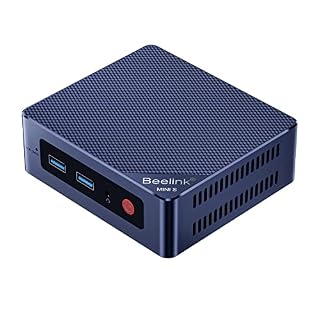
Our shortlist for this job · tap one to see today's priceFits any desk and handles daily tasks like browsing and video calls smoothly without taking up space.
A solid alternative for light media use that connects easily to your existing monitor.
The differences at a glance
A full desktop tower is a large box that sits on the floor or desk. It has a dedicated graphics card and many slots for extra parts. A Mini PC is a small computer about the size of a cereal box. It uses integrated graphics and a compact layout to save space. We cover gmktec m5 vs bosgame in a guide of its own.
| Feature | Mini PC | Full Desktop |
|---|---|---|
| Size | Very small | Large tower |
| Graphics | Integrated | Often dedicated |
| Upgrade ease | Harder (slim slots) | Easier (standard parts) |
| Noise | Quiet at idle | Depends on fans |
| Portability | Fits in a bag | Stays in one spot |
Space and desk clutter: where the Mini PC wins
The biggest advantage of a Mini PC is that it frees up your desk. You can mount it behind the monitor, stick it on the wall, or hide it under the desk. This leaves the entire surface open for your keyboard, mouse, and notes.
A full desktop tower usually sits on the floor, but it still takes up visual space and can make a small room feel crowded.
If you work in a tiny apartment, a dorm, or a small home office, the Mini PC is the practical choice. You can move your entire setup from one table to another without hauling a heavy computer case. This makes your workspace feel cleaner and more flexible.
For readers who want a minimalist look, the Mini PC is the clear winner. It disappears into the background of your setup, letting your monitor and peripherals be the focus. You can even carry it to a co-working space and plug it into a wall power outlet.
- Behind the monitor: Use a VESA mount to hide the PC completely.
- Under the desk: Tuck it away for a clean surface.
- On the desk: It takes up less space than a keyboard.
This specific Mini PC is designed to be tucked away while still running your office apps.
See options on AmazonPower and performance: when a full desktop is better
A full desktop tower can handle heavy tasks like video editing, 3D rendering, and high-end gaming much better. It has room for a dedicated graphics card and better cooling for powerful processors.
A Mini PC uses integrated graphics, which is great for photos and videos but slow for 3D work. If you are an artist or a gamer, the Mini PC will likely feel too weak. For the detail, see our notes on difference between tower and mini pc.
For everyday work like spreadsheets, email, and web browsing, the Mini PC is more than enough. Modern chips like the AMD Ryzen in the KAMRUI P2 handle multi-tasking smoothly. You do not need a giant tower just to open a few browser tabs. The performance gap only matters if you are doing heavy creative or gaming work.
The full desktop wins this category only if your job involves heavy software. For 90% of office users, the Mini PC provides the right amount of power without the waste. It runs cooler and quieter because it does not push the hardware to the limit.
- Office work: Mini PC is sufficient.
- Video editing: Full desktop is recommended.
- Gaming: Full desktop is required for high settings.

This budget Mini PC is a good alternative if you only need light performance for daily tasks.
- 𝐏𝐨𝐰𝐞𝐫𝐟𝐮𝐥 & 𝐄𝐟𝐟𝐢𝐜𝐢𝐞𝐧𝐭 𝐏𝐞𝐫𝐟𝐨𝐫𝐦𝐚𝐧𝐜𝐞: Powered by the Intel Celeron J3355 Processor (up to
- 𝐌𝐚𝐬𝐬𝐢𝐯𝐞 𝐒𝐭𝐨𝐫𝐚𝐠𝐞 & 𝐔𝐧𝐢𝐪𝐮𝐞 𝐄𝐱𝐩𝐚𝐧𝐬𝐢𝐨𝐧: Equipped with 6GB LPDDR3 RAM and 128GB onboard
Upgrades and repairs: how easy is it to fix?
Upgrading a full desktop is standard. You open the side panel, plug in a new video card, and swap the hard drive. Parts are cheap and easy to find.
A Mini PC is harder to open. You usually need special tools to remove the bottom plate. Once open, you can add RAM or an SSD, but the slots are often very small. This makes the process slower and less forgiving.
If your computer breaks, a full desktop is easier to repair. You can replace just the broken part. A Mini PC is more of a sealed unit.
If the main board fails, you usually have to buy a new one. This is a trade-off for the small size. You get less flexibility, so make sure the base specs are enough for you before buying. For the detail, see our notes on compact form factor limits.
The full desktop wins for long-term ownership if you plan to change parts. The Mini PC is best if you buy it fully spec’d from the start. Check the manual for the specific RAM type and SSD form factor before purchasing upgrades.
- RAM: Standard in desktops, SODIMM in Minis.
- SSD: Standard in desktops, M.2 in Minis.
- GPU: Only in desktops.
Pro tip: Always power off and unplug the Mini PC before opening the case to avoid electrical damage.

You need the right tools to open a Mini PC case safely without stripping the screws.
- - 40Pcs screwdriver set has 30 CRV screwdriver bits which are phillips PH000(+1.2)
- - All our screwdriver bits are made of high quality CR-V chrome vanadium steel. CR-V
Noise and heat: staying comfortable at your desk
A Mini PC usually runs very quiet because it does not have a large fan. It is perfect for libraries, open offices, or quiet bedrooms. A full desktop can get loud if it has many fans or a high-power graphics card.
The heat and noise from a tower can make your desk area feel uncomfortable. This is a real factor if you sit near your computer for hours.
Modern Mini PCs manage heat well for office tasks. They do not get hot enough to burn your hand or make the room warm. This makes them better for sensitive environments. However, if you are gaming or rendering, the Mini PC will get hot and may fan up. A full desktop has better airflow for sustained high performance.
The Mini PC wins for quiet office use. The full desktop is better for heavy tasks that generate a lot of heat. Monitor your temperatures if you do sustained workloads on a Mini PC. There is more on laptop vs desktop students in a separate guide.
- Quiet office: Mini PC.
- Loud gaming: Full Desktop.
- Hot workloads: Full Desktop.
Which should you buy?
There is no single winner for everyone. The right choice depends on your room size, your work, and your budget. Here is a quick guide to help you decide.
- Get a Mini PC: If you have a small desk, want to move your computer, or only do office work. It saves space and stays quiet.
- Get a Full Desktop: If you play heavy games, edit video, or plan to upgrade parts often. It has more power and easier repairs.
- Get a Budget Mini PC: If you need a cheap computer for a child or a secondary office. It is the most affordable option that still works well.
Pro tip: Check the included power adapter before buying. Some Mini PCs require a specific brick to work.
The bottom line
For most people, the Mini PC is the better choice because it saves desk space and is easy to move. It is the right call for office work, browsing, and small setups. Buy a full desktop only if you need heavy gaming or video editing power.
Frequently asked questions
Can a Mini PC replace a full desktop for work?
Yes, for standard office tasks like email, spreadsheets, and video calls, a Mini PC is a direct replacement. It runs the same operating system and connects to the same monitors and keyboards. You will not notice a difference in daily productivity.
Is a Mini PC good for gaming?
It is good for casual games like Minecraft or older titles, but not for modern high-end games. It lacks a dedicated graphics card, so you will have to lower the settings significantly. If gaming is your main use, stick with a full desktop tower.
Which is easier to set up, a Mini PC or a desktop?
The Mini PC is slightly easier because there are fewer cables. You just plug in the power and a monitor. However, it is very small, which can be tricky if you have a crowded desk. A desktop has more ports that are easy to reach.
Can I upgrade the storage in a Mini PC later?
Yes, most Mini PCs let you swap the SSD for a larger one. You need to open the bottom case and use a small screwdriver. It takes about 15 minutes. Just make sure to check the specific model’s manual before buying the new drive.