
 By
Your laptop is stuck on Preparing Automatic Repair, and Windows will not start. Work through the fixes below in order, and stop at the first one that gets you back to the desktop.
In short: Let the repair run while the spinner moves, then force the laptop into the Windows Recovery Environment by interrupting startup twice. Run Startup Repair first, then uninstall the latest update if the loop started after one, then try System Restore. If those fail, repair the boot records with bootrec and chkdsk, and use Reset this PC as the last resort.
Key takeaways
- Do not force the laptop off while the spinner is moving and the drive light flickers.
- Interrupt startup twice to reach the Automatic Repair screen.
- Try the fixes in order: Startup Repair, uninstall the update, System Restore, then bootrec and chkdsk.
- Back up your files before any disk repair step, and stop if the drive makes clicking sounds.
Wait first: give the repair time to finish
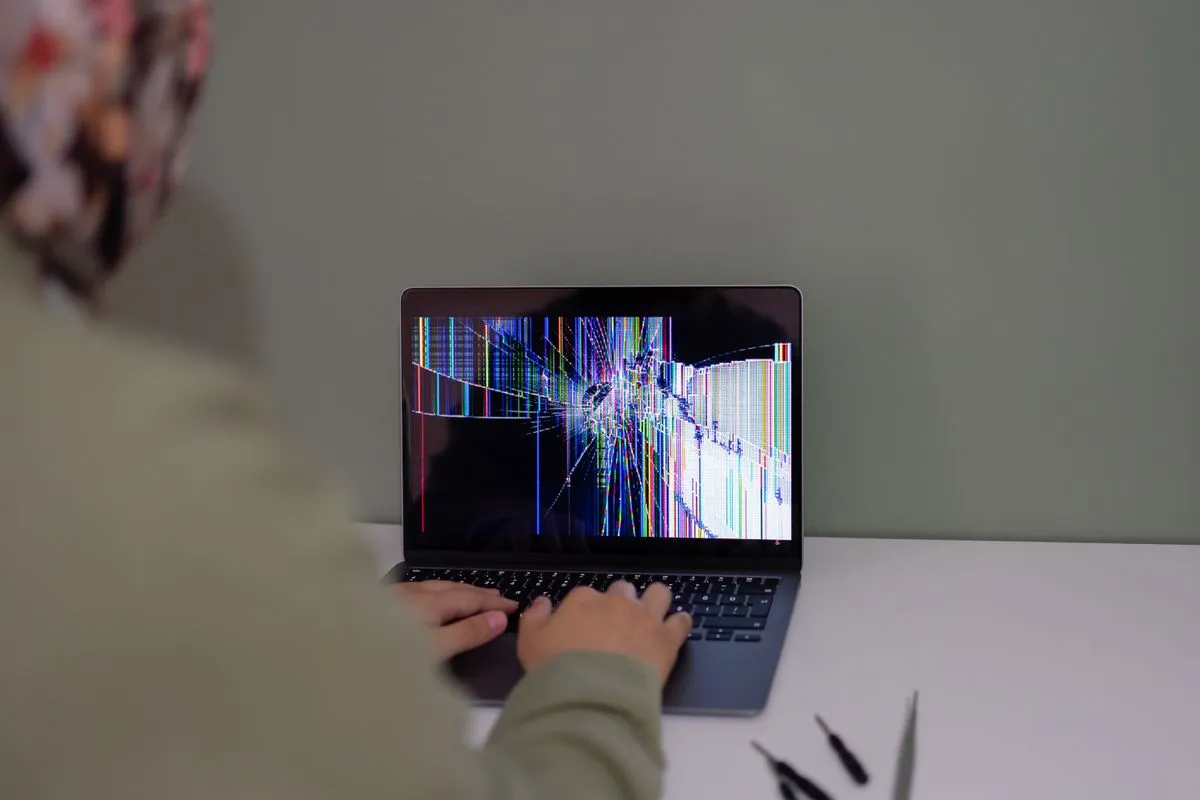
Preparing Automatic Repair means Windows failed to start, so the Windows Recovery Environment (WinRE) stepped in to diagnose it. That diagnosis can take a while, above all on an older hard drive, so do not interrupt it in the first minutes. It helps to understand resolving charging inconsistencies before going further.
Watch two signs. If the spinning dots are still moving and the drive light is flickering, the repair is still working, so leave it alone. If the spinner has stopped, the text has not changed, and the drive light stays dark, the repair has stalled.
Forcing the power off during an active repair can damage system files and turn a fixable boot problem into a bigger one. If you have already waited through a long break with no movement and no drive activity, the laptop is stuck and waiting longer will not help.
What the loop means, and what it is not
The loop works like this: Windows fails to start, WinRE launches Automatic Repair, the repair cannot fix the fault, and the laptop restarts into the same screen again. The cause is usually a damaged boot record, a bad update, corrupted system files, or a drive starting to fail.
This article covers the Preparing Automatic Repair loop inside WinRE. It is a different problem from a laptop that shows the maker logo or a spinning circle and never reaches the repair screen. If that is what you see, read our guide on a laptop stuck on a startup screen instead. If Windows does start but runs badly, our guide to repairing Windows without reinstalling covers the desktop-side fixes.
| Symptom | Likely cause | Fix |
|---|---|---|
| Preparing Automatic Repair, then the same screen again | Damaged boot record or boot configuration | Startup Repair, then bootrec from Command Prompt |
| Loop started right after a Windows update | Faulty quality or feature update | Uninstall the latest update from WinRE |
| Loop started after a crash or a forced shutdown | Corrupted system files | System Restore, then chkdsk |
| Clicking sounds, or the loop returns after every fix | Failing drive | Stop and take the laptop to a shop |
Get into the Windows Recovery Environment
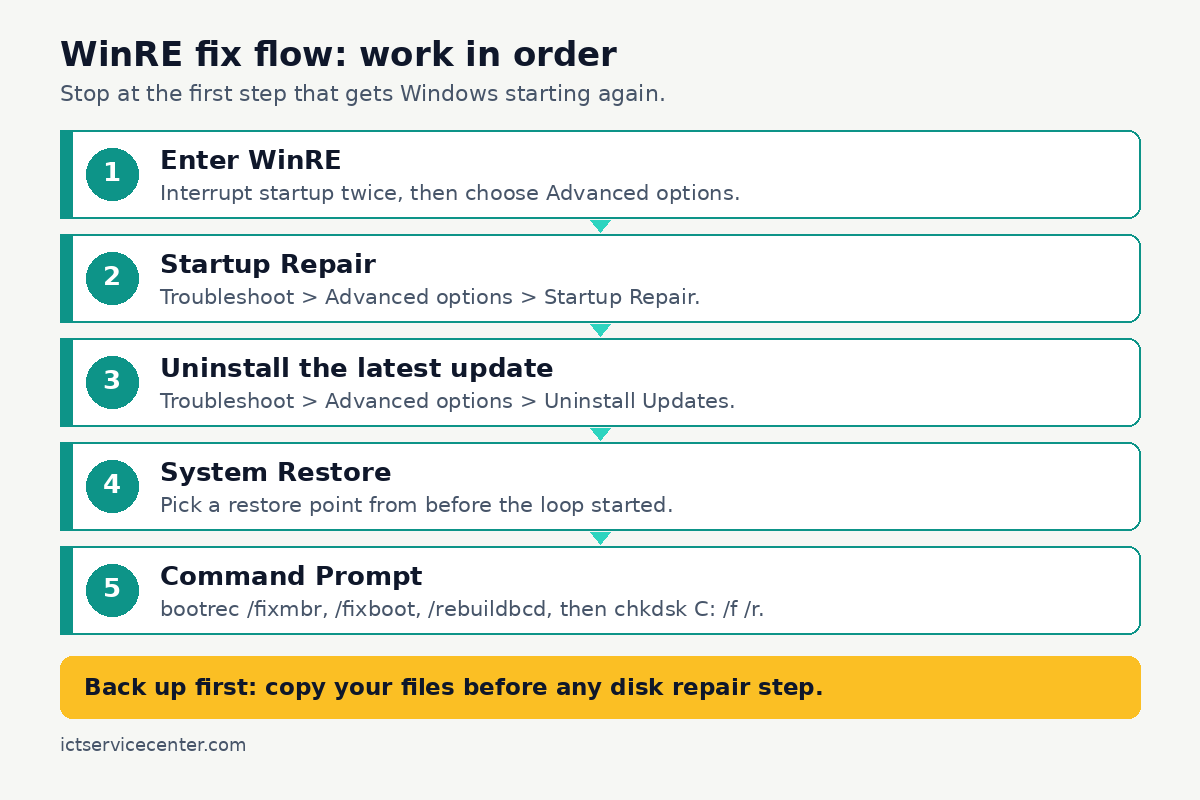
Every fix in this guide starts in WinRE, the blue recovery screen with the Troubleshoot menu. If your laptop already shows the Automatic Repair screen, choose Advanced options. If it is still stuck on Preparing Automatic Repair, force WinRE to open.
- Press the power button to turn the laptop on.
- As soon as the maker logo or the spinning dots appear, press and hold the power button for 10 seconds until the laptop turns off.
- Repeat the same step a second time: turn it on, then hold the power button for 10 seconds when the logo or the dots appear.
- Turn the laptop on a third time. Windows should show the Automatic Repair screen.
- Select Advanced options to open WinRE, then select Troubleshoot.
Microsoft describes this as interrupting the normal boot process two times, after which Windows boots into WinRE on the third restart. If the laptop uses BitLocker, WinRE may ask for the recovery key before it lets you use the tools, so have that key ready. Our explainer on how the Windows Recovery Environment works covers the tools on that screen.
If the forced entry does not work and the laptop never shows the Automatic Repair screen, the recovery partition itself may be damaged. In that case, make a recovery drive on another Windows PC with the Recovery Drive app, then boot the broken laptop from that drive to reach the same WinRE tools. The other half of this decision is clearing temporary storage.
A recovery drive needs a blank USB drive, and a larger drive leaves room for the system files Windows copies onto it.
See options on AmazonRun Startup Repair

Startup Repair is the first tool to try because it is automatic and it does not touch your files. It scans for the problems that stop Windows from starting, such as corrupted system files or boot configuration errors, and tries to fix them.
- In WinRE, select Troubleshoot, then Advanced options, then Startup Repair.
- Select your user account and type your password if asked.
- Select Restart if the screen offers it, then let the repair run without touching the laptop.
- If Windows starts, sign in and check that your files and apps are there.
- If Startup Repair reports that it could not repair your PC, select Advanced options to return to WinRE and move on to the next fix.
Uninstall the latest update
If the loop started right after a Windows update, the update itself is the most likely cause, and WinRE can remove it without starting Windows.
- In WinRE, select Troubleshoot, then Advanced options, then Uninstall Updates.
- Choose Uninstall latest quality update first. Quality updates are the regular monthly updates, and they are the usual cause.
- If the loop followed a version upgrade, choose Uninstall latest feature update instead.
- Let the uninstall finish, then select Restart and see if Windows starts.
Some updates cannot be uninstalled, and WinRE will tell you if that is the case. If the uninstall fails or the loop comes back, move on to System Restore. Our guide on a laptop stuck on an update screen covers update loops that stop before WinRE, and our guide on a laptop that runs slow after a Windows update covers problems that appear after Windows does start.
Roll back with System Restore
System Restore returns system files, registry settings, drivers, and installed programs to the state they were in at a restore point, while leaving your personal files alone. It is the right fix when an update, a driver, or a settings change broke startup.
- In WinRE, select Troubleshoot, then Advanced options, then System Restore.
- Select your user account and type your password if asked, then select Next.
- Choose a restore point dated before the loop started. If more points are hidden, select Show more restore points.
- Select Scan for affected programs to see which apps and drivers the restore will change.
- Confirm the restore, then let the laptop restart on its own.
System Restore only works if a restore point exists. Windows creates points before updates when System Protection is on, but if the list is empty, move on to the Command Prompt steps. Our explainer on what System Restore does covers how restore points are made.
If System Restore works, write down which restore point fixed the loop, so you can pick the same date again if it ever comes back.
Fix the boot records with bootrec and chkdsk
If Startup Repair, the update uninstall, and System Restore all fail, the fault is likely in the boot records or the file system. The Command Prompt in WinRE gives you two tools: bootrec for the boot records, and chkdsk for the file system. Before you buy anything, it is worth looking at unfreezing stalled updates.
Back up your files before any disk repair step. If you can reach your files from another PC, copy them first. Never run chkdsk /r on a drive that holds irreplaceable data you have not backed up, because a failing drive can get worse while the scan runs. If the drive makes clicking or grinding sounds, stop now and take the laptop to a shop.
- In WinRE, select Troubleshoot, then Advanced options, then Command Prompt.
- Type bootrec /fixmbr and press Enter. This writes a Windows-compatible master boot record without overwriting the partition table.
- Type bootrec /fixboot and press Enter. This writes a new boot sector to the system partition.
- Type bootrec /rebuildbcd and press Enter. This scans all disks for Windows installations and lets you add them to the boot configuration data store.
- Type chkdsk C: /f /r and press Enter. The /f switch fixes file system errors, and /r finds bad sectors and recovers readable data. Let it finish; on a large drive it takes a long time.
- Type exit, press Enter, then select Continue to restart into Windows.
Run the commands one at a time, in the order above, and read what each one reports before you run the next.
If bootrec /fixboot returns “Access is denied”, stop: that command targets older MBR boot code, and on a modern UEFI laptop forcing it will not help.
In WinRE the Windows drive is usually C:, but if chkdsk cannot open the volume, the letter may differ, so check the drive letters first.
Reset this PC, and when the drive itself is failing
Reset this PC is the last resort because it reinstalls Windows. In WinRE, select Troubleshoot, then Reset this PC, then Keep my files. That option reinstalls Windows, removes your apps and settings, and keeps your personal files. Choose Remove everything only if you are giving the laptop away or nothing else has worked, and only after you have backed up.
Microsoft lists Reset this PC as the most disruptive recovery option, so try the earlier fixes first. If the reset fails or the loop comes back after a reset, the drive itself is the likely cause: clicking or grinding sounds, chkdsk finding bad sectors again and again, or the drive missing from the BIOS or UEFI boot list.
Take the laptop to a shop, and tell the technician about the loop and everything you already tried. Ask about data recovery before any new drive is fitted, because a failing drive should be read as little as possible. If Windows starts again after any fix here, back up your files at once and make a recovery drive.
Mistakes to avoid
Forcing the power off while the spinner is still moving. The fix: wait until the spinner stops and the drive light stays dark.
Running chkdsk /r before backing up. The fix: copy your files first, or take the laptop to a shop.
Choosing Remove everything before trying the gentler fixes. The fix: try Startup Repair, the update uninstall, System Restore, and bootrec first.
Running bootrec from a normal Command Prompt in Windows. The fix: run bootrec only from the Command Prompt inside WinRE.
Ignoring the sounds the drive makes. Clicking or grinding means the drive hardware is failing. The fix: stop, back up what you can, and take it to a shop.
Frequently asked questions
How long should I wait on Preparing Automatic Repair before forcing it off?
Wait while the spinner is moving and the drive light is flickering, since that means the repair is still working. If the spinner has stopped, the text has not changed, and the drive light stays dark, the repair has stalled, so force the laptop into WinRE and start the fixes.
Will Startup Repair delete my files?
No. Startup Repair works on system files and boot configuration, and it does not touch your personal files. That is why it is the first fix to try. Back up your files anyway before the later disk steps, which carry more risk.
Why does my laptop keep going back to Preparing Automatic Repair?
Windows fails to start, WinRE runs Automatic Repair, the repair cannot fix the fault, and the laptop restarts into the same screen. The usual causes are a damaged boot record, a faulty update, corrupted system files, or a failing drive.
What if there is no restore point and Startup Repair fails?
Move on to the Command Prompt steps: run bootrec /fixmbr, bootrec /fixboot, and bootrec /rebuildbcd, then chkdsk C: /f /r. If those do not work either, use Reset this PC with the Keep my files option. If the reset fails too, the drive is the likely cause and a shop should test it.
Bottom line: Force the laptop into WinRE, run Startup Repair, then work down the list: uninstall the latest update, try System Restore, then bootrec and chkdsk. Back up before any disk step, and take the laptop to a shop if the drive clicks or the loop returns after a reset. For the next problem, browse our troubleshooting guides.
Sources: Microsoft Support, Windows Recovery Environment (support.microsoft.com); Microsoft Support, Startup Repair (support.microsoft.com); Microsoft Support, Recovery options in Windows (support.microsoft.com); Microsoft Learn, chkdsk (learn.microsoft.com). Photos: Beyzanur K., Bulat843, cottonbro studio, IT services EU, Quang Nguyen Vinh via Pexels. Diagram: ictservicecenter.com.