
Your laptop just told you storage is full, but you have no idea where all the gigabytes went. This page shows you exactly why it happens and gives you the quickest safe way to free up space right now.
In short: Your storage fills up from hidden caches, old system restore points, and forgotten downloads that build up silently. You can usually reclaim 5-20GB in ten minutes using built-in Windows tools. If that is not enough, an SSD upgrade is the permanent fix for speed and capacity.
Quick picks
Our shortlist for this job · tap one to see today's price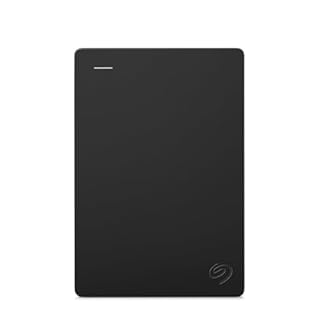
Stores 1TB of old files and backups so your main drive stays clear for active work.

Replaces a slow hard drive with fast storage for instant boot times and more room.
The Real Causes of a Suddenly Full Drive
It feels like the drive filled up overnight, but the space was lost over months. This is not one big file; it is many small ones. Understanding this stops the panic and points you to the fix. If that sounds like your bench, read up on fixing unresponsive windows next.
The most common causes of rapid storage loss are listed below. These are the places to check first.
- Browser and app cache: Chrome, Spotify, and video editors save data in hidden AppData folders.
- Download folder: Old installers and PDFs sit here without you knowing.
- System Restore points: Windows safety backups can take 10-15% of your drive.
- Duplicate files: Photos synced to multiple locations without you noticing.
These silent accumulations make the red storage bar creep higher slowly. You do not see the growth until the warning pops up. This is why a random cleanup feels random.
Pro tip: Do not delete files in the Windows folder directly. This can break your system.
How to Free 10GB in 10 Minutes With Built-in Tools
This is your fastest route to breathing room. You do not need to download new software. Windows has a tool designed for this exact problem.
Search for and open Disk Cleanup on your C: drive. Let it calculate the space available. Check every box, especially Temporary Files and System Restore. This often frees 5-20GB immediately.
Next, empty the Recycle Bin. It is easy to forget that deleted files still take up space until you truly empty it. We go through speeding up app initialization step by step in its own article.
You know this step worked when your storage graph updates. Look at your drive space. It should drop noticeably. If it did not, move to the next step. Do not skip this simple check.
Safety first: Back up important files before deleting system restore points.
Clear Browser Cache and Uninstall Unused Apps
Browsers like Chrome and Edge store massive amounts of cached images. This is a hidden space hog that standard cleanup misses. Clearing it is a quick win for web users.
Go to your browser settings and clear Cached images and files. This can free several gigabytes for heavy users. Do this every few weeks.
Then, visit Settings > Apps > Apps & features in Windows. Sort the list by size. Uninstall games or programs you have not used in six months.
Large video games and creative apps are the biggest offenders. You know this step worked when the list of large apps shrinks and your storage graph updates. It is a satisfying visual confirmation. For the detail, see our notes on freeing up hard drive space.
Find Hidden File Hogs With Visual Tools
If the built-in tools did not free enough space, you need to see the big files. Windows storage settings are too basic for this deep dive.
Use a visual storage analyzer like WinDirStat or TreeSize. These tools turn your drive into a colorful map. Large blocks represent large folders, making hogs obvious.
You might find a failed update log or a massive video cache. These are not visible in the standard file explorer. They hide in system directories.
Always check the AppData folder in your user directory. It is where application bloat hides. Be careful here and only delete files for apps you know. Proceed with caution.
Shows you exactly which folders are eating your drive space in a visual map.
See options on AmazonWhen to Upgrade Hardware: SSD vs External Drive
Software cleanup has a limit. If you are constantly full, it is time for hardware. You have two main paths: add more storage or speed it up.
An external hard drive is the cheapest and easiest fix. It is plug-and-play. Use it for media libraries and backups. This keeps your main drive free for active work. We go through finding hidden large files step by step in its own article.
An internal SSD upgrade is the biggest performance jump. Replacing an old hard drive makes your laptop feel brand new. Boot times drop from minutes to seconds.
Choose an external drive if you just need space. Choose an SSD if you need speed and a fresh start. Both are valid solutions depending on your budget and patience.
Safety first: Power off and unplug your laptop before opening the case to access the drive.
A fast NVMe drive that gives you both speed and capacity in one upgrade.
- Upgrade your laptop or desktop computer and feel the difference with super-fast OS boot
- Exceptional performance offering up to 5,100MB/s seq. read and 3,200MB/s seq. write
How to Stop It From Happening Again
Prevention is easier than cure. Set up a few habits so you never see the warning screen again. It takes only a few minutes to set up.
Enable Storage Sense in Windows Settings. It automatically deletes temp files and empties the Recycle Bin. Set it to run weekly.
Redirect your Downloads folder. Point it to an external drive or a partition. This stops the ‘digital black hole’ before it forms. You will never wonder where the installers went.
Schedule a monthly five-minute audit. Run a visual tool and check your Desktop. This takes a moment but saves hours later. Build the habit.
The bottom line
Start with the built-in Disk Cleanup and browser cache clearing for immediate relief. If you are still tight on space, get an external drive for storage or an SSD for speed. For most readers, the external drive is the easiest first step to stop the warning.
- Easily store and access 1TB to content on the go with the Seagate Portable Drive, a USB
- Designed to work with Windows or Mac computers, this external hard drive makes backup a
Frequently asked questions
Why does my laptop say disk full but I can't find the big files?
The files are likely hidden in system directories or AppData. Use a visual storage analyzer like WinDirStat to see them. They are not visible in the standard file explorer.
Is it safe to delete files in the AppData folder?
Only for apps you know. Delete the ‘cache’ or ‘temp’ subfolders for specific programs. Never delete the main AppData folders or system folders.
Which is better, an external hard drive or an SSD upgrade?
It depends on your need. An external drive is cheap and easy for storage. An SSD upgrade is harder but makes your laptop much faster and gives you a clean start.
Will enabling Storage Sense break my system?
No, it is safe. It only deletes temporary files and old Recycle Bin items. It does not touch your personal documents or photos.
How much space does System Restore actually take up?
It can take 10-15% of your drive if unchecked. You can adjust the maximum size in the System Protection settings to keep it lower.