
Your laptop powers on but the screen stays black, or it loops to an error message and won't reach Windows. This page lists every point of failure in the boot chain, ordered from easiest to hardest to fix.
In short: The main points of failure are a faulty power delivery circuit, disabled or damaged storage drive, loose RAM, and corrupted boot files. Start with a power cycle and visual inspection of connected drives, then test RAM, and finally check the hard drive or SSD for corruption or physical failure. If hardware diagnostics pass, the issue is usually a corrupted operating system that requires a fresh install.
Quick picks
Our shortlist for this job · tap one to see today's price
Lets you boot from USB to check if Windows files are corrupted without touching your internal drive.

Adds an optical drive for recovery discs when your laptop lacks a built-in drive or USB port.
Why a Laptop Fails to Boot: The Chain of Events
When you press the power button, your laptop follows a strict chain of checks. It starts with power, then the motherboard, then the memory, then the storage drive. If one link breaks, the whole chain stops. The other half of this decision is adjusting screen levels.
Most no-boot issues are not the motherboard. They are usually loose cables, failed drives, or corrupted software. Knowing the order helps you skip unnecessary repairs.
- Power Delivery: The AC adapter or charging circuit fails to send enough voltage to the motherboard.
- Memory (RAM): The system cannot allocate the temporary memory it needs to start Windows.
- Storage Drive: The hard drive or SSD is dead, disconnected, or has corrupted files.
- Video Output: The graphics processor works, but the laptop screen or its cable is broken.
Step 1: Fix Power Delivery and Display Points of Failure
Start with the cheapest and safest checks. Many ‘dead’ laptops are just drained of residual power or have a loose display cable.
Power Cycle: Unplug the adapter, remove the battery if possible, and hold the power button for 30 seconds. This clears the logic board. Then plug the adapter back in and try to power on. If the power light comes on, this step worked.
Display Test: Connect an external monitor. If you see the Windows logo or a BIOS screen on the monitor but the laptop screen is black, your internal panel or its ribbon cable has failed. You will need to replace the screen assembly.
Safety first: Always unplug the power adapter before opening the case. If you see a swollen battery, do not touch it; it is a fire risk and needs professional replacement.
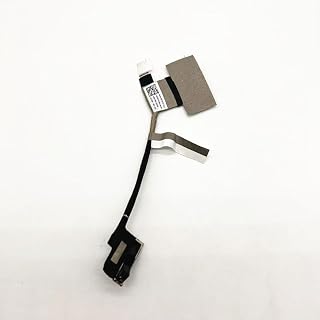
A loose or broken display cable is a common physical point of failure that mimics a motherboard issue.
- 1.as the picture.
- 2.All items are TESTED rigorously before shipping.
Step 2: Check RAM and Hardware Stability
If the laptop powers on but shows a black screen or beep codes, RAM is the next point of failure. Faulty memory prevents the system from loading the operating system into active use. There is more on boot ram failure in a separate guide.
Reseat the Memory: Open the back panel and gently pop out the RAM sticks, then push them back in until they click. Test one stick at a time if you have more than one. If the laptop boots with one stick but not the other, you have a bad memory module.
Listen for Beeps: Some laptops have a small speaker. Multiple short beeps often indicate a memory error. No beeps but a spinning fan suggests the motherboard or processor is failing to initialize.
Step 3: Diagnose Storage Drive Failure Points
The storage drive is the most common cause of a permanent no-boot state. If the system passes the RAM check but fails to find an operating system, the drive is the problem.
Check Detection: Enter your BIOS/UEFI settings (usually by pressing F2 or Delete at startup). Look at the boot devices. If your main drive is missing, it is either disconnected or physically dead. You may need to replace the drive or reseat the SATA/M.2 connection.
Test Drive Health: If the drive is detected but won’t boot, it likely has corrupted sectors. Connect the drive to another computer using a USB adapter to see if the files are still readable.
Pro tip: Back up your data before replacing the drive. If the drive is clicked or not detected, professional data recovery may be needed before you swap it out. The other half of this decision is why i reset laptop keep on failed.

A healthy 1TB drive is the standard replacement when the original storage point of failure is a dead HDD.
Check price on AmazonStep 4: Repair Corrupted Operating System Files
If the hardware is fine but Windows won’t load, the operating system files are corrupted. This happens after power outages, bad updates, or malware.
Use a Bootable USB: Create a recovery drive on another computer. Boot your laptop from this USB. This bypasses the broken internal Windows and lets you run startup repair or command prompt tools.
Rebuild Boot Files: In command prompt, type ‘bootrec /fixmbr’ and ‘bootrec /fixboot’. If that fails, a clean reinstall of Windows is the fastest way to clear the software point of failure.
How to Stop No Boot Issues From Happening Again
Once your laptop boots, you can take simple steps to protect it from the main points of failure listed above.
Regular Backups: Keep a copy of your important files on a cloud service or external drive. This is your only defense against a sudden drive failure.
Monitoring Tools: Use built-in Windows tools or third-party apps to check your drive’s SMART health. This gives you a warning before the storage point of failure becomes a total crash. We cover tools to remove a stuck connector in a guide of its own.
Cooling: Overheating is a silent killer of motherboards and drives. Keep the vents clear and use the laptop on hard surfaces to prevent heat from degrading components over time.
The bottom line
Start with the power cycle and display test, as these are free and quick. If those fail, check the RAM and storage drive detection in BIOS. The next step is to use a bootable USB to repair the operating system or confirm the drive is dead.
- ✅For beginners, refer image-7, its a video boot instruction, and image-6 is "boot menu
- ✅16-IN-1, 64GB Bootable USB Drive 3.2 , Can Run Linux On USB Drive Without Install, All
Frequently asked questions
What are the most common points of failure for a no boot issue?
The three most common failures are a disconnected or dead storage drive, faulty RAM, and a broken display cable. Power delivery issues are rarer but can also prevent the system from starting.
How do I know if my laptop drive is dead?
If the BIOS does not list the drive, or if you hear clicking sounds from a hard drive, it is likely physically dead. If the drive is listed but won’t boot, it may just have corrupted files that need a repair.
Can I recover data from a laptop that won't boot?
Yes, in most cases. You can remove the drive and connect it to another computer with a USB adapter. If the drive is physically damaged, you will need a professional data recovery service.
Is a black screen always a hardware failure?
No, a black screen often means the video signal isn’t reaching the display. It can be a simple loose cable or a corrupted Windows update. Always try an external monitor to rule out the screen.