
 By
You want to run multiple operating systems on one computer but are confused by terms like hypervisor, guest, and host. This guide breaks down exactly how that separation happens under the hood.
In short: Virtualization uses a software layer called a hypervisor to slice your physical hardware into independent virtual machines. Each VM gets its own virtual CPU, memory, and storage, acting like a separate physical computer. This isolates systems so one crash doesn't take down the others, while pooling hardware for better efficiency.
Quick picks
Our shortlist for this job · tap one to see today's price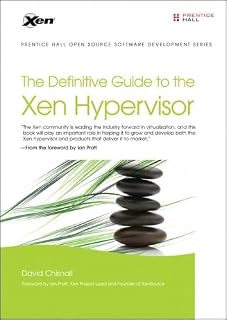
Gives a deep look at Xen, a major Type 1 hypervisor used in many cloud environments.

Prepares you for VMware certifications, the industry standard for enterprise virtualization.
What Virtualization Actually Does for You
Virtualization creates a software version of physical hardware. Instead of tying one application to one dedicated server, you run many apps on a single physical machine. Each app lives in its own isolated space. We cover different styles of laptops in a guide of its own.
This isolation is the key benefit. If one virtual machine fails or gets hacked, the others keep running. It turns fixed hardware resources into a flexible pool that you can share as needed.
Think of it as a container ship. The physical hardware is the ship, and the virtual machines are the standardized containers. The ship moves the containers, but the containers don’t know they are on a ship.
- Consolidation: Fewer physical servers mean less power, cooling, and physical space required.
- Isolation: Security breaches or crashes in one VM do not affect neighboring VMs.
- Portability: VMs are files that can be moved between hosts easily.
Pro tip: Virtualization is not just for servers. You can use it on your laptop to test new software safely without changing your main operating system.
The Hypervisor: The Traffic Cop of Virtualization
The hypervisor is the critical software that makes virtualization possible. It sits directly between the physical hardware and the virtual machines. It manages resources like CPU, memory, and network access.
When a virtual machine asks for a resource, the hypervisor decides who gets it and how much. It traps privileged instructions that try to touch hardware directly, emulating them in software to keep the VMs isolated.
Without this layer, operating systems would fight for direct control of the hardware, causing crashes and conflicts. The hypervisor enforces the rules that allow multiple OSs to coexist. We go through deciding if you need a portable device step by step in its own article.
- Scheduling: The hypervisor decides which VM gets CPU time next.
- Memory Mapping: It ensures each VM only sees its assigned RAM slice.
- I/O Handling: It routes disk and network requests to the physical drives and cards.
Pro tip: The choice of hypervisor depends on your performance needs. For production servers, use a Type 1 hypervisor. For learning, a Type 2 hypervisor is easier to install.
Explains how the Xen hypervisor handles these resource management tasks in depth.
Check price on AmazonType 1 vs Type 2: Where the Hypervisor Runs
Type 1, or bare-metal, hypervisors run directly on the physical hardware. There is no underlying operating system. Examples include VMware ESXi, Microsoft Hyper-V, and KVM. This setup offers the highest performance and security because there is no extra OS layer to fail.
Type 2 hypervisors run as an application on top of an existing OS like Windows or macOS. Examples include VirtualBox and VMware Workstation. The host OS manages the hardware, and the hypervisor requests resources from it. This adds a small performance overhead but is much easier to manage.
| Feature | Type 1 (Bare-Metal) | Type 2 (Hosted) |
|---|---|---|
| Performance | Excellent | Good (slight overhead) |
| Security | Higher attack surface | Depends on Host OS |
| Complexity | Higher | Lower (Installs like an app) |
| Best For | Production Servers | Development & Testing |
How a Virtual Machine Emulates Real Hardware
Inside a VM, the operating system thinks it is running on physical hardware. The hypervisor presents virtual CPUs, memory, and disks to the guest OS. This is called hardware emulation.
Modern CPUs have hardware-assisted virtualization features, like Intel VT-x and AMD-V. These allow the hypervisor to safely run guest code in a protected state, greatly improving performance over pure software emulation.
Memory management also changes. The hypervisor uses shadow page tables or hardware support to map virtual memory addresses to physical RAM. This ensures one VM cannot accidentally read or write to another VM’s memory space. We cover how desktop pcs work in a guide of its own.
- Virtual CPUs: Time-sliced on the physical core, appearing as real cores to the guest.
- Virtual Memory: Mapped to physical RAM via the hypervisor’s page tables.
- Virtual Disks: Large files stored on the host that the guest sees as drives.
Guest and Host: The Roles Inside the System
The host is the physical computer or the environment where the hypervisor runs. In a Type 2 setup, this is your Windows or macOS system. In a Type 1 setup, the host is the bare hardware managed by the hypervisor.
The guest is the operating system running inside the virtual machine. It can be Windows, Linux, or another OS. The guest loads its own drivers and applications, unaware that it is virtualized.
This separation means you can install incompatible software on different VMs. For example, you can run a Windows guest and a Linux guest on the same physical host without conflict. The guest OS interacts with the abstraction layer provided by the hypervisor, not the raw hardware directly.
Understanding this distinction helps you troubleshoot. If the guest crashes, the host usually stays up. If the host crashes, all guests die with it. This hierarchy defines your recovery priorities.
Common Myths and Mistakes in Virtualization
Myth: Virtualization is slower than running software directly on hardware. Fact: With hardware-assisted virtualization, the performance loss is minimal. For many workloads, virtualization is fast enough for production use.
Mistake: Over-provisioning resources. It is easy to give each VM too much RAM or CPU. This wastes capacity and can cause instability if total assigned resources exceed physical limits.
Myth: Virtual machines are completely secure. Fact: Isolation is strong, but a vulnerability in the hypervisor or the guest OS can still pose risks. Regular updates are critical.
- Always monitor resource usage to prevent “noisy neighbor” issues.
- Keep hypervisor firmware and host OS patches current.
- Use snapshots before making major changes to a VM.
Safety first: Always keep your hypervisor and guest operating systems patched. Unpatched virtualization layers are a common attack vector in enterprise environments.
Helps you avoid certification exam traps related to security and resource planning.
Check price on AmazonHow to Choose the Right Setup for Your Needs
If you are a developer or tester, start with a Type 2 hypervisor like VirtualBox or VMware Workstation. It installs quickly on your existing OS and lets you spin up test environments in minutes.
If you are building a home server or managing business infrastructure, look at Type 1 options. VMware ESXi or Proxmox are popular choices for their efficiency and control. They provide better performance for running multiple heavy workloads simultaneously.
Check your hardware first. Not all CPUs support hardware-assisted virtualization. Make sure your processor has Intel VT-x or AMD-V enabled in the BIOS settings before installing the hypervisor. You can usually find this in the security or CPU settings of your UEFI setup.
Finally, consider your storage. Virtual disks are files that can grow large quickly. Use a solid-state drive (SSD) for the host to ensure fast read/write speeds for the VMs.
The bottom line
For most users, a Type 2 hypervisor is the easiest way to start learning. If you are moving into a career in IT or cloud infrastructure, study Type 1 hypervisors and certification material. Your next step is to check your CPU's virtualization support in BIOS and install a trial hypervisor to build your first VM.
Frequently asked questions
What is the main difference between a virtual machine and a container?
A virtual machine emulates entire hardware, including a full operating system. A container shares the host’s kernel and only isolates the application layer. VMs are more isolated but heavier; containers are faster and more efficient for microservices.
Do I need a lot of RAM to run virtual machines?
Yes. The host must have enough memory for the hypervisor and all running VMs. If you run multiple VMs, each needs its own assigned RAM slice. Under-provisioning causes swapping, which severely slows down performance.
Can I run Windows inside a Linux VM?
Yes, as long as the hardware supports the necessary virtualization extensions. The hypervisor presents virtual hardware to the Windows guest, which then installs its drivers. Performance is generally good for development and testing tasks.
What is a hypervisor snapshot?
A snapshot is a saved state of a virtual machine, including its memory, disk, and configuration. It allows you to revert to a known good state if you break the system during testing. It is a critical safety net for developers.