
 By
You need to fix slow performance or remove errors but are terrified a factory reset will delete your years of documents and photos. This page walks you through the exact safe settings that clean your system while keeping your personal files intact.
In short: You can reset your laptop without losing files by using the built-in "Keep my files" option in Windows Recovery or macOS Recovery. These tools reinstall the operating system and remove apps but preserve your personal data in standard folders. Always back up critical items to an external drive first to guarantee safety before starting.
Our pick
Tap to see today's price on Amazon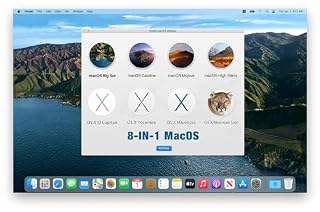
Holds multiple macOS versions for reinstalling the OS without wiping your user data.
Back up your data before you touch any settings
No reset method is 100% guaranteed against a power failure or drive error. Your first step is always a full backup of your Documents, Pictures, and Desktop folders. It helps to understand system repair tools before going further.
Do not rely on cloud storage alone, as syncs often lag behind or fail to upload large files. If the cloud connection drops during the reset process, your “backup” may be incomplete or missing entirely.
Use a wired external hard drive or SSD for the fastest and safest transfer. Connect it directly to your laptop to avoid Wi-Fi interruptions. Once copied, verify a few key files open correctly on the external drive.
Do not just look at the folder size; actually open a PDF or an image to confirm the data is readable and not corrupted.
Include your browser data in this backup. Most modern browsers can export bookmarks and passwords to a local HTML or CSV file. Save this file to your external drive.
If you use specific software with license keys, write them down or take a photo of them. The reset process will remove the software, but you need those keys to reinstall it later without buying it again.
- Copy the entire “Users” folder to an external drive
- Export browser bookmarks and saved passwords
- Save a list of installed software license keys
Pro tip: Use the 3-2-1 rule: keep three copies of your data on two different types of media, with one copy offsite. Before you buy anything, it is worth looking at recovering from a corrupted OS state.
What you need for a safe system reset
Gather these items before you begin to avoid stopping midway. Having everything ready ensures you can complete the process smoothly without switching contexts or forgetting a critical cable. If you are on a Mac and lack an installer, a USB drive with the appropriate recovery image is your best option.
- External backup drive (connected and verified)
- Charger and a stable power source
- Wi-Fi password (for Windows cloud download)
- List of software you need to reinstall
Connect your laptop to AC power during the entire process. A reset on battery power risks interrupting the installation if the charge dies. This creates a corrupted system state that is harder to fix than a simple reset.
Use this if you are on a Mac and need a known-good macOS installer to recover without erasing your user folder.
- ✅8-IN-1 USB drive 3.2: Big Sur 11.7、Catalina 11.15.7、Mojave 11.14.6、High Sierra
- ✅1. Plug-In USB Drive
Windows 10 and 11: Reset This PC with Keep My Files
This is the safest built-in method for most Windows users. It removes apps and system files but preserves your personal documents and photos. Open Settings by pressing the Windows key and I key, then navigate to System > Recovery. On Windows 10, look for Update & Security > Recovery, then scroll down to find the Reset this PC option.
- Click “Reset this PC” next to the Reset this PC section
- Select “Keep my files” (do not choose Remove everything)
- Choose “Cloud download” for the cleanest install
- Click “Next” and then “Reset” to begin the process
Your laptop will restart several times over 30 to 60 minutes. Do not turn it off. The system will download the latest Windows image from Microsoft servers. A stable internet connection is required for this option. If you choose Local Reinstall, the process uses files already on your device, which is faster but may retain hidden corruption.
Pro tip: If the "Keep my files" option is grayed out, your system drive may be corrupted. Stop and seek professional repair.
macOS and Chromebook: Reinstall without erasing user data
MacBook owners can use macOS Recovery to repair or reinstall the OS without formatting the main drive. Restart your Mac and hold Command + R immediately after the chime. Select “Reinstall macOS” and follow the prompts. This downloads the system files while keeping your Applications and Documents folders intact. Loaders in this spot often ask about run a factory reset that preserves user files as well.
For Chromebooks, use Powerwash only if you have fully synced your files to Google Drive. Note that Powerwash wipes local storage. Sign back in to your Google account after the reset to restore synced settings and files. If you have local files not in the cloud, you cannot recover them after a Powerwash.
- Mac: Hold Command + R at boot for Recovery
- Mac: Choose Reinstall macOS, not Erase and Install
- Chromebook: Ensure all files are in Google Drive first
What survives the reset: apps, settings, and files
Understanding what stays and what goes prevents surprises. Personal files in standard user folders (Documents, Pictures, Music) remain. However, all third-party applications, installed games, and custom system settings are removed. You will need to reinstall your software and log back into services.
Windows resets user profiles to a default state. You will need to sign in again and re-enter any custom settings you changed. Use the screenshot method to remember what software you need to reinstall. Open Settings > Apps > Installed apps and take a photo of the list for your records.
Browser extensions and saved passwords are usually deleted unless backed up to your browser account. Verify your password manager syncs correctly before starting. If you rely on local extensions for productivity, download their .crx or .zip files to your backup drive so you can drag them back in quickly.
Common mistakes that cause total data loss
- Mistake: Clicking “Remove everything” by accident. Fix: Read every dialog box carefully before hitting next. It is easy to misread when you are stressed.
- Mistake: Trusting cloud storage without local verification. Fix: Open a file from the external backup to prove it works. Cloud sync is not a guarantee of availability.
- Mistake: Resetting from Safe Mode without checking options. Fix: Ensure “Keep my files” is available before starting. Sometimes this option is hidden in advanced recovery.
- Mistake: Forgetting to back up browser profiles. Fix: Export bookmarks and passwords to a local file. This takes only a minute and saves hours later.
Safety first: Stop immediately if you hear clicking or grinding noises from the drive. This indicates hardware failure, not a software issue.
When a reset will not fix your laptop
Software resets cannot fix physical hardware failures. If your laptop won’t power on, shows a constant Blue Screen of Death, or the BIOS does not detect your storage drive, do not attempt a reset. These are signs of dead hardware or bad firmware. A reset tool cannot fix a physically broken component.
Repeatedly booting a failing hard drive can cause permanent data loss. If you see these signs, power down and take the device to a repair desk. A technician can often recover data from a failing drive before replacing it with a new solid-state drive.
Check for battery swelling or overheating issues before starting any process. A swollen battery is a fire hazard and must be replaced immediately. Do not attempt to reset a machine that is overheating within minutes of startup.
The bottom line
The safest way to reset your laptop without losing files is using the built-in "Keep my files" option in Windows or macOS Recovery. Always back up your critical documents to an external drive first. If your hardware is making noises or failing, stop and get professional help instead of resetting.
- ✅8-IN-1 USB drive 3.2: Big Sur 11.7、Catalina 11.15.7、Mojave 11.14.6、High Sierra
- ✅1. Plug-In USB Drive
Frequently asked questions
Does "Keep my files" delete my installed programs?
Yes, it removes all third-party applications and games. It only keeps your personal documents, photos, and videos in the standard user folders. You will need to reinstall your software after the reset completes to get your apps back.
Can I reset an HP laptop without losing files?
Yes, HP laptops use the standard Windows Reset tool. Go to Settings > System > Recovery and select “Keep my files.” This works on all modern HP models running Windows 10 or 11. Ensure your data is backed up to an external drive first to be safe.
Is it safe to reset if my laptop is very slow?
Yes, resetting is often the best fix for severe slowdowns caused by accumulated junk or malware. Use the “Keep my files” option to retain your data. The process usually takes 30 to 60 minutes depending on your internet connection speed for the download.
What should I do if my reset gets stuck?
Do not force power off the laptop if the screen is active and updating. Let it run for up to 1 hour. If it freezes completely on a static screen for 2 hours, hold the power button to restart and let Windows finish the repair automatically.