
Your cursor lags while a video render runs, or clicking a file takes five seconds to open. This friction is system load piling up. Here is exactly which resource is choking your machine and how to clear the backlog.
In short: System load is the queue of work waiting for your CPU, RAM, and drive. When that queue gets too long, your computer delays responding to your clicks.
Fix it by identifying which of the three pillars—CPU, Memory, or Disk—is stuck at 100%, then removing the top task in that specific queue.
Our pick
Tap to see today's price on Amazon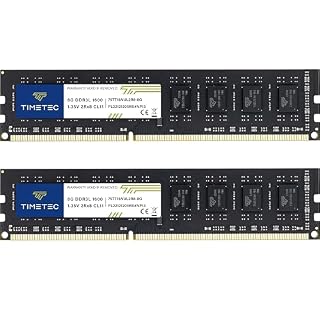
More RAM stops your system from using the slow hard drive as temporary storage.
What System Load Actually Means for Your Speed
System load is not just one number. It is the total waiting time for your three main resources. Loaders in this spot often ask about hardware interface processes as well.
Think of it like a coffee shop counter. Low load means you get your coffee instantly. High load means a long line and slow service.
Your computer treats every mouse click as a new customer in that line.
The Three Pillars of Load
- CPU: The brain doing the calculations.
- RAM: The counter where active work is held.
- Disk: The warehouse where files are stored.
If any pillar is overwhelmed, the whole system slows down.
On Linux and macOS, you often see a “load average” of three numbers. These represent the average processes waiting over the last 1, 5, and 15 minutes. A load of 2.0 on a 2-core machine means it is fully saturated.
On Windows, you monitor utilization percentages. When any resource hits 100% consistently, you have entered the red zone where responsiveness dies.
Understanding this relationship is the first step to diagnosing performance issues and reclaiming your workflow.
Pro tip: Open Task Manager (Ctrl+Shift+Esc) to see which pillar is red. We cover ram bus speed impact in a guide of its own.
How CPU Spikes Kill Your Responsiveness
The CPU decides which program gets attention at any microsecond.
When CPU usage hits 100%, the system spends time just managing the queue, not doing work.
This is why your mouse feels “sticky” during a large file copy or a game load.
Context Switching Costs
Switching between tasks has a small delay. With many apps open, these delays add up.
Your click waits in line behind antivirus scans and background updates.
When you have dozens of active processes, the scheduler spends more time managing the queue than doing actual work. This is where you see high CPU load symptoms: mouse lag, delayed keystrokes, and video stuttering.
Myth: More cores always mean faster.
Fact: Single-core-heavy apps (like some older games or utilities) still stall if one core is maxed out, even with 8 cores available. There is more on power draw impact speed in a separate guide.
For demanding tasks like 4K video editing, a high-performance chip handles massive parallel workloads, dramatically reducing wait times.
Pro tip: Check the "Per Core" view in Task Manager to find the stuck core.
Use this to isolate if one specific processor core is hitting the limit.
See options on AmazonWhen RAM Pressure Triggers the Worst Lag
Ram is fast. The hard drive is slow.
When your RAM fills up, your computer starts using the drive as temporary memory. This is called swapping.
Swapping makes the system feel unresponsive, even if the CPU usage looks low.
The CPU is just waiting for data to move back into RAM.
Memory Pressure Speed Difference
| Component | Typical Speed |
|---|---|
| Modern RAM | 50+ GB/s |
| Fast SSD | 5 GB/s |
| HDD Drive | 0.15 GB/s |
A 300x speed drop happens in an instant when your RAM runs out.
This explains why your computer feels sluggish even when CPU usage is low. The CPU is idle, waiting for data to be loaded from the slow swap file.
Every action you take triggers a disk read, creating a painful delay.
Safety first: Always check your laptop's maximum supported RAM before buying new sticks. It helps to understand understanding recovery mode before going further.
Adding more RAM keeps your data on the fast counter instead of the slow warehouse.
- PCB color may vary (black or green) depending on production batch. Quality and
- DDR3L / DDR3 1600MHz PC3L-12800 / PC3-12800 240-Pin Unbuffered Non-ECC 1.35V / 1.5V
Disk I/O: The Quiet Thief of Your Speed
Your storage drive is the slowest part of the machine.
When many apps try to read or write at once, a “disk queue” forms.
A deep queue means your PC is frozen, waiting for the drive to catch up.
This is common when you have a backup running while you try to open a document.
How to Spot a Disk Bottleneck
- The hard drive light flashes constantly.
- Task Manager shows 100% Disk Usage.
- Everything is slow, even the taskbar.
Upgrading to an NVMe SSD is the single best fix for this.
Even with the fastest NVMe drives, the speed difference between the CPU and the drive is enormous.
The process scheduler marks the program as “waiting for I/O,” but the CPU still has to manage the queue. This creates resource contention that slows everything down.
A deep queue is common when you are running a file server, torrenting, or doing heavy database work.
The 3-Step Check to Find Your Bottleneck
Stop guessing and look at the data.
This three-step process works on Windows and macOS.
- Check the CPU: Is a single process at 100%?
- Check the RAM: Is your memory usage near the maximum?
- Check the Disk: Is the drive queue depth above 1-2?
The pillar that is “red” is your main cause of lag.
Fix that one first. The others will fall into line.
If you see high disk usage but low CPU, you are likely swapping memory to the hard drive.
If you see high CPU usage but low disk, a background process is eating your processor power.
Common Myths About System Load
Many owners misdiagnose their lag.
Here is what is actually happening.
Myth: Cleaning up the Registry
Fact: Registry cleaning has almost zero impact on system load.
Myth: Closing Tabs Saves CPU
Fact: It mostly saves RAM. It does not free up CPU time for other tasks.
Myth: Fans Fix Slowness
Fact: Fans prevent thermal throttling. They do not make the CPU do more work faster.
Focus on the three pillars for real results.
Malware or unwanted background processes are also common culprits.
Browser extensions gone rogue, especially ad-heavy sites, can keep your load average high even when you are not actively working.
The bottom line
Your unresponsiveness comes from one specific queue clogging up. Use Task Manager to identify if it is CPU, RAM, or Disk. Most users can fix this by upgrading their RAM, which stops the system from using the slow hard drive as memory.
- PCB color may vary (black or green) depending on production batch. Quality and
- DDR3L / DDR3 1600MHz PC3L-12800 / PC3-12800 240-Pin Unbuffered Non-ECC 1.35V / 1.5V
Frequently asked questions
What is a good system load average?
A load average of 1.0 on a dual-core CPU is the limit of its capacity. If the load average is higher than your number of physical cores, your system is overwhelmed and will feel slow.
Why does my PC lag when the CPU is at 5%?
This usually means your disk is 100% busy. The CPU is idle because it is waiting for data to move from a slow hard drive into RAM.
Does a virus affect system load?
Yes. Malware often runs hidden processes that burn CPU or write to the disk constantly, creating a high load you did not create.
Can I fix high load without buying new parts?
You can restart your computer to clear the queues. You can also close background apps. However, if the load is caused by physical limits (like too much RAM usage), parts are the only permanent fix.