
You are juggling code, email, and a call, and the mouse starts lagging or apps freeze when you switch. This page explains exactly how your desktop handles all that at once and gives you the specific settings to keep it smooth.
In short: Your desktop uses a scheduler to share CPU cores between tasks, switching between them so quickly it feels simultaneous. To make this work for you, manage your RAM usage, use virtual desktops to separate work streams, and disable background startup apps that steal system resources.
Quick picks
Our shortlist for this job · tap one to see today's price
A monitor arm clears desk space, making it easier to arrange windows and focus on active tasks without clutter.
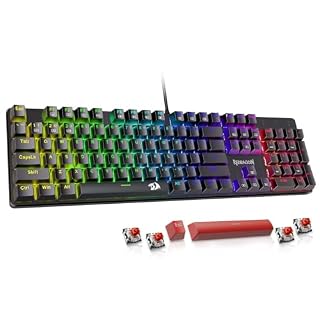
A keyboard with remappable keys lets you bind window snapping or virtual desktop switching to your fingertips.
Multitasking Is a Fast Switch, Not a Simultaneous Run
Your operating system does not run every app at the exact same moment. It runs them in rapid succession, a process known as time-slicing. A single core can only process one instruction at a time, even in a modern multi-core processor. The other half of this decision is disadvantages of a desktop computer.
The OS acts like a traffic cop. It looks at your open programs, checks their priority, and decides which one gets the CPU’s attention next. This happens thousands of times every second, creating the illusion of simultaneous activity.
- Preemptive switching: Windows 11 can interrupt a running app instantly to run a more urgent foreground task.
- Time slicing: Each app gets a tiny fraction of CPU time (a few milliseconds) before being paused.
- Context switch: The system saves the state of one app and loads the next one.
Pro tip: If you feel a slight pause when clicking between heavy apps, that is the context switch taking physical time to load new data into the CPU.
How RAM and the Disk Act as Your Multitasking Limits
CPU speed is only one part of the puzzle. The real bottleneck for most users is memory and storage. RAM exhaustion is the most common cause of lag when multitasking.
When your physical memory fills up, Windows starts using your hard drive or SSD as virtual memory. This is called paging. It is orders of magnitude slower than actual RAM, causing that “spinning circle” you see.
- RAM Usage: Check Task Manager. If you are at 90% or higher, your desktop is starting to struggle significantly.
- Disk I/O: If your drive is active 100%, apps will freeze while the system writes memory data to the disk.
- SSD vs HDD: A solid-state drive handles this paging far better, but it still slows down the system compared to RAM.

A USB-C hub helps you manage external storage drives and peripherals without cluttering your desk, keeping data transfer fast for heavy workflows.
- Sleek 7-in-1 USB-C Hub: Features an HDMI port, two USB-A 3.0 ports, and a USB-C data
- Flawless 4K@60Hz Video with HDMI: Delivers exceptional clarity and smoothness with its
Use Virtual Desktops to Keep Your Workflow Organized
Opening twenty windows on one screen creates visual chaos and cognitive overload. The OS provides a built-in tool to fix this: virtual desktops. These act like separate, invisible screens on your monitor.
On Windows 11, you can press Windows + Ctrl + D to create a new virtual desktop. You can then press Windows + Ctrl + Left or Right to switch between them. This helps you keep work projects separate from personal tasks or media. It helps to understand diagnosing zero current draw before going further.
- Project A: Code editor, terminal, and database tool.
- Project B: Browser, email, and chat applications.
- Relax: Media player and music browser.
A keyboard with remappable keys lets you set up one-click shortcuts to switch between virtual desktops instantly, reducing mouse movement.
- Brilliant Color Illumination- With 11 unique backlights, choose the perfect ambiance
- Support Macro Editing: The K671 Mechanical Gaming Keyboard can be macro editing, you
Myths That Make Your Desktop Run Slower
A lot of multitasking advice is outdated. Here are the three biggest myths that confuse users and waste system resources.
- Myth: More cores always mean faster multitasking. Fact: If your apps are not built to use all cores, a 16-core processor might perform the same as an 8-core one.
- Myth: Closing apps frees up all memory. Fact: Many apps leave background processes running. You must check the Details tab in Task Manager to see what is still active.
- Myth: You need to wait for the computer to finish. Fact: Modern OS scheduling is smart. You can interrupt heavy tasks without crashing the system.
Pro tip: Do not rely on "cleaning tools" that promise to speed up your PC. They often add background processes that make multitasking slower.
Three Settings to Tune Right Now for Smooth Switching
You can improve your desktop’s multitasking workflow by adjusting how Windows handles background tasks and visual effects. These small changes reduce overhead.
- Disable Startup Apps: Go to Settings > Apps > Startup. Turn off anything you do not need immediately after boot to save RAM.
- Adjust Visual Effects: In Settings > Accessibility > Visual effects, turn off animations you do not notice. This saves GPU resources.
- Set Power Plan: Go to Control Panel > Power Options. Use “High performance” when plugged in to ensure the CPU stays at high speeds.
When to Upgrade Your Hardware Instead of Tweaking
Software tweaks only go so far. If you are running 50+ browser tabs and a virtual machine, you need more hardware muscle. The most common upgrade path is moving to 32GB of RAM. This gives your OS room to keep heavy applications in fast memory instead of paging to the disk.
- RAM: The most cost-effective upgrade for heavy multitasking. Check your current speed before buying.
- SSD: If you still have a hard drive, a solid-state drive will make your system feel 50% faster under load.
- Monitor: A second screen or a larger 4K display helps you see what you are working on without tab-hopping.
Safety first: Always back up your data before installing new RAM or changing power settings to ensure you do not lose important work.
The bottom line
To master desktop multitasking, understand that your CPU is just switching tasks rapidly, not running them all at once. Your next step is to check your RAM usage in Task Manager and set up virtual desktops to organize your windows.
Most users should start by adding more RAM and using a keyboard with remappable keys for faster workflow management. We go through how resources are allocated step by step in its own article.
- Brilliant Color Illumination- With 11 unique backlights, choose the perfect ambiance
- Support Macro Editing: The K671 Mechanical Gaming Keyboard can be macro editing, you
Frequently asked questions
Why does my desktop lag when I switch between apps?
This usually happens when your RAM is full and the computer has to start using your hard drive as temporary memory. It is a slow process. Upgrading your physical RAM or closing unused browser tabs will reduce this lag.
Do I need a multi-core processor for multitasking?
Yes, a multi-core CPU is essential for modern work. The operating system assigns different tasks to different cores, so you can listen to music while your video is rendering without one stopping the other.
What is the difference between a process and a thread?
A process is the entire application running on your computer. A thread is a small part of that application that can be scheduled separately. Some heavy apps like Chrome use multiple threads to keep things running smoothly.