How Laptop Cooling Systems Prevent Overheating
Contents
I remember the first time I felt my laptop keyboard get uncomfortably warm. I was editing a video, and the fan suddenly kicked into a high-pitched whirr that sounded more like a tiny jet engine than a computer. That moment of mild panicwondering if I was about to fry my CPUsparked a years-long curiosity about what’s really going on under the hood. Laptop cooling is a silent, invisible battle against physics, and understanding it is the key to a longer-lasting, faster machine.
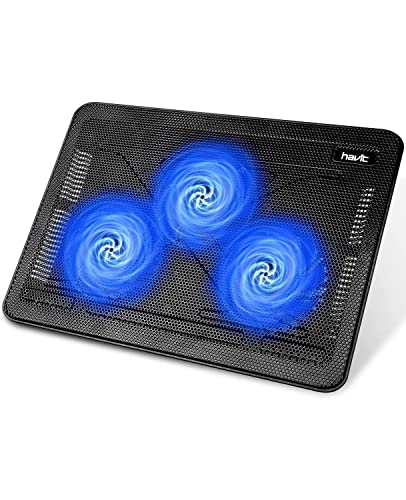
Through testing dozens of laptops, from sleek ultrabooks to hulking gaming rigs, I’ve seen how cooling design makes or breaks the experience. A poor system leads to that familiar hot lap, sluggish performance from thermal throttling, and a shortened lifespan. A great one feels like magic. Sometimes, the built-in solution needs a little help, which is why I often keep a cooling pad on my desk. For a reliable, affordable boost, I’ve had good results with the havit HV-F2056 156-17. It’s a simple, effective tool that complements your laptop’s internal systems, which we’re about to dive into.
The Heat Problem: Why Laptops Get So Hot
Think of your laptop as a tiny, powerful office. The CPU and GPU are the workers crammed into a closet-sized space, crunching numbers and rendering graphics. The more you ask of them, the more energy they consume. And according to the laws of thermodynamics, that energy doesn’t just disappearit turns into heat. It’s a fundamental challenge of laptop thermal management.
Modern components from Intel, AMD, and NVIDIA are incredibly efficient, but they still generate significant warmth under load. I’ve logged temperatures soaring past 90C during gaming sessions or 4K exports. This heat must be moved away from these delicate silicon chips immediately. If it isn’t, you’ll encounter performance drops (thermal throttling), system instability, and over time, permanent damage to the motherboard, RAM, and battery. This is the core reason behind the question, why does my laptop get so hot?
Active Cooling: The Fan and Heat Sink Duo
This is the part you can hear. Active cooling uses moving partsfansto force air through the system. It’s not just a fan blowing randomly; it’s a precise orchestration.
The Heart of the Matter: Heat Sinks and Pipes
The process starts at the source. A block of metal, the heat sink, is pressed directly onto the CPU and GPU. Between them is a critical layer of thermal paste (or in some high-end models, liquid metal) that fills microscopic imperfections, ensuring optimal heat transfer. From there, the heat travels through heat pipes. These sealed copper tubes contain a small amount of fluid that vaporizes at the hot end, carries the heat along the pipe, condenses at the cool end (the fin stack), and cycles back. I’ve repasted old laptops and seen temperature drops of 10-15Cit’s that important.
The Fan’s Role: Creating Airflow
The fan’s job is to blast cool air across that finned area of the heat sink, carrying the heat out of the chassis through the airflow vents. Most modern laptops use blower-style fans that pull air in from the bottom or keyboard area and exhaust it out the sides or rear. Gaming laptops and workstations often employ dual-fan configurations or even triple-fan setups, with dedicated fans for the CPU and GPU. The speed of these fans is dynamically controlled by software, which we’ll get to.
Passive Cooling: Vents, Pipes, and Pads
Not all cooling requires power. Passive methods work silently in the background and are crucial for overall laptop heat dissipation.
- Airflow Design: This is the chassis’s architecture. Where are the intake vents? How wide are the exhaust channels? A metal chassis, like on many MacBooks or premium ultrabooks, acts as a giant heat sink itself, spreading warmth across its surface. Plastic laptops rely more on internal ducting.
- Vapor Chamber Cooling: A step beyond heat pipes, this is a flat, sealed plate that spreads heat two-dimensionally across a larger surface area. It’s fantastic for thin laptops with concentrated heat sources and is becoming more common in high-end models.
- Thermal Pads: These squishy, conductive pads are used on components like VRMs (voltage regulators) and SSD controllers. They bridge the gap between a hot chip and a metal shield or chassis, passively wicking away heat.
This is where external tools like a laptop cooling pad come in. They don’t cool the internals directly but improve the passive environment by elevating the laptop for better intake airflow and providing additional fans to disrupt the hot air barrier that forms underneath. It’s one of the simplest answers to how to improve laptop cooling.
The Software Side: How Your OS Manages Heat
Your laptop’s temperature control is a constant dialogue between hardware sensors and software. The BIOS/UEFI and operating system work together in a feedback loop. When a sensor reports a rising temperature, the system can do two things:
- Increase Fan Speed: This is the first response. You’ll hear the fan ramp up.
- Initiate Thermal Throttling: If fans alone can’t cope, the software forcibly reduces the CPU and GPU clock speeds. This cuts performance to lower heat generation. It’s a protective measure, but it’s what causes frustrating lag in games or slow renders. Understanding what is thermal throttling in laptops helps you diagnose these sudden performance hits.
Manufacturers like Dell, HP, and Lenovo often include proprietary control centers (e.g., Dell Power Manager, Lenovo Vantage) that let you choose between performance, balanced, and quiet modes, effectively adjusting this throttle curve. On a fundamental level, this is part of how a laptop works as an integrated system, where hardware and software are inseparable.
Common Cooling Problems I’ve Encountered
Over the years, I’ve fixed and diagnosed countless laptop overheating issues. The patterns are remarkably consistent.
| Problem | Symptom | Likely Cause |
|---|---|---|
| Sudden Fan Scream | Fan runs at maximum speed constantly, even at idle. | Dust clogging the heat sink fins, failed temperature sensor, or dried-out thermal paste. |
| Hot Case, Quiet Fan | Bottom or keyboard is very hot, but fan isn’t spinning up. | Dust blocking fan blades, faulty fan motor, or incorrect power/thermal settings in software. |
| Performance Drops | Game frame rates or export speeds plummet after a few minutes. | Thermal throttling in action. The system is hitting its temperature limit. |
| Unexpected Shutdowns | Laptop powers off completely during heavy use. | Critical overheating. A last-ditch safety measure to prevent hardware damage. |
Many of these issues trace back to one thing: maintenance. Just like a car needs an oil change, a laptop needs its cooling system cleaned. This is especially critical for the laptop battery and other internal components, as sustained heat is their worst enemy.
Maintenance Tips from My Experience
Want to prevent laptop overheating? Here’s my hands-on routine, the best way to clean laptop cooling system and keep it healthy.
Regular External Cleaning
This is weekly or monthly, depending on your environment.
- Elevate the Laptop: Use a stand, a book, or a dedicated cooling pad. Never use it on a soft surface like a bed or pillow that smothers the intake vents.
- Clean the Vents: Use a can of compressed air to blow dust out of the exhaust vents. Hold the can upright and use short bursts.
Annual Internal Deep Clean
If you’re comfortable opening your laptop (check warranty first!), this makes a monumental difference.
- Power Down & Disconnect: Shut down, unplug the charger, and remove the battery if possible.
- Open the Chassis: Use the correct screwdriver. Place screws in a labeled container.
- Dust Removal: Use compressed air to gently blow dust from the fan blades and heat sink fins. Hold the fan blade to keep it from spinning.
- Thermal Paste Replacement: For laptops over 2-3 years old, carefully remove the heat sink, clean off the old, dried thermal paste with isopropyl alcohol, and apply a fresh, pea-sized dot of quality paste. This single step often solves chronic overheating.
For a deeper dive into the physical components you’re working with, a resource like this guide on understanding different laptop parts can be very helpful.
Your laptop’s cooling system is a masterpiece of engineering compromise. It’s a fight for every degree Celsius in an impossibly small space. By understanding the dance between active fans, passive materials, and smart software, you stop being a passive user and become an informed owner. You’ll know why the fan spins up, when to be concerned about heat, and how a simple cleaning can breathe new life into an old machine. Listen to your laptop. Keep it clean. Give it room to breathe. It’s the surest way to ensure those internal components deliver their best performance, year after year.