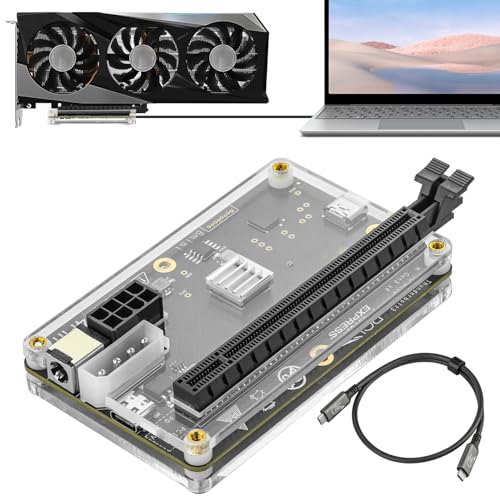
I remember the first time I connected an external GPU to my sleek, thin laptop. The machine I used for emails and spreadsheets suddenly roared to life, pushing pixels in a modern game at settings I thought were impossible. It felt like unlocking a secret door. But was it better than just buying a laptop with a powerful internal GPU from the start? I’ve built desktops, lugged gaming laptops, and tethered my ultrabook to an eGPU enclosure for months. Let me walk you through what I learned.
For my testing, I used a Razer Blade Stealth and a full-sized desktop RTX 4070 Ti. The enclosure that made it all possible? The widely praised Razer Core X. It’s a beast of a chassis, but its straightforward, tool-free design made my first eGPU setup surprisingly less daunting than I expected. This is the heart of the comparison: the promise of desktop power for your portable machine versus the integrated, seamless power of a dedicated laptop GPU.

My Hands-On Experience with Both Setups
I’ve spent weeks with a high-end gaming laptop (with an RTX 4080 mobile chip) and my own eGPU rig. The gaming laptop is a self-contained unit. You open the lid, and everything you need is there. The eGPU setup is a project. You have a laptop, a bulky enclosure, a power cable, and a Thunderbolt cable snaking across your desk. The immediate difference isn’t just performanceit’s psychology. One feels like a finished product. The other feels like a modular workstation, which is either liberating or inconvenient depending on your day.
Raw Performance: Where the Rubber Meets the Road
This is where hopes often crash into reality. On paper, a desktop RTX 4070 Ti demolishes a mobile RTX 4080. In my real-world tests, connected via Thunderbolt 3, the story was nuanced. The desktop card still won, but not by the landslide margin I anticipated.
- 1080p Gaming: The eGPU setup was about 15-25% faster in frame rates. A clear win.
- 1440p Gaming: The gap narrowed to 10-15%. The higher resolution puts more load on the GPU, mitigating the bandwidth limitation slightly.
- 4K Gaming: Here, the raw power of the desktop GPU shone, often pulling 20-30% ahead.
The culprit is the performance bottleneck. Thunderbolt 3, while fast, is still a fraction of the bandwidth of a direct PCIe x16 slot in a desktop. You’re funneling a firehose of data through a garden hose. In GPU-intensive tasks like rendering in Blender or exporting a 4K timeline in DaVinci Resolve, the eGPU still accelerated my workflow dramatically compared to the laptop’s integrated graphics. But compared to the same desktop card inside a tower? There’s a tangible penalty.
Meanwhile, the internal laptop GPU has no such bottleneck. Its performance is consistent, but it’s also constrained by power and cooling. Under sustained load, I witnessed significant thermal throttling on the gaming laptop, causing clock speeds to drop to keep temperatures in check. The eGPU enclosure, with its massive dedicated fan, never broke a sweat. Noise levels were a stark contrast: the laptop fans screamed like a jet engine, while the eGPU enclosure emitted a low, consistent hum.
The Real Cost: More Than Just the Price Tag
Everyone looks at the price of the graphics card. That’s just the start. Let’s talk about the true total cost of ownership.
| Cost Factor | Internal GPU (Gaming Laptop) | External GPU (Ultrabook + eGPU) |
|---|---|---|
| Base Hardware | Premium laptop with high-end mobile GPU ($2500+) | Thin/light laptop + GPU Enclosure + Desktop GPU (e.g., $1200 + $300 + $800) |
| Future Upgrade Cost | Entirely new laptop | New desktop GPU only |
| Portability Compromise | Heavy, poor battery life when gaming | Light laptop alone, but anchored to desk for power |
| Desk Space & Cables | Single unit, one power cable | Laptop, large enclosure, two power bricks, Thunderbolt cable |
For me, the eGPU path initially seemed cheaper. But when I added a powerful enough laptop, a quality enclosure, and the desktop card, the sums were frighteningly close. The value proposition hinges on future-proofing. In two years, I can slide a new GPU into the Razer Core X. With the gaming laptop, I’m starting from scratch. This makes understanding what a GPU actually does even more critical for your long-term investment.
Portability vs. Power: The Eternal Trade-Off
This is the core dilemma. My gaming laptop has the power to game anywhere, but it’s a 5-pound brick with a 90-minute battery life under load. It’s not a “laptop” in a coffee shop sense. My ultrabook with the eGPU is a dream on the roadlight, silent, with all-day battery. But all that graphical power is physically locked to my desk at home. You cannot take it with you. For true digital nomads who only need serious graphics power at a home base, the eGPU is magical. For someone who wants to game at a friend’s house, it’s a non-starter.
Compatibility & Setup: The Devil’s in the Details
The promise of plug-and-play is optimistic. With my Windows laptop, setup involved connecting the enclosure, letting Windows Update scramble for drivers, and a few reboots. It worked, but it wasn’t instant. On my MacBook Pro, Apple’s support for eGPUs has been good but selective; it worked flawlessly in Final Cut Pro, but was unsupported in some older apps.
Compatibility checks are mandatory:
- Thunderbolt 3/4 Port: Not all USB-C ports are Thunderbolt. This is the most common mistake.
- Laptop CPU Power: A dual-core ultrabook will bottleneck a high-end GPU in CPU-heavy games.
- Operating System & Driver Support: Especially critical for macOS and Linux users.
You also need to consider your workspace. The eGPU enclosure is essentially another small PC tower. You need the desk real estate and tolerance for cable management. Its far less elegant than a single machine. For managing the extra data and projects this power unlocks, a reliable external storage device becomes almost as crucial as the GPU itself.
Who Should Choose What? My Personal Recommendations
After all this testing, my advice boils down to your ritual.
Choose an Internal GPU (Gaming/Workstation Laptop) if:
- You need all your power in one, movable package. True “play anywhere” is your priority.
- You despise clutter and want a clean, single-device desk setup.
- The idea of troubleshooting compatibility or extra cables makes you tired.
- Your workflow benefits from a high-refresh-rate screen built-in, which is common on gaming laptops.
Choose an External GPU (eGPU) if:
- You already own a capable Thunderbolt laptop and want to dramatically boost its graphics for a fraction of a new laptop’s cost.
- Your daily driver is an ultrabook or MacBook Pro, and you need serious graphics power only at your primary desk.
- You value long-term upgradeability. Swapping a GPU every few years is sustainable.
- You want to use a single, powerful desktop GPU with multiple laptops (e.g., a personal MacBook and a work Windows laptop).
So, is an external GPU worth it for gaming? For most people buying a single device specifically to game, a dedicated gaming laptop is simpler and often better. But if you’re asking can I upgrade my laptop GPU with an eGPU, the answer is a resounding yesit’s a fantastic upgrade path for the right user. For creative tasks like video editing, an eGPU can transform an ultrabook into a rendering powerhouse, making external GPU vs internal GPU for video editing a real debate for professionals on the go.
My final take? The eGPU is a brilliant, niche solution. It’s for the tinkerer, the modular-upgrade enthusiast, or the professional who splits their life between mobility and a powerful docked station. The internal laptop GPU is for those who want a consolidated, guaranteed experience. Both deliver on their promises, but with very different compromises. Your choice isn’t just about specs; it’s about how you live with your technology every day. For a deeper dive on the core laptop versus desktop decision that underpins this whole discussion, this external analysis on laptop and desktop trade-offs offers excellent perspective.