
You have a stack of mail and a deadline to submit a government form, but your computer keeps forcing you into complicated software just to sign a PDF. This page tells you exactly which operating system makes paperwork painless and which hardware you need to connect.
In short: For most users, Windows is the better choice for heavy paperwork work because it runs professional PDF editors and desktop scanners easily. Pick a Chromebook if you only need to view forms and you want the simplest, most secure system for light work. If you are printing on the go, add a portable thermal printer to either system.
Quick picks
Our shortlist for this job · tap one to see today's price
Let you scan a stack of physical mail into a single digital file in seconds without a bulky desk machine.

A compact Bluetooth printer lets you print forms anywhere, which is handy for offices with no print station.
The differences at a glance for form-filling
Government forms are not like web pages. They are local PDF files that often have complex, invisible fields that a web browser will never understand. When you are comparing these two systems for paperwork, the core difference is how they handle local files versus web files. It helps to understand workstation versus gaming specs before going further.
Windows was built to manage hard drives and local files. It can run powerful PDF editors directly on your computer, which is what you need for a multi-page tax form or an immigration application. Chrome OS is built for the cloud. It handles web-based forms perfectly, but local PDFs are its weak spot.
| Feature | Windows | Chrome OS |
|---|---|---|
| PDF Editing | Full desktop apps (Adobe Acrobat, Foxit) | Web apps only, limited editing |
| Local File Storage | Standard C: drive with full OS access | Restricted read-only folders |
| Scanner Support | Universal Windows driver support | Android apps or MTP basic support |
| Form Signing | Native digital signature tools | Browser-based signing only |
| Security | Open system, requires antivirus | Locked-down, sandboxed by design |
This table shows the baseline. If your paperwork workflow involves physical items, Windows is the clear winner because it natively handles the hardware. If it is all web-based, Chrome OS is easier and faster to use.
This scanner connects to both systems, but it is most useful on Windows where its full driver lets you batch-scan 50 pieces of mail into one file.
- GO — The fastest and lightest mobile single-sheet-fed compact document scanner in its
- QUICK DOCUMENT SCANNING ― This Epson ultra-fast scanner scans a single page as quickly
PDFs and forms: how each OS handles the file
Most government paperwork arrives as a PDF. This file type is the biggest friction point between these two operating systems. You need to be able to fill in checkboxes, type your name into fields, and save the finished document without starting over.
On Windows, you can install dedicated software like Foxit Reader or Adobe Acrobat Pro. These programs are built specifically for forms. They let you select all fields at once, fill them out logically, and save the changes directly to your desktop folder. The process is fast and reliable.
On Chrome OS, you are mostly stuck with the built-in PDF viewer in Chrome. This viewer is great for reading and scrolling, but it is very limited for editing.
You can tap on a field and type, but you cannot easily save a filled-out form as a new PDF file to your local drive. We cover chrome os vs macos in a guide of its own.
You usually have to print it to a PDF or use a web-based service to finish the job, which adds unnecessary steps.
Winner for PDFs: Windows. It treats the form like a native document. Chrome OS treats it like a web page and loses important data in the process.
Pro tip: If you are on a Chromebook and need to edit a PDF, search for 'Adobe Sign' in the Chrome Web Store. It allows you to view and fill many basic government forms for free.
Scanning physical mail: which system connects easier?
For many paperwork tasks, the first step is getting paper into the computer. You receive a notice, a form, or a bill, and you need to digitize it. This is where the two systems have a massive gap in capability.
Windows has a deep library of drivers. You plug in a USB scanner and it just works. The operating system recognizes the specific model, loads the software, and you can set up batch scanning directly. It is a seamless, plug-and-play experience.
Chrome OS is very restrictive with hardware. It will recognize a basic USB mass storage scanner, but it does not support most professional or mid-range scanning devices. You can connect a scanner, but you cannot use the manufacturer’s software to process the pages. There is more on defining the chromebook operating system in a separate guide.
You are limited to manually feeding paper and using a free app to view the result. For anyone with a stack of mail, this is a deal-breaker.
Hardware and ports: what you can actually plug in
Paperwork workflows are messy. You need a printer, a scanner, and a USB flash drive to transfer files between the office and your home. The physical ports on your computer determine how much friction you face daily.
Windows laptops usually come with a mix of USB-A and USB-C ports. This means you can plug in any legacy scanner, printer, or old digital camera without needing an extra adapter. The system also manages background drivers for hundreds of unknown devices.
Chromebooks are designed to be simple. They often only have two or three USB-C ports and no USB-A ports. You cannot plug in a standard scanner. You also cannot plug in a standard USB printer without a hub. The system is locked down to only allow certified USB devices for printing and data.
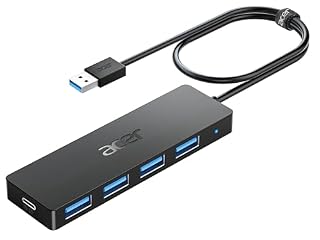
If you are on a Chromebook, this 4-port hub lets you connect a USB-A printer or scanner without buying a whole new computer.
- Acer USB Hub extends your device with 4 additional USB 3.0 ports, ideal for connecting
- The USB splitter is designed with 4 USB 3.0 data ports, you can transfer movies
Printing on the go: finding a spot to submit a form
Deadlines don’t always wait for you to get home. Many government offices, post offices, and libraries have print stations, but not all of them are reliable. Having your own printing method means you can submit your paperwork at any counter or waiting room.
Windows users can use a standard printer, but you have to carry it and find power to charge it. It is heavy and bulky to move around.
Chrome OS and portable printers work beautifully together. A portable thermal printer lets you print a form from your web browser on any screen. You do not need ink cartridges or a power outlet, which is perfect for submitting a form in a coffee shop or waiting room.
This Bluetooth printer fits in a backpack and lets you print a government form on white paper from any browser window.
- Easy to Set Up: RONGTA F11A portable thermal printer for travel go by
- RONGTA portable printer, 203DPI resolution, large to 8.5" design, easy to use and
Security and offline work: when the internet drops
Government forms can be sensitive. They contain your address, tax ID, or health data. How each system handles this data locally is a major deciding factor for anyone with a busy paperwork schedule.
Windows stores your files on a local hard drive that you control completely. If your internet cuts out, you can open, edit, and save your forms with zero interruption. The downside is that you must keep your antivirus updated to protect those local files from malware.
Chrome OS is inherently more secure because it is locked down. It cannot run most local malware. However, it is heavily cloud-dependent. If you are editing a form in a web browser and your Wi-Fi drops, your progress can be lost. You cannot open a local file editor on a locked network in a public place.
Safety first: Never type your Social Security number or bank account into a web form on an unsecured public Wi-Fi network. Use your mobile hotspot instead.
Which should you buy for a paperwork-heavy life?
Choosing the right system comes down to where your paperwork lives. You are not just buying an operating system; you are buying a digital desk for your entire administrative life. Look at your last three months of mail and forms to decide.
- Choose a Windows laptop if: You receive physical mail, you need to scan documents, or you use professional software like Adobe Acrobat or QuickBooks for your records.
- Choose a Chromebook if: Your paperwork is 100% web-based (like a school portal or a simple tax estimate), you never scan paper, and you want the simplest, lightest machine possible for travel.
- Get a Windows laptop and buy a portable scanner: If you need a backup to digitize old records or mail from a moving box, but you still want the security of a modern desktop system.
There is no one-size-fits-all, but if you have to guess, the Windows machine is the safer bet for anyone with a busy administrative workload.
The bottom line
For most people who actually have to manage physical paperwork, Windows is the clear winner. It handles scanners, local PDFs, and printing without the friction of a locked-down browser.
If you are only viewing simple web forms, a Chromebook is a fantastic budget alternative that saves you from installing any software at all.
Your next step is to check your current hardware; if you have a Windows machine, just download a portable scanner to finish the setup.
- GO — The fastest and lightest mobile single-sheet-fed compact document scanner in its
- QUICK DOCUMENT SCANNING ― This Epson ultra-fast scanner scans a single page as quickly
Frequently asked questions
Can a Chromebook edit a PDF form from the IRS or a university?
For basic forms with simple text fields, yes. The built-in Chrome PDF viewer allows you to click a box and type your name. However, for complex, multi-page documents with checkboxes or digital signature fields, Chrome OS will struggle. You will often have to print it to a PDF and send it back through the portal.
Which OS is better for scanning a stack of physical documents?
Windows is much better. It natively supports a wide range of USB scanners and their dedicated software. On Chrome OS, you are limited to basic, low-end USB mass storage scanners that cannot batch-scan or process multiple pages automatically.
Is it safe to store local files with sensitive data on a Chromebook?
It is not recommended. Chrome OS is designed to keep all your data in the cloud. The local storage on a Chromebook is read-only and limited in size. For sensitive, local paperwork that cannot be shared, a Windows laptop with a physical hard drive is the safer choice.
Can I use my old school-issued Windows laptop for paperwork on the go?
Yes, a Windows laptop is perfect for this. Because it can run offline, you can work on your forms in a waiting room without Wi-Fi. A Chromebook would be frustrating in this scenario because it requires a constant connection to the internet to function.