
 By
Your laptop shows a blue screen that says MEMORY_MANAGEMENT, restarts, and then does it again. The stop code 0x1A points at how Windows handles memory, and the fix depends on whether the fault sits in the RAM, a driver, or the drive.
In short: Write down the stop code 0x1A and what you were doing. Run Windows Memory Diagnostic first: if it reports errors, the RAM is the fault. If the test passes, update or roll back drivers, then check the disk and system files. Test RAM sticks one at a time before you buy a replacement.
Key takeaways
- Stop code 0x1A (MEMORY_MANAGEMENT) means Windows found a serious error in memory handling.
- Run Windows Memory Diagnostic first: a failed test names the RAM as the fault.
- Crashes that start right after an update or a new driver point at the driver.
- Test RAM one stick at a time and match the DDR type before you order a replacement.
What the MEMORY_MANAGEMENT stop code means
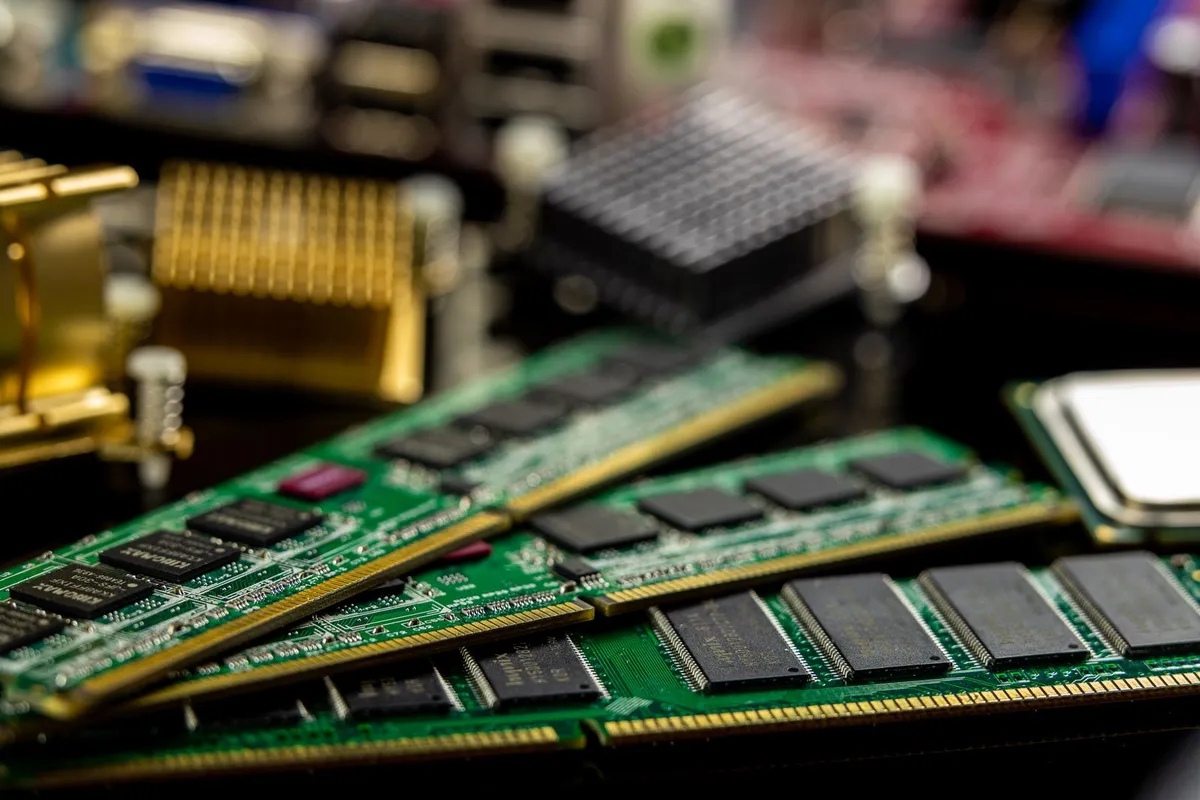
When Windows hits a problem it cannot recover from, it stops and shows a blue screen with a stop code: for this error, 0x0000001A, shown as MEMORY_MANAGEMENT.
Microsoft documents it as a bug check that fires when Windows finds a serious error in memory management. The full technical description is on the Microsoft Learn page for bug check 0x1A. There is more on fixing sluggish startup speeds in a separate guide.
Three things cause most 0x1A crashes: faulty or loose RAM, a bad driver that writes outside its own memory (often after an update or a new device), and storage trouble, where a failing drive or damaged system files corrupt the page file, the part of the disk Windows uses as extra memory.
Running out of RAM is not the same problem: a laptop with too little memory slows down rather than crashing. If your laptop is slow instead of crashing, our guide to general memory problems covers that case. If your screen shows a different stop code, start with our general blue screen guide instead.
Match the symptom to the cause
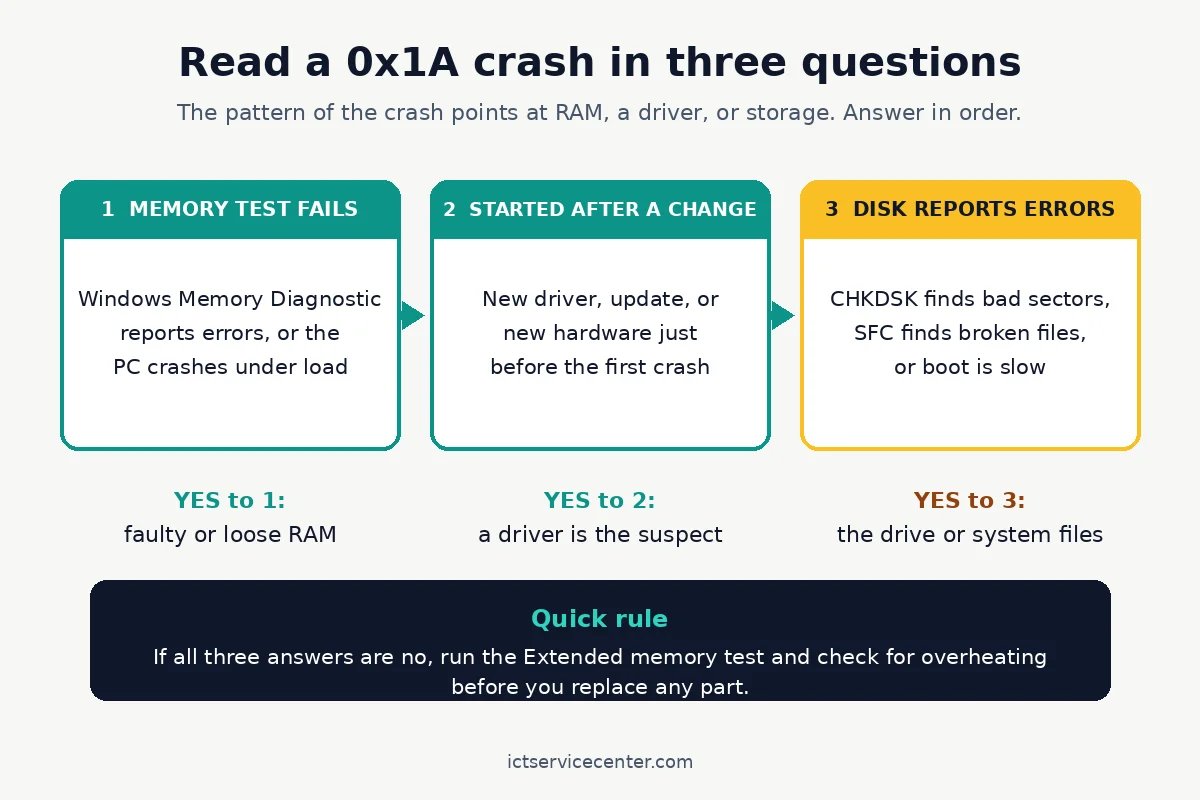
The pattern of the crash tells you where to look first: heavy load points at the RAM, and a crash the day after an update points at a driver. Use the diagram, then the table, to pick your starting point.
| Symptom | Likely cause | Fix |
|---|---|---|
| Crashes with many apps open | RAM under stress | Memory Diagnostic, test sticks one at a time |
| Crash after an update or new driver | Bad driver | Roll back the driver |
| Crash on startup or waking from sleep | Driver loading at boot, damaged page file | Update drivers, check disk and system files |
| Crash while copying files | Drive or file damage | Run CHKDSK and SFC |
| Random crashes, no pattern | Failing or loose RAM | Extended test, reseat RAM |
| Crash after adding new RAM | Wrong or faulty stick | Remove it, check compatibility |
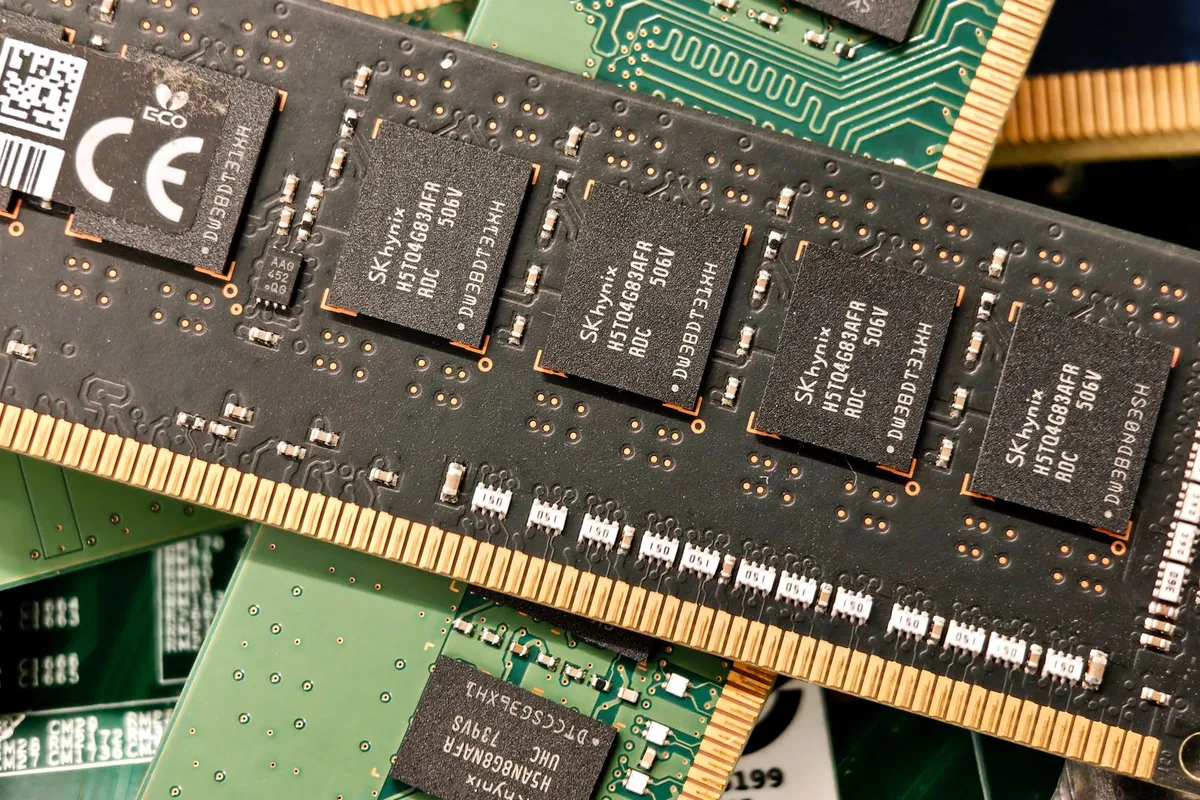
Before you change anything, write down the stop code and what you were doing, and note what changed lately, such as an update or new RAM. Save your work and back up files you cannot replace, while the laptop still boots. One crash can be a one-off, but two with the same stop code in a week mean something is wrong, so run the memory test below.
Run Windows Memory Diagnostic
Windows Memory Diagnostic is the built-in tool for testing RAM, and the right first test for a 0x1A crash. It restarts the laptop to check every memory stick, so save your work and close your apps first.
- Press Win + R, type mdsched, and press Enter. Confirm with an administrator account if asked.
- Select Restart now and check for problems (recommended). The laptop restarts and the test starts on its own.
- Let the Standard test finish. It takes several minutes. Do not switch the laptop off while it runs.
- When the test ends, the laptop restarts and a notification shows the result.
If the notification says no errors were found, the RAM passed. If you missed it, open Event Viewer, expand Windows Logs > System, and search for MemoryDiagnostics-Results. Microsoft shows the same steps in its support guide to memory checks.
If the Standard test passes but the crashes continue, run the Extended test: start the tool again, press F1 on the blue test screen, change Test Mix to Extended, and press F10. It takes much longer, so run it overnight. If either test reports hardware problems, the RAM is the fault: go to the reseat section below. Loaders in this spot often ask about memory shortage warning as well.
Update drivers and undo recent changes
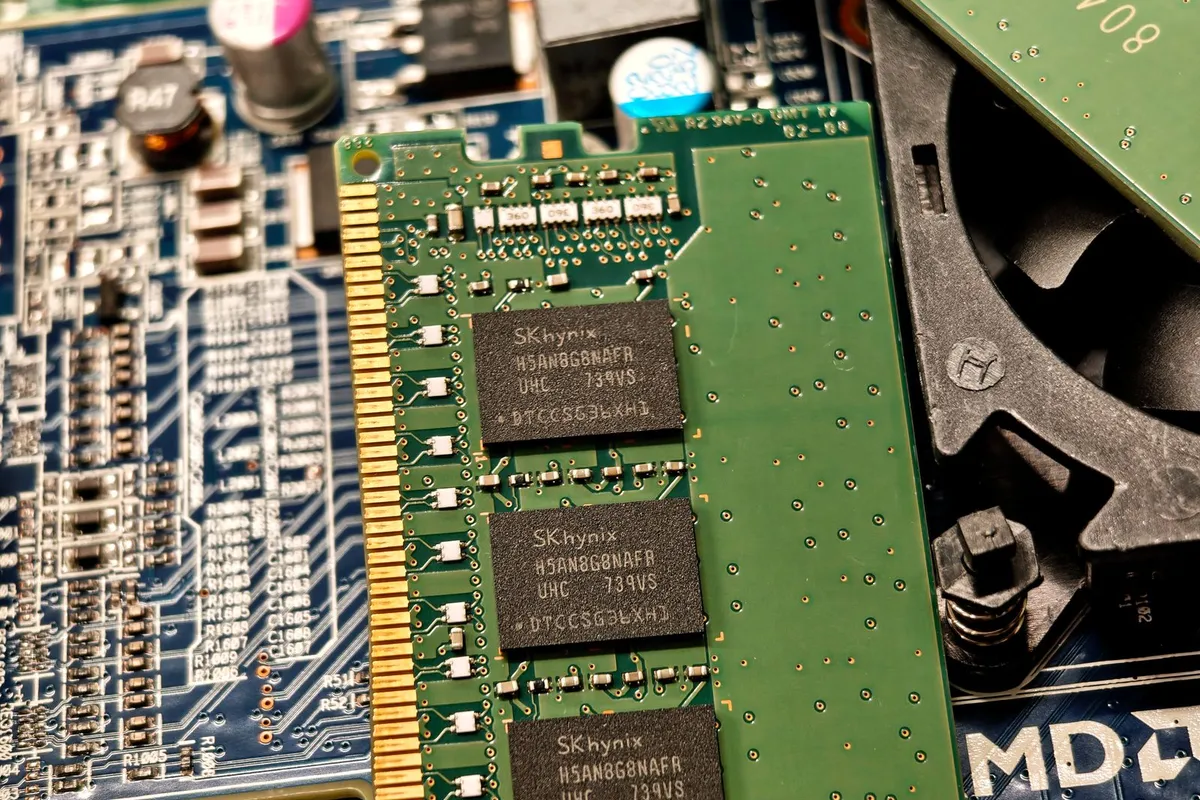
If the memory test passes, the next suspect is a driver: the code that lets Windows talk to hardware. A driver that writes to the wrong memory address triggers this stop code, usually after an update, a driver install, or new hardware.
Update drivers the safe way. Open Settings > Windows Update > Check for updates, then look under Advanced options > Optional updates. If Windows Update offers nothing, get the driver from your laptop maker support site for your exact model. Update the chipset driver first, then graphics and storage drivers. Our guide to driver faults that stop hardware working covers the maker-site route in detail.
If the crashes started after a driver update, roll it back. Press Win + X, select Device Manager, and find the device that was just updated. Right-click it, select Properties > Driver, and select Roll Back Driver if the button is active. If it is greyed out, uninstall the device instead.
If a Windows update started the crashes, remove it under Settings > Windows Update > Update history > Uninstall updates, after backing up your files.
Driver Verifier stresses drivers to find the faulty one, but it can cause boot loops: if it flags a driver at startup, Windows may crash before you can sign in. Only use it if you can recover a PC.
Before you turn it on, create a System Restore point: to switch it off, boot into Safe Mode and run verifier /reset from an administrator Command Prompt, or run the same command in Windows Recovery Environment. Microsoft documents the tool in its Driver Verifier guide.
Check the disk and repair system files
A failing drive or damaged system files can corrupt the page file, and Windows then reports the problem as a memory error. Run these checks after the memory test and driver steps. There is more on blue screen of death in a separate guide.
Back up your files before you run CHKDSK: if the drive is already failing, a heavy scan can push it over the edge. Copy anything you cannot replace to another drive first.
- Open an administrator Command Prompt with Win + X, then Terminal (Admin).
- Check the disk: type chkdsk C: /f /r and press Enter. If Windows asks to schedule the scan at the next restart, type Y and restart. The scan can take an hour or more on a large drive.
- Check the system files: after CHKDSK finishes, type sfc /scannow in the same window. It scans protected system files and repairs what it can. Microsoft explains the tool in its System File Checker guide. If SFC cannot fix the damage, run DISM /Online /Cleanup-Image /RestoreHealth first, then run sfc /scannow again.
Read the results. If CHKDSK reports bad sectors, the drive is wearing out: back up everything and plan a replacement. If SFC repairs files and the crashes stop, the cause was file damage, not the RAM. If the drive is an SSD, our guide to disk errors that crash Windows covers the checks to run next.
Reseat and test the RAM sticks one at a time
If the memory test reports errors, or the crashes follow no pattern, the RAM itself needs hands-on testing: a stick can work loose, and dust or a poor contact can cause the same stop code as a dead chip.
Power off the laptop, unplug the charger, and disconnect the battery before you open the case. Never open a swollen battery: if the case bulges or the trackpad feels raised, stop and take the laptop to a shop. Touch metal before you handle a RAM stick, to discharge static.
- Remove the bottom panel screws with a Phillips #0 screwdriver and lift the panel. Check the manual for the screw layout and clips.
- Find the RAM slots near the centre of the board.
- Push both clips outward, then pull the stick straight out and set it on a clean, dry surface.
- Blow dust out of the slot with compressed air. Wipe dull gold contacts only with a dry, lint-free cloth.
- Reseat one stick firmly: push it in at the same angle it came out, then press down until both clips snap shut.
- Test one stick at a time: boot with only the first stick fitted. If it crashes, swap to the second stick alone: the stick that crashes on its own is faulty.
Run Windows Memory Diagnostic again after reseating. If one stick fails and the other passes, replace only the failed stick. Our guide to test each RAM stick one at a time covers the same method in more detail.
When you order a replacement, match the DDR generation, speed, and form factor printed on the old stick: a DDR5 stick does not fit a DDR4 slot, and laptop RAM is the smaller SO-DIMM size, not desktop DIMM.

Match the DDR generation, speed and form factor printed on your old stick, or check the laptop manual before ordering.
- 16GB Module ( 1x 16GB ) | DDR4 3200 MHz ( PC4-25600 / PC4-3200AA )
- DIMM ( 260-Pin ) | Non-ECC Unbuffered | 2Rx8 - Dual Rank x8 | 1.2V - DDR4 Standard
When to take it to a repair shop
Take the laptop to a shop when the memory test fails with a known-good stick, when every stick fails, or when crashes continue after testing each stick alone: that points at the slots or the board.
Go to a shop also when the RAM is soldered to the board, common on thin ultrabooks, since board work needs specialist tools. If the laptop is under warranty, contact the maker first.
Before you hand it over, write down the stop code, the test result, and which stick failed, so the shop tests the right part first.
Mistakes to avoid
Reinstalling Windows before testing the RAM. A clean install wipes your apps and settings. Run Windows Memory Diagnostic first: if the RAM is faulty, no reinstall will fix it.
Running Driver Verifier on every driver with no way back. Verifier is a stress tool, not a first step. Turn it on without a restore point and a boot loop can lock you out of Windows. Update and roll back drivers first.
Buying new RAM before testing one stick at a time. Two sticks rarely fail together. Testing each stick alone finds the one faulty module, so you replace one stick instead of a pair.
Ignoring the disk because the stop code says memory. A failing drive corrupts the page file and Windows reports it as a memory error. Run CHKDSK and SFC even when the memory test passes.
Skipping the backup before CHKDSK or a reset. Both steps touch the drive heavily. Copy your files first, while the laptop still boots: a backup takes minutes, and recovering data from a dead drive costs far more.
Frequently asked questions
Is a MEMORY_MANAGEMENT blue screen always faulty RAM?
No. Faulty RAM is the most common cause, but a bad driver or a failing drive can trigger the same stop code. Run Windows Memory Diagnostic first, then check drivers and the disk. If the memory test passes, the RAM is likely fine.
Can a driver cause a MEMORY_MANAGEMENT blue screen?
Yes. A driver that writes to memory it does not own triggers stop code 0x1A, usually right after a driver update, a Windows update, or new hardware. Update the chipset, graphics, and storage drivers from the maker site, or roll back the driver that was just updated.
Will a MEMORY_MANAGEMENT error damage my files?
The crash itself does not delete files, but it can corrupt a file that was being saved when the crash happened. Back up anything you cannot replace now, and run CHKDSK to check the drive for errors before you keep using the laptop.
Should I reinstall Windows to fix stop code 0x1A?
Only as a last step. A reinstall fixes damaged system files and bad drivers, but it does nothing for faulty RAM or a failing drive, and it wipes your apps and settings. Test the memory, update the drivers, and run SFC first.
Bottom line: Start with Windows Memory Diagnostic: a failed test means the RAM is the fault, and testing sticks one at a time finds the bad module. If the test passes, update or roll back drivers, then check the disk and system files.
Back up your files before any heavy step, and take the laptop to a shop if every stick fails or the RAM is soldered. For more fixes, browse the Troubleshooting hub.
Sources: Microsoft Learn, Bug Check 0x1A: MEMORY_MANAGEMENT; Microsoft Support, How to fix Error 0xA (Windows Memory Diagnostic steps); Microsoft Learn, Driver Verifier; Microsoft Support, Using System File Checker in Windows. Photos: Sergei Starostin, Adriano Ponte Abreu, Anna Shvets, Elias Gamez via Pexels. Diagram: ICT Service Center.