
 By
You have a stack of RAW files to process and need a laptop that will not lag out. This guide cuts through the marketing noise to tell you exactly which machines handle real editing workflows.
In short: For most creatives, a MacBook Air with the M-series chip or a mid-range Windows laptop with 16GB of RAM is the sweet spot. You do not need a top-tier gaming GPU; you need a color-accurate screen, fast storage, and enough memory to keep your tools open.
Quick picks
Our shortlist for this job · tap one to see today's price
Balances a powerful chip and a color-accurate screen in a light body that is easy to carry to shoots.
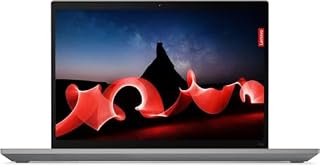
Offers reliable performance, a great keyboard, and long battery life for users who need enterprise-grade support.

Provides a stunning OLED display and solid performance at a lower price point than premium ultrabooks.

Includes a precision touch screen and pen support for those who edit photos directly on the display.
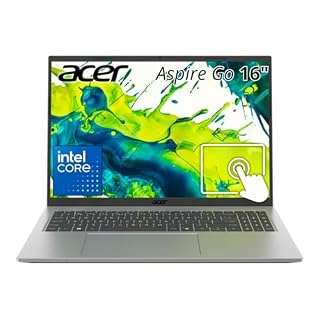
Gets a working machine with enough memory for Lightroom at a price that does not break the bank.
Best All-Around for Portability: Apple MacBook Air M4
The MacBook Air is the go-to choice for editors who move between a home studio and on-location shoots. The M4 chip handles large catalog imports and RAW processing with surprising speed. It does not have a fan, so it runs silent during long editing sessions. It helps to understand best home pc for llm before going further.
The screen is a major strength. It covers a wide color gamut, which means the photos you see on the display look true to life. This matters when you are fine-tuning color balance and saturation.
Who should skip it
- Heavy video editors who need dedicated GPU power.
- Users who require a physical SD card reader (not built-in).
If you mostly use Lightroom and Photoshop for stills, this machine will feel fast and responsive. It is thin, light, and the battery easily lasts through a full day of work.
Pro tip: Enable 'Color Matching' in your display settings to ensure Photoshop and Lightroom see the same colors.
The M4 chip provides the raw power needed for fast batch exports and smooth multitasking in creative apps.
- SPEED OF LIGHTNESS — MacBook Air with the M4 chip lets you blaze through work and play
- SUPERCHARGED BY M4 — The Apple M4 chip brings even more speed and fluidity to
Best Durable Windows Option: Lenovo ThinkPad T14
The ThinkPad line has a long reputation for being built to survive. The Gen 4 model with 16GB of RAM is a solid workhorse for Windows-based workflows. The keyboard is one of the best in the business, which helps when you are inputting metadata or editing file names.
Performance is stable and predictable. It runs cool, even when rendering exports. The display is not as vibrant as an OLED panel, but it is accurate enough for most professional color work if you use a profile.
Who should skip it
- Creators who want the brightest, most saturated screen available.
- Users who prioritize a fanless, silent design above all else.
For those who prefer the flexibility of Windows apps and need a machine that can take a little abuse, this is a reliable pick. We go through OLED laptop 2026 step by step in its own article.
Pro tip: Use the dedicated performance mode in the Lenovo Vantage app to ensure full CPU power during heavy exports.
The MIL-STD durability and responsive keyboard make it ideal for editors who work in varied, less-than-perfect environments.
- Powerful 13th Gen Performance: Driven by the Intel Core i7-1355U processor, featuring
- Stunning WUXGA Display: The 14-inch 1920 x 1200 (WUXGA) screen offers a 16:10 aspect
Best Value for Creators: Asus Zenbook 14 OLED
Asus hits a high mark for screen quality at a mid-price point. The OLED panel delivers deep blacks and vibrant colors that make photo editing feel more engaging. You see every detail in shadowed areas without washing out the highlights.
The performance is adequate for most photo editing tasks. It will not handle heavy 3D or video workloads as fast as a powerhouse, but it is more than enough for processing RAW images. The 16GB of RAM ensures your file browser and lightroom catalog do not slow down.
Who should skip it
- Users who are sensitive to screen ‘burn-in’ over very long periods of static display.
- Those who need a machine that runs completely silent and fanless.
If you want the best screen for your budget, this is the one to look at. It makes the editing process more enjoyable and helps you spot color issues quickly.
The high-contrast OLED display helps editors identify and correct color issues with greater precision and less eye strain.
- DISCLOSURE — Brand New Computer has been resealed to upgrade SSD. 1 Year warranty by
- The ASUS Zenbook 14 OLED features a slim, lightweight build paired with a long-lasting
Best for Stylus Users: HP Spectre x360
The Spectre x360 turns into a tablet, and the included pen makes it easy to crop, retouch, or annotate directly on the image. This is a significant workflow improvement for those who prefer tactile interaction over mouse clicks.
The screen is high-resolution and color-accurate. The build quality is premium, and the laptop feels sturdy in hand. Performance is strong, handling multiple applications at once without breaking a sweat. We cover color accuracy for artists in a guide of its own.
Who should skip it
- Editors who find stylus input slower or less precise than a traditional mouse.
- Those who need a strictly professional, non-converting laptop form factor.
If you spend time doing local adjustments, retouching blemishes, or making selection masks, the pen support saves you a lot of time.
The 4K display and active pen support allow for direct, precise retouching and local adjustments without relying on a mouse.
- Model No.: E637; internal dimensions of the case: 36.7x25.7x2 cm (14.45x10.12x0.79 inch)
- Innovative Shock Protection- “Super-Corner” Technology: Our patented “Super-Corner”
Best Budget Entry: Acer Aspire 5
For those starting out, the Aspire 5 offers a solid foundation. It will not blow you away with speed, but it gets the job done for lightroom development and basic Photoshop edits. The 16GB of RAM is the key feature here; without it, photo editing is a struggle.
The screen is a standard IPS panel. It is not the most vibrant, but it is adequate for seeing your work clearly. The build is simple and functional, with enough USB ports to plug in your external drives without a hub.
Who should skip it
- Professionals who need speed for high-volume commercial work.
- Creatives who prioritize a premium display and top-tier performance.
If you are on a tight budget and want a machine that will not bottleneck your software, this is a sensible choice. It allows you to focus on your photography, not your hardware.
It provides the essential 16GB of RAM needed to keep Lightroom and Photoshop running smoothly on a tight budget.
- Powerful Performance: Intel Core 5 120U processor delivers efficient multitasking and
- Next-Gen Memory: 16GB DDR5 RAM ensures smooth operation across demanding applications
How to Choose Your Photo Editing Laptop
Picking the right machine comes down to matching your workflow to the hardware. You do not need to overpay for features you will not use. Focus on the specs that directly impact your daily editing time.
- RAM: 16GB is the new standard. It keeps your catalog open while you work in Photoshop.
- Display: Look for 100% sRGB coverage or better. If you can, an OLED panel is ideal for color accuracy.
- Storage: A 512GB NVMe SSD is a good starting point. It loads large files quickly.
- Portability: Consider where you work. A 13-inch machine is easy to carry; a 15-inch model gives you more screen real estate.
| Product | Best For | Key Strength | Main Drawback |
|---|---|---|---|
| MacBook Air M4 | Portable pros | Silent, powerful chip | No built-in SD card slot |
| ThinkPad T14 | Durability seekers | Best keyboard, rugged | Standard IPS screen |
| Zenbook 14 | Value hunters | Superb OLED display | Can run warm under load |
| Spectre x360 | Stylus editors | Precision pen support | Heavier than ultrabooks |
| Aspire 5 | Budget buyers | Essential 16GB RAM | Basic screen and build |
Safety first: Do not block the laptop's vents with a soft surface like a bed or couch; this causes thermal throttling and slows down your editing. It helps to understand hardware for data work before going further.
Keeping Your Laptop Fast: Cleaning and Care
A clogged fan is the most common reason an otherwise good laptop starts to lag. As dust builds up over months, the cooling system works harder, the fan gets louder, and the CPU slows down to prevent overheating. This makes photo exports take much longer.
You can keep your machine running like new with simple maintenance. Most laptops have a small amount of dust in the vents that can be cleared safely. This is a five-minute task that can make a noticeable difference in speed.
- Turn off the laptop and unplug the power adapter.
- Locate the air vents, usually on the sides or back of the chassis.
- Use a can of compressed air to blast out loose dust. Hold the can upright and use short bursts.
- Hold the fan blades still (if visible) to prevent them from spinning too fast and damaging the motor.
Do this every three to six months. If the fan is still noisy, it may be time for a professional deep clean or a thermal paste refresh.
The bottom line
For the best all-around experience, the MacBook Air M4 is the hard to beat choice. If you are a Windows user on a budget, the Asus Zenbook 14 gives you the best screen for the money. The single most important spec is 16GB of RAM; if a machine does not have it, look at the next one.

- Ultra-Portable: Slim, portable, and light weight allowing you to protect your
- Ergonomic Comfort: Doubles as an ergonomic stand with two adjustable height settings
Frequently asked questions
Is a dedicated GPU necessary for photo editing?
No, not for most still photo work. Integrated graphics are fine for Lightroom and standard Photoshop tasks. A dedicated GPU only becomes necessary if you are doing heavy 3D work, complex composites, or also editing video.
How much storage do I need for a photo editing laptop?
Aim for at least 512GB of internal storage for the operating system and your editing software. You should always use an external SSD for your large photo libraries, as internal drives fill up quickly with RAW files.
Which is better: a 15-inch or 13-inch laptop for editing?
A 15-inch screen gives you more room to see the details in a photo, which is helpful for retouching. A 13-inch machine is easier to carry if you are always on the go. Choose based on whether you prioritize screen real estate or portability.