Best Computer Setup for Home Use: A Basic Starter Guide
Contents
Building a basic computer setup for home use requires a methodical approach. The goal is to assemble a system that handles daily tasks reliably without overspending. This guide provides a step-by-step framework for selecting hardware, configuring software, and creating an efficient workspace.
The process begins with a clear assessment of needs. A simple computer configuration for web browsing, document editing, and video calls has different requirements than a system for media editing or gaming. Defining the primary use case dictates every subsequent decision, from the Form Factor to the specific Core Components.
Define the Primary Use Case
Clarity on intended tasks prevents overspending on unnecessary power or underbuying critical components. A beginner home PC typically serves a few core functions. Common scenarios include managing household finances, online shopping, video conferencing, streaming entertainment, and basic photo management.
For these standard duties, an entry-level system is more than sufficient. Research shows that users who match their hardware to their actual usage patterns report higher satisfaction and better system longevity. A focused use case simplifies the entire selection process.
Common Basic Home Computing Tasks
- Web browsing and email communication
- Creating and editing documents, spreadsheets, and presentations
- High-definition video calls and conferencing
- Streaming movies, TV shows, and music
- Storing and organizing personal photos and documents
Choose Your Form Factor: Desktop vs. Laptop
The first major decision is choosing between a desktop, laptop, or all-in-one PC. Each Form Factor offers distinct advantages for a home computer system. Desktops generally provide more power and upgradeability per dollar, while laptops offer inherent portability.
For a permanent computer workstation where space is not a constraint, a desktop often represents the best value. Its separate components allow for easier repairs and future upgrades. For users who value a clean, cable-free desk or need to move their computer between rooms, a high-quality laptop for everyday use paired with a docking station can be an excellent compromise. A detailed comparison of laptop versus desktop pros and cons is recommended for this decision.
Pre-built systems offer a straightforward solution for a PC for beginners. For instance, refurbished business desktops like the Dell Optiplex 9020 provide a robust, cost-effective foundation for a basic desktop setup. These machines are engineered for reliability and often come with capable processors and adequate RAM for standard tasks.
Select Essential Core Components
The performance and responsiveness of a home use computer are determined by its internal hardware. A balanced selection ensures smooth operation without bottlenecks. The critical parts are the CPU, RAM, and storage.
Processor (CPU)
The CPU acts as the brain of the computer. For basic tasks, an entry-level or mid-range modern processor is perfectly adequate. Brands like Intel (Core i3 or i5) and AMD (Ryzen 3 or 5) offer excellent options in this tier. Avoid the oldest or lowest-powered models to ensure the system remains usable for several years.
Memory (RAM)
RAM is the system’s short-term memory, holding active data for quick access. For a modern computer for home tasks, 8GB of RAM is the practical minimum. This allows multiple browser tabs, a document editor, and a communication app to run simultaneously without significant slowdown. 16GB provides comfortable headroom for future software updates.
Storage (SSD vs. HDD)
This is the most impactful upgrade for perceived speed. A Solid State Drive (SSD) is non-negotiable for the primary Operating System and applications. It makes the computer boot, launch programs, and open files dramatically faster than a traditional Hard Disk Drive (HDD). A configuration pairing a 256GB or 512GB SSD with a larger 1TB+ HDD for file storage offers an ideal blend of speed and capacity.
| Component | Basic Use Recommendation | Purpose |
|---|---|---|
| CPU | Intel Core i3 / AMD Ryzen 3 (or newer) | Handles general processing tasks |
| RAM | 8GB DDR4 | Allows smooth multitasking |
| Primary Storage | 256GB SSD Minimum | Hosts OS and apps for fast response |
| Secondary Storage | 1TB HDD (Optional) | Provides bulk storage for files |
Add Necessary Peripherals
The core computer is useless without interfaces for input and output. Peripheral selection directly affects daily comfort and efficiency. Essential peripherals include a monitor, keyboard, mouse, and often a webcam.
A 21.5 to 24-inch Full HD (1920×1080) monitor provides ample screen real estate without excessive cost. A basic wired keyboard and mouse set from reputable brands like Logitech or Microsoft ensures reliability. For video calls, a dedicated 1080p webcam offers superior quality to most built-in laptop cameras. Audio needs can typically be met with a simple set of desktop speakers or a headset.
Set Up Your Workspace Ergonomically
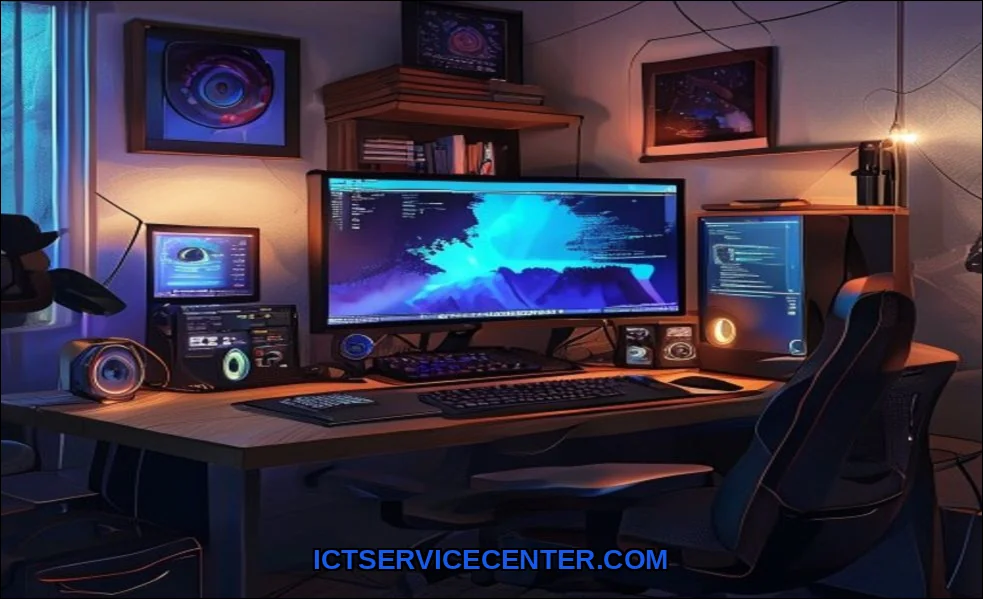
Physical setup is as important as technical configuration. Proper Ergonomics reduce fatigue and prevent strain during extended use. The monitor, chair, and desk must work in harmony.
- Monitor Position: The top of the screen should be at or slightly below eye level, about an arm’s length away.
- Chair and Desk Height: Feet should rest flat on the floor, with thighs parallel to the ground. Arms should form a 90-degree angle at the elbows when typing.
- Lighting: Position the desk to avoid glare on the screen from windows or overhead lights.
An often-missing entity in basic setup guides is power protection. A surge protector is essential, but for areas with unstable power, an Uninterruptible Power Supply (UPS) provides critical backup to safely shut down during an outage, preventing data loss and hardware damage.
Install Basic Software & Ensure Connectivity
With hardware assembled, software configuration begins. The first step is installing an Operating System, typically Windows, macOS, or a user-friendly Linux distribution. Post-installation, the immediate priority is updating the OS and all drivers to patch security vulnerabilities and ensure compatibility.
Basic software for a home office computer includes a web browser, a productivity suite (like Microsoft 365, Google Workspace, or free alternatives like LibreOffice), and security software. A robust antivirus solution, coupled with regular OS updates, forms the foundation of digital security.
Connectivity must be verified. For wired connections, use a Cat5e or Cat6 Ethernet cable to the router for the most stable and fastest network performance. For Wi-Fi, ensure the computer’s wireless adapter supports modern standards (Wi-Fi 5/AX or Wi-Fi 6/AX) for better speed and range. Proper placement of the router away from obstructions and interference improves signal quality.
Maintain Your System for Longevity
Regular System Maintenance preserves performance and extends the lifespan of the home computer system. This involves both digital housekeeping and physical care.
- Software Maintenance: Regularly clear temporary files and browser cache. Uninstall programs that are no longer used. Schedule periodic full system scans with security software.
- Physical Maintenance: Keep vents and fans clear of dust to prevent overheating. Use a can of compressed air for careful cleaning every few months.
- Backup Strategy: Implement the 3-2-1 rule: keep three copies of important data, on two different types of media, with one copy stored offsite (e.g., cloud storage).
For users whose needs evolve toward more demanding business applications, the considerations for component selection shift. The principles for building a capable business laptop or desktop setup build upon this foundation with a focus on enhanced security, reliability, and performance.
Final Configuration Checklist
Before considering the setup complete, verify this checklist. A methodical approach ensures no critical step is missed in creating a reliable simple computer setup for home office.
- Core Use Case is defined and matches selected components.
- All hardware is compatible and physically connected correctly.
- Operating System is installed, updated, and secured.
- Essential productivity and security software is installed.
- Network connectivity (Wi-Fi/Ethernet) is stable and tested.
- Workspace is arranged ergonomically to support posture.
- A basic data backup and system maintenance plan is in place.
Assembling the best computer setup for basic home use is a logical process of matching appropriate technology to defined tasks. By prioritizing a fast SSD, sufficient RAM, and a comfortable, ergonomic workspace, users create a system that is both responsive and sustainable for daily life. The result is a tool that works reliably in the background, enabling productivity and connection without complication or frustration.