What Is a Computer? A Simple Explanation of How It Works
Contents
You probably use one every day, but have you ever stopped to think about what’s actually happening inside that box? A computer is more than just a screen and a keyboard. At its core, it’s a machine designed to process information. It takes input from you, follows a set of instructions, and produces an output. That simple cycleinput, process, outputis the foundation of everything from checking email to rendering a blockbuster movie.
Think of it like a digital kitchen. You provide the ingredients (input), follow a recipe (software), use appliances to cook (process), and end up with a meal (output). To get hands-on with the physical parts, a toolkit like the Kernmax 507Pcs Professional is invaluable for anyone looking to build, upgrade, or repair their own system. Understanding the components demystifies the machine and empowers you to make better buying and troubleshooting decisions.
What Is a Computer? A Simple Definition
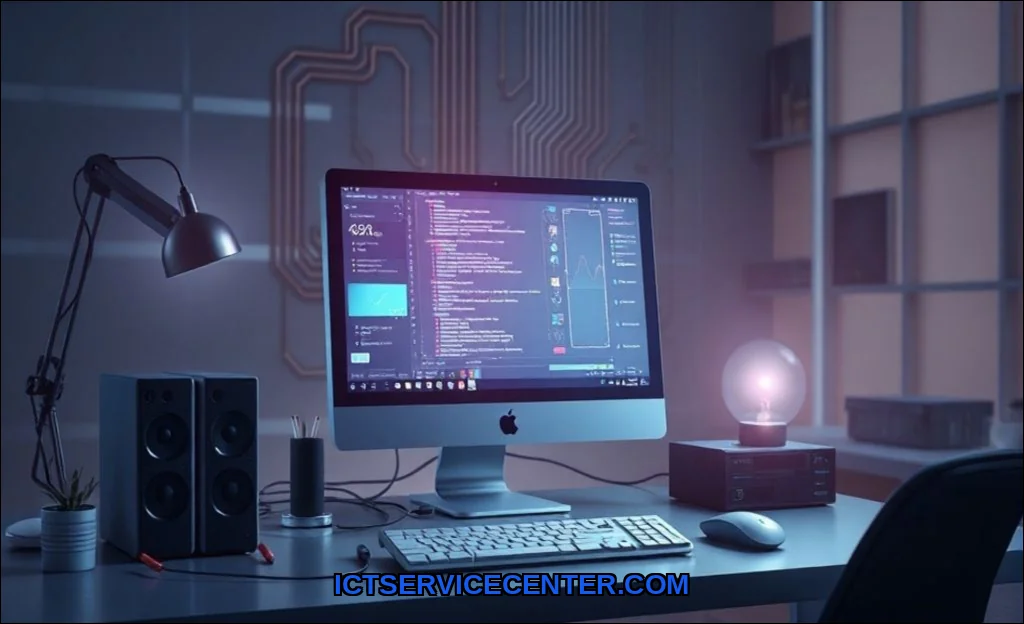
A computer is an electronic device that manipulates data according to a list of instructions called a program. It can store, retrieve, and process information. You give it data (numbers, text, images, commands), it processes that data based on rules, and then it communicates the results back to you. This makes it a general-purpose machine, adaptable to countless tasks simply by changing its software.
The Core Components: Hardware That Makes It Work
Hardware refers to all the physical, tangible parts of a computer. If you can touch it, it’s hardware. These components work together like a well-coordinated team. While a modern laptop packs these into a single chassis, a traditional desktop PC lets you see them individually.
- Motherboard: The main circuit board. It’s the central hub where every other component connects and communicates.
- Central Processing Unit (CPU): Often called the brain. It executes instructions from software.
- Random Access Memory (RAM): Short-term memory. It holds data the CPU needs right now for quick access.
- Storage Drive (HDD/SSD): Long-term memory. This is where your operating system, programs, and files live permanently, even when the power is off.
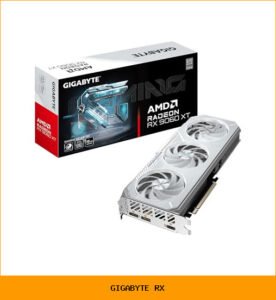
- Graphics Processing Unit (GPU): The specialist. It handles rendering images, video, and complex visual calculations, crucial for gaming and design work.
- Power Supply Unit (PSU): The heart. It converts wall outlet power into stable, clean voltages for all the delicate internal components.
- Cooling System (Fans/Heatsinks): Essential for preventing overheating, which can throttle performance or damage parts.
Memory and Storage: Where Information Lives
This is a key area of confusion. RAM is volatile, temporary workspace. Open a document, and it loads from storage into RAM for the CPU to work on quickly. Shut down, and RAM is wiped clean. Storage (like a Solid State Drive or SSD) is non-volatile and permanent. It’s slower than RAM but retains data without power. More RAM means you can run more programs smoothly at once. A faster SSD means your system and applications launch in a blink.
The Brain of the Operation: How the CPU Processes Data
The Central Processing Unit (CPU) is a masterpiece of microscopic engineering. Its job is to fetch, decode, and execute instructions from programs. It does this at incredible speeds, measured in gigahertz (billions of cycles per second). But it doesn’t understand English or pictures. It only understands one language: Binary Code.
Binary system is the foundation. It uses only two digits: 0 and 1 (representing “off” and “on” electrical states). Every single piece of dataa letter, a pixel’s color, a songis ultimately broken down into long strings of these binary digits. The CPU’s transistors, millions or billions of them, flip these switches on and off to perform calculations and logic operations.
So, how does a computer process information? It’s a relentless fetch-decode-execute cycle. The CPU fetches an instruction from RAM, decodes what it means, executes the operation (like adding two numbers), and then stores the result. This happens trillions of times a second.
Input and Output: How You Communicate with a Computer
This is your side of the conversation. Input devices send data into the computer. Output devices receive data from the computer.
| Input Devices | Output Devices |
|---|---|
| Keyboard & Mouse | Monitor / Screen |
| Microphone | Speakers & Headphones |
| Webcam | Printer |
| Touchscreen | Projector |
| Scanner | Haptic Feedback (Vibration) |
Some devices, like a touchscreen or a network card, handle both input and output. This I/O system is your bridge to the digital world inside the machine.
Software: The Instructions That Tell Hardware What to Do
Software is the set of programs and instructions that bring the inert hardware to life. It’s the difference between hardware and software in a nutshell: hardware is the physical piano, software is the sheet music. Without software, your expensive PC is just an expensive paperweight.
- Operating System (OS): The master controller. Windows, macOS, Linux, and Chrome OS are examples. The OS manages all hardware resources, runs applications, and provides the user interface you interact with. It’s why a device like a Chromebook, built around a cloud-centric OS, operates differently than a Windows laptop.
- Application Software: The task-specific tools. Your web browser, word processor, video game, and photo editor are all applications. They request resources from the OS to do their job.
- Drivers: Specialized software that allows the OS to communicate with specific hardware components, like your GPU or printer.
Types of Computers: From Desktops to Supercomputers
All computers share the same fundamental principles, but they scale dramatically in size, power, and purpose.
Personal Computers (PCs)
This is the category you know best. It’s designed for use by one person at a time.
- Desktop PC: The traditional tower or all-in-one. Offers maximum power, upgradability, and screen real estate for a fixed location.
- Laptop: Portable all-in-one computing. Sacrifices some upgradability for mobility, integrating the screen, keyboard, and components into a single clamshell. For a deeper dive into this form factor, you can explore this external resource on laptop basics for beginners.
- Tablet: A highly portable, touch-centric device. It blurs the line between computer and mobile device, often using mobile-derived processors and operating systems.
Beyond the Personal
- Servers: Powerful computers designed to provide data, services, or resources to other computers over a network. They host websites, handle company emails, and store massive files.
- Mainframes: Ultra-reliable, high-volume transaction processors used by large institutions for critical tasks like banking and census data.
- Supercomputers: The pinnacle of processing power. These are massive arrays of thousands of processors working in parallel to solve intensely complex scientific and engineering problems, like climate modeling or molecular research.
So, what are the main parts of a computer? You now know they’re a symphony of hardwareCPU, RAM, storage, GPU, PSUorchestrated by software. The magic is in how this system transforms your simple clicks and keystrokes into meaningful actions by processing billions of binary operations every second. Whether you’re shopping for a sleek laptop, building a gaming rig, or just trying to fix a slow machine, this foundational knowledge is your first step toward tech confidence. You’re not just using a tool; you’re directing a microscopic city of logic and electricity.