What Is a Touchscreen Laptop? Pros, Cons & Uses
Contents
I remember the first time I swiped my finger across a laptop screen. It felt like a small act of rebellion against the trackpad. That was years ago, and today, touchscreen laptops are everywhere. But what are they, really? They’re more than just a clamshell with a touch-sensitive display. They represent a fundamental shift in how we interact with our primary computers, blending the precision of a pointer with the intuitive nature of a tap.
From my daily use, I can tell you it’s a mixed bag. Sometimes it’s a game-changer for sketching a quick diagram or scrolling through a long document. Other times, it feels like a gimmick. If you’re considering one, like the popular and reliable HP 156 Touchscreen, you need to know what you’re getting into. Let’s break it down from a hands-on perspective.
What Exactly Is a Touchscreen Laptop?
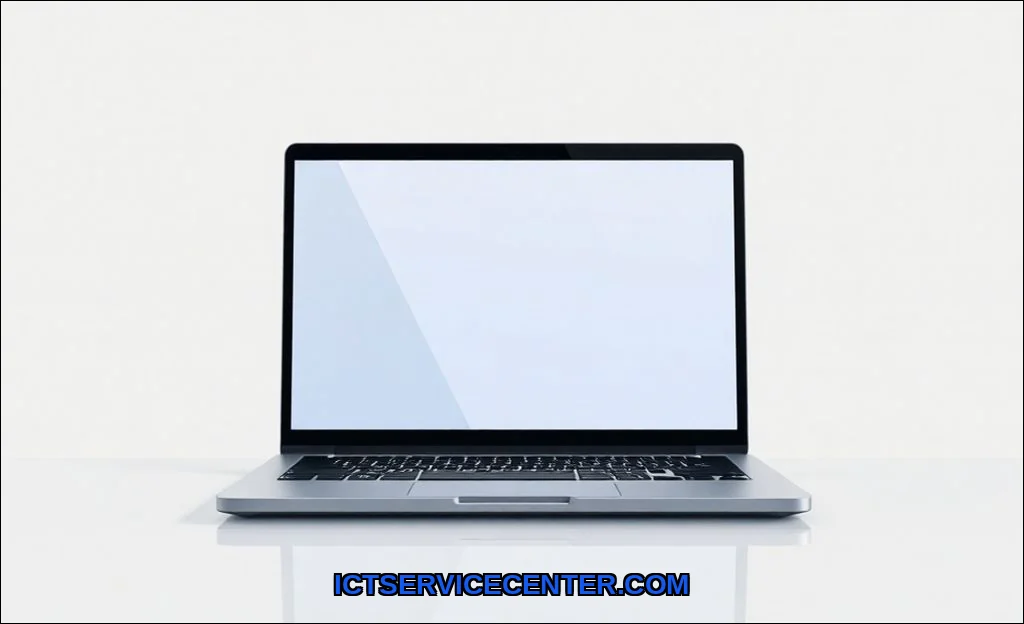
At its core, a touchscreen laptop is exactly what it sounds like: a traditional portable computer with a display that responds to finger (or stylus) input. But that simple definition hides a world of variety. It’s not one single thing. You have standard clamshells that just add touch, and then you have the more flexible 2-in-1 designs that morph between laptop and tablet. The magic isn’t just in the screenit’s in the hinge, the software, and the intent behind the design. It bridges the gap between the structured work environment of a traditional laptop and the freeform interaction of a tablet.
How Touchscreen Laptops Actually Work: My Hands-On Tech Breakdown
Peel back the glossy display, and you’ll find a layer of sensors. Most modern laptops use capacitive touch technology. Here’s the simple version: your finger disrupts a tiny electrostatic field on the screen’s surface. The controller pinpoints that disruption with impressive accuracy. I’ve tested resistive screens (the kind you press with a stylus) on older units, and capacitive is far superior for finger usesmoother, more responsive, and capable of multi-touch gestures like pinch-to-zoom.
The real-world impact? It feels immediate. Swiping between virtual desktops in Windows 11 with a three-finger swipe is genuinely satisfying. But this layer adds complexity. It can make the screen assembly slightly thicker and, as we’ll discuss, has implications for battery life and durability. The best displays, often protected by something like Gorilla Glass, feel solid and resist smudges reasonably well.
The Software Side: Where Touch Makes or Breaks the Experience
Hardware is only half the story. I’ve used touchscreen laptops running Windows, Chrome OS, and even some Linux distributions. The experience varies wildly. Windows 11, with features like Windows Ink, is clearly designed for touch. Buttons are bigger, gestures are baked in, and certain apps shine. Yet, I still encounter older desktop software where poking at tiny menus with my finger is an exercise in frustration. macOS, in contrast, has largely resisted touch on the MacBook, focusing instead on the iPad. This software optimizationor lack thereofis a critical missing piece in many discussions.
The Main Types You’ll Encounter: 2-in-1s, Convertibles & More
Walking into a store, you’ll see three main categories. Knowing the difference is key to choosing the right tool.
- Traditional Clamshell with Touch: This looks like any other laptop. The screen doesn’t bend backwards or detach. You get touch input, but the form factor is fixed. It’s for someone who wants touch as a secondary input method without the complexity of a moving hinge.
- Convertible Laptop (or 2-in-1): This is the most common flexible design. A robust hinge mechanism allows the screen to rotate 360 degrees, transforming from laptop to tablet to “tent” mode for presentations. I’ve used everything from the Microsoft Surface Laptop Studio to Lenovo’s Yoga series this way. The hinge is everythingit needs to feel sturdy in every position.
- Detachable Tablet: Think Microsoft Surface Pro or Samsung Galaxy Book. The screen literally detaches from the keyboard base, becoming a pure tablet. This is the closest laptop-like experience to an iPad Pro, but with full Windows or Chrome OS inside.
The Real Pros and Cons: My Experience After Daily Use
After using a touch display laptop as my primary machine for months, here’s my honest take.
What I Genuinely Love
- Intuitive Navigation: Scrolling through web pages, PDFs, and long documents is faster and feels more natural with a swipe. Zooming in on maps or photos is instant.
- Creative & Note-Taking Boost: With stylus support and an active stylus, drawing, annotating, and jotting down notes is transformative. It’s why artists often ask for the best touchscreen laptop for drawing.
- Better Presentation & Collaboration: In tent or stand mode, it’s perfect for showing content to someone across a table. You can also hand it to a colleague for direct input.
- The “Hybrid” Advantage: A hybrid laptop like a convertible adapts to my task. Laptop mode for writing, tablet mode for reading on the couch.
The Frustrations You Need to Accept
- The Smudge Factor: It’s real. Your screen will constantly need cleaning, especially if you use touch frequently.
- Battery Life Impact: So, do touchscreen laptops drain battery faster? In my testing, yes, but not drastically. The touch layer and a brighter screen (to combat glare) consume extra power. You might lose 30-60 minutes compared to an identical non-touch model. It’s a trade-off for the functionality.
- Screen Glare and Durability: The glossy finish needed for touch creates glare. The screen is also more expensive to repair if cracked.
- The “Gorilla Arm” Effect: Using touch on a vertical screen for extended periods is uncomfortable. Your arm gets tired. It’s best for short, frequent interactions.
| Aspect | Touchscreen Laptop | Traditional Non-Touch Laptop |
|---|---|---|
| Primary Input | Trackpad/Keyboard + Touch/Stylus | Trackpad/Keyboard Only |
| Interaction Style | Direct, intuitive | Indirect, precise |
| Best For | Content consumption, creativity, presentations | Long-form typing, coding, marathon work sessions |
| Screen Finish | Glossy (for touch) | Often Matte (anti-glare) |
| Typical Cost | Higher | Lower for equivalent specs |
Who Should (and Shouldn’t) Buy One: Matching Needs to Tech
This is the crucial question: are touchscreen laptops worth it for you?
You’ll likely appreciate a touchscreen if you: are a student annotating lectures, a creative professional sketching ideas, a frequent presenter, or someone who consumes a lot of media and loves the tablet-like touch interface. The touchscreen vs non-touchscreen debate leans toward touch for these users.
You can probably skip it if: your work is almost entirely typing and coding, you’re on a strict budget, you prioritize maximum battery life above all else, or you simply know you’ll never use the feature. A classic clamshell will serve you better.
The touchscreen laptop vs tablet comparison matters here too. If your primary need is a consumption device with some light work, a tablet with a keyboard might suffice. If you need full desktop software and productivity, the laptop form is still king.
Key Features to Look For When You’re Shopping
If you’re sold on touch, don’t just buy the first one you see. Focus on these specifics from my testing.
- Display Quality & Technology: Look for an IPS panel for good viewing angles when using touch. OLED is stunning for contrast but can be more reflective. Resolution mattersFull HD is the minimum, but QHD is nicer for detail.
- Stylus Integration: If you want pen input, check if the stylus is included or sold separately. See how it attaches and charges. An active stylus with pressure sensitivity and tilt support is a must for artists.
- Hinge Build Quality: For convertibles, open and close it. Feel for wobble. It should be smooth yet firm in every position.
- Battery Life Claims: Read reviews for real-world battery tests. Manufacturer claims rarely account for active touch use. Look for specific metrics on battery life degradation.
- Operating System: Windows 11 and Chrome OS are touch-friendly. Consider how the software you use daily will work with a finger.
The Future of Touch on Laptops: Where It’s Headed
Touch isn’t going away. I see it becoming more refined and, paradoxically, more specialized. We’ll see better haptic feedback to simulate textures, improved anti-smudge coatings, and smarter software that knows when you want to use touch versus a trackpad. The line between the laptop and the desktop will remain clear, but the line between laptop and tablet will keep blurring.
I also expect more innovation in hinge design and dual-screen formats. The core valueoffering a more natural, direct way to interact with our digital workspacewill only grow. Whether it becomes the default for all laptops remains to be seen. For now, it’s a powerful option for the right user.
My final take? A touchscreen laptop, especially a well-built 2-in-1, is a fantastically versatile tool. It won’t replace your mouse for precision work, but it adds a layer of interaction that can make many tasks quicker and more enjoyable. Just go in with clear eyes. Know the trade-offs, prioritize a good display and hinge, and you might find yourself wondering how you ever managed without it.