
💡 Recommended Product:
If you’re looking for quality equipment for this project, consider the
Creality CFS Motherboard
available on Amazon. It’s a popular choice among professionals and DIY enthusiasts alike.
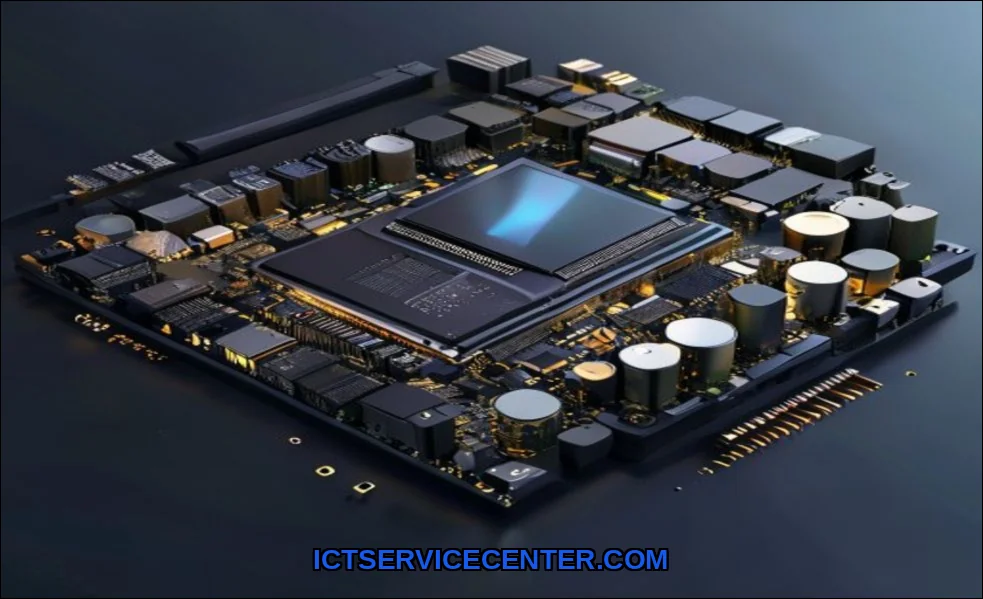
I’ve spent more hours than I care to count hunched over desktop builds, swapping out parts, and chasing down gremlins in the wiring. If there’s one component I’ve learned to respect above all others, it’s the motherboard. It’s not flashy like a graphics card, nor does it hum with the raw speed of an SSD. But without it, nothing works. It’s the central nervous system of your PC, the unsung hero that makes every other part talk to each other. Let me walk you through what this board really does, why it matters for your performance, and how to pick the right one without losing your mind.
What Is a Motherboard and Why It Matters
Simply put, the motherboard is the main printed circuit board (PCB) inside your desktop. It’s the physical backbone that holds everything together. I’ve seen beginners treat it like a simple tray, but in my experience, it’s far more than that. It distributes power, routes data, and provides the communication highways for your CPU, RAM, storage, and every add-on card.
Think of it like the foundation of a house. You can have the best appliances and wiring, but if the foundation is weak or poorly laid, the whole structure suffers. The same goes for your PC. A cheap motherboard can bottleneck a high-end processor or limit your upgrade path. I once built a rig with a budget board and a top-tier CPU; the voltage regulation was so poor I couldn’t even hit the advertised clock speeds. That lesson stuck.
Key Components of a Desktop Motherboard
Let’s get our hands dirty. I’ve pulled apart dozens of boards, and the anatomy is surprisingly consistent once you know what to look for. Here’s the breakdown of the motherboard components you absolutely need to recognize.
The CPU Socket
This is the most obvious landmark. The CPU socket is where your processor sits. In my experience, this is the first thing you should check when planning a build. Intel and AMD use different sockets (LGA 1700, AM5, etc.), and they are not interchangeable. I’ve seen people try to force a chip into the wrong socketit never ends well. The socket also dictates which coolers you can use, so don’t skip this step.
The Chipset
The chipset is the traffic cop of the board. It manages data flow between the CPU, RAM, storage, and peripherals. For example, an Intel Z790 chipset allows overclocking, while a B760 does not. On the AMD side, the X670E offers more PCIe lanes than the B650. I’ve tested boards with different chipsets side-by-side, and the difference in storage speeds and expansion capability is real. Do your research hereit’s worth it.
RAM Slots
You’ll spot the RAM slots immediatelythey’re the long, narrow slots usually to the right of the CPU. Modern boards support DDR4 or DDR5, and they are keyed differently. I once accidentally bought DDR5 RAM for a DDR4 board. (Yes, I felt foolish.) The number of RAM slots (typically two or four) determines your maximum memory capacity and dual-channel configuration. For most users, two sticks in the correct slots (usually A2 and B2) give the best performance.
Expansion Slots
The expansion slots are where you plug in your graphics card, sound card, or Wi-Fi adapter. The main ones are PCIe x16 (for GPUs) and PCIe x1 (for smaller cards). In my testing, a PCIe 4.0 x16 slot doesn’t bottleneck a modern GPU, but PCIe 3.0 can start to show limits with high-end cards. I’ve also noticed that some budget boards have plastic-reinforced slots that crack under heavy GPU weight. Look for metal-reinforced slots if you plan on a chunky cooler.
Power Delivery (VRM)
This is a hidden hero. The VRM (Voltage Regulator Module) converts the power from your PSU into clean, stable voltage for the CPU. I’ve run stress tests on boards with weak VRMs; the temperatures skyrocket, and the CPU throttles. For a high-end AMD Ryzen 9 or Intel Core i9, you need a board with robust VRMs. It’s not something you can see easily, but it’s critical for desktop performance.
BIOS/UEFI Firmware
The BIOS (or modern UEFI) is the low-level software that initializes your hardware before the OS loads. I’ve used boards with clunky, outdated BIOS interfaces that made overclocking a nightmare. On the flip side, a clean UEFI with a mouse-driven interface is a joy. This is also where you enable XMP for RAM speeds or update the firmware for CPU compatibility.
Onboard Audio and Networking
Most boards include integrated audio (Realtek ALC series) and networking (Realtek or Intel Ethernet). I’ve compared onboard audio to a dedicated sound card; for casual listening, it’s fine. But for competitive gaming, I noticed better positional audio with a high-end onboard codec like the ALC1220. Similarly, Intel’s Ethernet controllers tend to have lower latency than Realtek’s in my tests.
How the Motherboard Connects Everything Together
Understanding how motherboard connects components is like learning the plumbing of a house. Data travels over tracesthin copper lines etched into the PCB. The chipset acts as a hub, connecting the CPU to slower devices like SATA drives and USB ports. Meanwhile, the CPU directly controls the PCIe lanes for your GPU and NVMe SSDs.
I’ve seen this firsthand when swapping a SATA SSD for an NVMe drive. The difference in load times was dramatic, but only because the motherboard had a dedicated M.2 slot with PCIe 4.0 lanes. On older boards, that same drive would be bottlenecked. It’s a perfect example of how the motherboard dictates the performance ceiling of your other components.
Motherboard Form Factors: ATX, Micro-ATX, Mini-ITX
The form factor determines the physical size and layout of the board. I’ve built in all three, and each has trade-offs.
| Form Factor | Dimensions | Expansion Slots | Best For |
|—————–|—————-|———————-|————–|
| ATX | 305 x 244 mm | 7 slots | Full-sized builds, multiple GPUs, extreme cooling |
| Micro-ATX | 244 x 244 mm | 4 slots | Balanced builds, good value, smaller cases |
| Mini-ITX | 170 x 170 mm | 1 slot | Compact PCs, HTPCs, travel rigs |
In my experience, ATX boards are the most forgiving for beginnersthey have plenty of room for cable management and cooling. Micro-ATX is my go-to for budget builds; it’s cheaper and fits in most cases. Mini-ITX is a challenge. I once spent two hours routing cables in a tiny case because the motherboard layout was cramped. It’s rewarding but not for the faint of heart.
Choosing the Right Motherboard for Your Build
Here’s where I see most people stumble. The desktop motherboard guide should start with your CPU choice. If you’re building an Intel system, you need a board with the correct socket and chipset for your generation. For AMD, the AM5 platform is current, but AM4 boards are still viable for budget builds.
Ask yourself these questions:
– Do I need overclocking? (Get a Z-series or X-series chipset.)
– How many storage drives will I use? (Check the M.2 and SATA count.)
– What GPU do I plan to use? (Ensure PCIe slot spacing allows for a thick card.)
– Do I need Wi-Fi and Bluetooth built-in? (Some boards include it; others don’t.)
I once recommended a high-end board to a friend who only needed a basic office PC. He never used the extra features. For a solid home or office machine, I often point people toward a reliable mid-range motherboard and pair it with a good processor. If you’re looking for a pre-built option that’s already optimized, check out our guide for the best desktop computer for home use. For productivity workloads, the best desktop for office work can save you from the headache of DIY troubleshooting.
Common Motherboard Issues and Troubleshooting Tips
I’ve fixed more dead boards than I can count. Here are the most common problems I’ve encountered:
– No power or boot: Check the 24-pin and 8-pin power connectors. I’ve forgotten the CPU power plug more than once.
– RAM not detected: Reseat the sticks and try different RAM slots. Sometimes a single bad slot can cause issues.
– BIOS beeps or error codes: These are your friend. A single long beep often means a RAM issue. Use the manual to decode them.
– USB ports not working: Update the chipset drivers. I’ve seen older boards need a BIOS update to fix USB compatibility.
– Overheating VRMs: If your CPU throttles under load, check the VRM temps with a sensor tool. A case fan aimed at the VRM heatsink can help.
If your board is completely dead, a BIOS flashback (if supported) can revive it without a CPU. I’ve used this feature on ASUS boards multiple timesit’s a lifesaver.
Practical Conclusion
The motherboard is the heart of your desktop. It’s not just a place to plug things in; it’s the foundation that determines your system’s stability, upgradeability, and performance. In my years of building and repairing PCs, I’ve learned that skimping on the motherboard almost always leads to regret later. Invest in a board with solid power delivery, enough expansion slots, and the form factor that fits your case.
Start with your CPU, match it to the right socket and chipset, and then choose a board that gives you room to grow. And if you’re diving into a custom build, don’t forget the little things: check the RAM slots for dual-channel support, ensure your cooler fits, and update the BIOS right away. Your future self will thank you.