How the Motherboard Connects All PC Components
When you open a desktop PC or laptop, the first thing you see is the motherboard. It’s the large, flat circuit board that everything else plugs into. But how does this single board orchestrate the complex symphony of your computer’s components? Understanding this process is key to troubleshooting, upgrading, or even just appreciating the marvel of modern computing.
Think of the motherboard as the nervous system and the central nervous system of your machine. It doesn’t just hold components in place; it provides the electrical and data pathways that allow your CPU, RAM, storage, and graphics card to communicate instantly. If you’ve ever wondered how does a motherboard work, or what happens when you press the power button, you’re in the right place. For a practical look at diagnosing issues, many professionals recommend the 502PC Computer Motherboard as a solid baseline for understanding modern layout and connectivity.
The Motherboard as the Central Hub
Your motherboard is the central hub of the entire system. It’s not just a passive backplane; it’s an active traffic controller. Every piece of data, every instruction from your software, and every bit of power flows through this board.
What is a Motherboard?
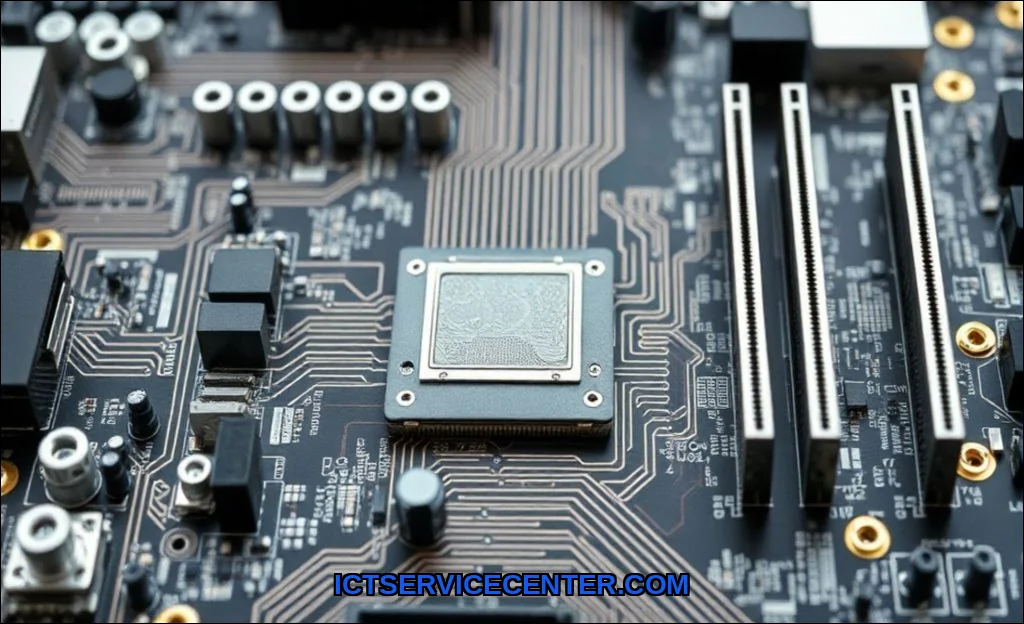
At its core, a motherboard is a printed circuit board (PCB) that provides the mechanical and electrical connections for all your computer’s hardware. It defines your system’s form factor (like ATX, Micro-ATX, or Mini-ITX), which determines the size of the case you can use and the number of expansion slots available. The motherboard anatomy is a study in efficient engineering, with layers of copper traces acting as highways for electricity and data.
The CPU Socket and System Bus
The heart of your computer is the CPU, and it sits in a specific socket on the motherboard. This socket is not a universal port. Intel and AMD use different socket types (like LGA 1700 or AM5), and even different generations within a brand may require a new socket. The connection here is direct, with hundreds of pins making contact between the CPU and the motherboard’s traces.
How the CPU Connects to the Chipset
The primary data highway from the CPU to the rest of the system is called the system bus. This bus connects the CPU to the chipset, which is the motherboard’s central traffic controller. In older designs, this was split into the northbridge southbridge architecture. The northbridge handled high-speed connections (RAM and GPU), while the southbridge managed slower peripherals (hard drives, USB ports). Modern CPUs have integrated the memory controller and PCIe lanes directly, meaning the CPU now talks directly to RAM and graphics cards. The chipset’s role has evolved to manage storage, USB ports, audio, and networking, acting as a bridge between the CPU and these slower components.
Memory (RAM) and Expansion Slots
Your computer’s short-term memory, or RAM, connects via slots near the CPU. The memory controller, now built into the CPU, manages data flow to and from these modules. The motherboard’s layout dictates which slots to populate first for optimal dual-channel or quad-channel performancethis is crucial for speed. You’ll see this information in your motherboard’s manual.
PCIe Lanes and Graphics Cards
For dedicated graphics, sound cards, or high-speed storage, you use PCIe (Peripheral Component Interconnect Express) slots. The number of PCIe lanes available from your CPU and chipset is a major performance factor. A graphics card typically uses 16 lanes (x16) for maximum bandwidth. How do PCIe slots connect to the motherboard? They connect directly to the CPU’s PCIe controller for the primary x16 slot, while secondary slots often route through the chipset. This is why using a second graphics card can sometimes reduce the bandwidth of the first. Different expansion slot types (PCIe x1, x4, x8, x16) are physically different lengths to prevent mismatches.
Storage Interfaces: SATA, M.2, and NVMe
Your long-term storagehard drives and SSDsconnect through specific interfaces. The traditional SATA port is still common for 2.5-inch SSDs and 3.5-inch HDDs, offering speeds up to 6 Gbps. But for modern performance, you want M.2 slots.
Connecting Hard Drives and SSDs
M.2 slots are small, keyed connectors on the motherboard that support either SATA or the much faster NVMe protocol. NVMe drives use PCIe lanes directly, bypassing the SATA controller entirely. This is how you achieve read speeds of 7,000 MB/s or more. Data transfer between your storage and the CPU is handled by the chipset or, in the case of a CPU-connected M.2 slot, directly by the processor. This direct connection reduces latency significantly.
Power Delivery and Connectors
Without power, your motherboard is just a fancy paperweight. Power delivery is a complex process that starts with the power supply unit (PSU). The motherboard distributes this power to every component, stepping down voltages as needed.
The 24-Pin and CPU Power Cables
The main power connector is the 24-pin ATX cable. It provides power to the motherboard itself, the RAM, and the chipset. A separate 4-pin or 8-pin (or even dual 8-pin) CPU power cable connects near the CPU socket. This dedicated line ensures the processor gets stable, clean power, especially under load. Voltage regulator modules (VRMs) on the motherboard then convert this power to the precise voltages needed by the CPU and memory.
I/O Ports and Peripheral Connectivity
The Input/Output (I/O) panel on the back of your computer is the motherboard’s interface with the outside world. This includes USB ports, audio jacks, Ethernet, and video outputs. But these ports are just the physical connectors.
USB, Audio, and Network Controllers
Behind each port is a controller. USB ports are managed by a USB host controller, which is often integrated into the chipset. Audio jacks are driven by an audio codec chip (like those from Realtek), which converts digital signals to analog sound. The Ethernet port is managed by a network interface controller (NIC). These controllers all communicate with the CPU through the chipset, using the system bus to send and receive data. This is a perfect example of what is the role of the chipset in connecting components.
How Software Talks to Hardware
All this hardware is useless without software to manage it. The motherboard provides the foundation for the operating system to interact with the physical components.
The Role of the BIOS and Drivers
When you press the power button, the first code that runs is the BIOS (Basic Input/Output System) or its modern successor, UEFI. This firmware initializes the hardware, performs a power-on self-test (POST), and then loads the bootloader. The BIOS is stored on a small flash memory chip on the motherboard. After the OS loads, drivers act as translators, allowing the operating system to send commands to specific hardware components. For a deeper dive into how the CPU executes instructions from memory, you can read about program execution at the hardware level. Two often-overlooked components are the CMOS battery, which keeps your BIOS settings saved when the PC is off, and the TPM module (Trusted Platform Module), which handles encryption keys for security features like BitLocker. Embedded controllers manage low-level tasks like fan speeds and power sequencing.
Understanding how does a motherboard connect the cpu to ram and other components is the first step in diagnosing problems. If your PC won’t boot, knowing the power delivery path helps you test the PSU first. If your USB ports are slow, you know the chipset is involved. For hands-on repair, knowing the motherboard anatomy is critical. If you’re dealing with a faulty board, our guide on how to repair a laptop motherboard can walk you through the process. Similarly, when testing individual parts, you can learn how to isolate a faulty component by reading about how to test laptop components.
Conclusion
The motherboard is the unsung hero of your computer. It’s a complex, layered system of buses, controllers, and power delivery networks that makes everything work together. Whether you’re building a new PC, troubleshooting a crash, or just curious, understanding these connections gives you real power. You can diagnose issues faster, make smarter upgrade choices, and truly appreciate the engineering that sits inside your case. Your next step? Open your own machine and trace the pathways. You’ll see the system bus, the chipset, and the PCIe lanes at work. It’s a fascinating view into the heart of modern computing.