Fix a Dead USB Port on Your Laptop: 5 Proven Solutions
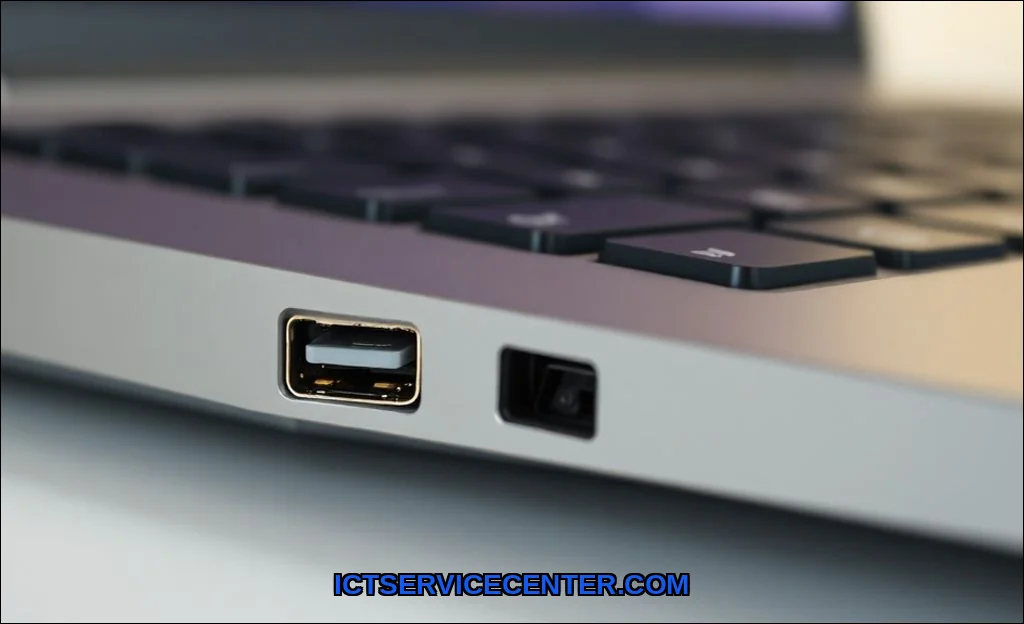
Few things are more frustrating than plugging in a USB drive or your mouse and getting nothing. No chime. No notification. Your laptop simply ignores the device. It feels like a dead end. But it’s usually not.
This is a common problem. And most of the time, it has a straightforward fix. We’ll walk through the reasons your laptop USB port is not working and, more importantly, how to get it working again. No panic. Just practical steps.
Common Causes of a Non-Working USB Port on a Laptop
Before we dive into fixes, it helps to understand why this happens. A dead USB port can be a software issue, a power management conflict, or a hardware problem.
- Driver corruption: The software that lets your laptop talk to USB devices can get corrupted after an update or a crash.
- Power management settings: Windows sometimes turns off USB ports to save battery. A feature called USB Selective Suspend is often the culprit.
- Physical damage or debris: Dust, lint, or a bent pin inside the port can block a connection. A loose connection from wear and tear is also common.
- Static discharge (ESD): A sudden electrostatic shock can temporarily disable a port. This is an often-overlooked cause.
- Motherboard USB header issues: On some laptops, the internal connector from the motherboard to the port can come loose.
We’ll tackle each of these. Start with the simplest fix and work your way up.
Step 1: Restart and Check the Port Physically
Yes, the classic “turn it off and on again.” It works. A full restart clears memory and resets the USB controllers. Do a full shutdown, not just a restart from the menu. Wait ten seconds. Power it back on.
Now, look at the port. Grab a flashlight. Can you see anything inside? Lint, dust, or a bent pin can block the connection. Use a wooden toothpick (not metal) to gently remove debris. Blow compressed air if you have it.
Test the port with a different device. A mouse, a keyboard, a flash drive. If one device works but another doesn’t, the problem is the device, not the port. If nothing works, move to the next step.
A Quick Hardware Test
Try plugging your device into a different port on the same laptop. If it works there, you’ve isolated the issue to one specific port. If no ports work, the problem is likely system-wide (software or motherboard).
While you’re troubleshooting, a reliable external hub can help you keep working. For this project, many professionals recommend the Anker USB Hub which is available here. It’s a great way to add ports while you diagnose the built-in ones.
Step 2: Run Windows USB Troubleshooter
Windows has a built-in tool for this. It automates many of the checks you’d do manually. It’s worth running first.
- Open the Start menu and type “Troubleshoot settings.”
- Select “Additional troubleshooters.”
- Find “Hardware and Devices.” Click it, then click “Run the troubleshooter.”
- Follow the on-screen prompts.
The tool will scan for common issues like driver problems or power conflicts. It will often apply a fix automatically. If it finds something, note what it was. That gives you a clue for the deeper steps below.
Step 3: Update or Reinstall USB Drivers
Drivers are the bridge between your hardware and your operating system. When that bridge is broken, nothing gets through. This is the most common software fix for a USB port not working on laptop Windows 10 (or Windows 11).
How to Update USB Drivers
- Right-click the Start button and select Device Manager.
- Expand the “Universal Serial Bus controllers” section.
- Right-click each item that says “USB Root Hub” or “Generic USB Hub” and select “Update driver.”
- Choose “Search automatically for drivers.”
Windows will check for updates. If it finds one, let it install. Restart your laptop.
How to Reinstall USB Drivers (The Deeper Fix)
Sometimes an update isn’t enough. A corrupted driver needs a clean reinstall.
- In Device Manager, expand “Universal Serial Bus controllers.”
- Right-click each USB Root Hub entry and select “Uninstall device.”
- Do not check the box that says “Delete the driver software for this device.”
- Repeat for all USB Root Hub entries.
- Restart your laptop.
Windows will automatically reinstall the drivers on boot. This clears any corruption. If you’re dealing with a USB controller driver error, this step almost always resolves it.
Step 4: Disable USB Selective Suspend Setting
This is a power-saving feature. It sounds good in theory. In practice, it often causes a laptop USB port power issue. Windows decides your port is idle and cuts its power. Your device stops working.
- Open the Control Panel and go to “Power Options.”
- Click “Change plan settings” next to your active power plan.
- Click “Change advanced power settings.”
- Find “USB settings” and expand it.
- Expand “USB selective suspend setting.”
- Set it to “Disabled” for both “On battery” and “Plugged in.”
- Click Apply and OK.
Test your USB port again. This fix alone resolves a surprising number of cases where the USB port is not detecting devices.
Step 5: Check for Hardware Damage or Loose Connections
If software fixes don’t work, it’s time to think physically. Is the port itself broken? A laptop USB port loose connection is a common hardware issue. The port might wobble or feel loose when you plug a device in.
Visual Inspection
- Look inside the port with a bright light. Are any of the small metal pins bent or missing?
- Is the plastic tongue inside the port cracked or broken?
- Does the plug feel unusually tight or loose?
If you see damage, do not force a device in. You can cause a short circuit. This is a clear sign of physical damage requiring professional intervention.
Internal Connection Check (Advanced Users Only)
On some laptops, the USB port is connected to the motherboard via a small ribbon cable. This cable can come loose from vibration or a drop. If you’re comfortable opening your laptop (and it’s out of warranty), you can reseat this connection. This is a specific motherboard USB header issue that many guides overlook. If you’re not comfortable, skip this and see the next section.
When to Consider Professional Laptop Repair
You’ve tried the software fixes. You’ve checked the power settings. You’ve inspected the port. If your laptop USB port is not working after all these steps, the problem is likely on the motherboard. Soldering a new port or replacing a USB controller chip requires specialized tools.
Don’t try to solder a port yourself unless you have experience. You risk damaging the motherboard beyond repair. The cost of a USB port replacement cost estimate typically ranges from $50 to $150, depending on the laptop model and labor. For a Surface device, Microsoft’s official repair service is often the safest bet. For other brands, a reputable local shop with good reviews is a solid choice.
If you’re experiencing other issues alongside the USB problem, like a laptop keyboard not working fix, it could indicate a broader motherboard issue. In that case, a comprehensive diagnostic from a professional is the best path forward.
Where to Get Help
- HP: Their official guide on knowing when you need laptop repair is a good starting point.
- Microsoft Surface: You can get service or repair for your Surface directly from Microsoft.
- DIY Repairs: For those who want to understand the hardware, iFixit’s laptop repair guides are excellent resources.
- Local Service Centers: If you’re in Bangladesh, check out Star Tech’s service center or Smart Cares for reliable repair options. For a broader search, Laptop Care IT and Computer Mania list several reputable shops.
Before you give up, remember that a non-working USB port is rarely a reason to buy a new laptop. A simple USB hub can restore functionality immediately. And a professional repair can fix the port permanently. You have options.
Start with the software fixes. They’re free and take minutes. If that fails, acknowledge the hardware issue and get a professional opinion. Your laptop is not broken beyond repair. It just needs the right attention.